
Learn how corporate teams build AI workflows for daily operations using Notion AI — from workflow architecture to team collaboration. No coding needed.
Introduction
Most corporate teams don’t have an AI problem. They have a coordination problem.
Meetings get scheduled without context. Updates get buried in email threads. Decisions get made without documentation. Knowledge walks out the door when someone leaves the team. The same information gets re-researched, re-written, and re-explained in different departments, over and over again.
Corporate AI workflows don’t fix this by replacing people. They fix it by creating a structured, AI-assisted layer on top of how teams already work — so information flows faster, decisions get documented automatically, and repetitive coordination tasks stop consuming hours of people’s time every week.
This guide is for corporate teams, HR departments, operations leaders, and business professionals who want to build AI workflows into their daily operations without a dedicated IT project or a complex technical implementation. The tool we’ll use is Notion AI — the most practical platform for building team-wide AI workflow systems that any department can adopt and maintain without developer support.
By the end, you’ll have a clear framework for designing a corporate AI workflow, a step-by-step process for building it in Notion AI, and a practical understanding of how different teams across an organization apply this approach to real operational problems.
Quick Summary
- Corporate AI workflows solve coordination and information problems — not just individual task efficiency.
- Notion AI combines workspace, documentation, and AI assistance in one platform, making it the most accessible entry point for team-wide workflow architecture.
- Building a corporate AI workflow starts with mapping how information moves across your team today, before adding any AI layer.
- The approach works across departments — HR, operations, marketing, legal, and executive teams all benefit from the same underlying framework.
- Free plan available; paid plans start at $10 per user per month.
Table of Contents
- What You’ll Learn
- What Corporate AI Workflows Actually Solve
- Tool Overview: Notion AI
- Step-by-Step: Build an AI Workflow for Your Team’s Daily Operations
- Video Tutorial
- How Businesses Use This Tool
- Best Practices
- Common Mistakes to Avoid
- Alternatives Worth Considering
- FAQ
- Key Takeaways
- Conclusion
What You’ll Learn
- Why most corporate teams need workflow architecture before they need AI tools
- How Notion AI works as a platform for building and running team AI workflows
- A step-by-step process for mapping, designing, and activating a corporate AI workflow
- How to build AI assistance directly into your team’s daily documentation and communication processes
- Real use cases across HR, operations, marketing, and enterprise teams
- What to avoid when rolling out AI workflows across a team or department
What Corporate AI Workflows Actually Solve
Before building anything, it helps to be precise about what “AI workflow” means in a corporate context — because the term gets used loosely enough to mean almost nothing.
A corporate AI workflow is a structured process where AI assists with a repeatable, defined sequence of tasks that a team performs regularly. It’s not a chatbot. It’s not a single tool. It’s the combination of a clear process design with AI assistance built into specific steps of that process.
The problems corporate AI workflows are best positioned to solve:
- Information that should exist but doesn’t — meeting decisions that never get documented, project context that lives only in someone’s head, institutional knowledge that disappears when a team member leaves
- Repetitive communication that consumes skilled time — status update emails, weekly report compilation, briefing documents that follow the same structure every time
- Coordination delays caused by manual handoffs — requests that wait in someone’s inbox, approvals that get lost in Slack threads, onboarding steps that happen inconsistently because there’s no defined process
- Inconsistent output quality across team members — different people producing the same type of document in wildly different formats and quality levels
AI workflow orchestration at the corporate level is effective precisely because these problems are structural, not individual. One person using ChatGPT to write faster is a productivity improvement. A team with an AI-assisted workflow architecture that handles documentation, briefing, status tracking, and knowledge management is an operational improvement.
Tool Overview: Notion AI
Notion is a workspace platform where teams build documentation, project management systems, databases, and knowledge bases. Notion AI adds an AI assistance layer directly into that workspace — meaning AI is available inside the same environment where your team already does its work, rather than as a separate tool that requires context-switching.
For corporate teams specifically, this matters because workflow adoption is always the biggest challenge. A new AI tool that requires teams to leave their existing workspace rarely gets used consistently. Notion AI’s integration into an existing workspace removes that adoption barrier almost entirely.
Key Features:
- AI writing and editing — generate, summarize, and rewrite documents directly inside any Notion page
- AI Q&A — ask questions about your team’s Notion workspace and get answers sourced from your existing documentation
- Autofill database properties — automatically populate fields in a database based on content — categorizing meeting notes, extracting action items, tagging priorities
- Meeting note summarization — paste meeting transcripts and Notion AI extracts decisions, action items, and owners automatically
- Template generation — describe a document type and Notion AI creates a reusable template for your team
- Translation and tone adjustment — rewrite communications for different audiences or languages directly in the workspace
Why corporate teams use it:
- AI assistance is available inside the team’s existing workspace — no context switching required
- Works across departments — same platform, different use cases per team
- Free plan available for individuals and small teams; team plans unlock AI for all workspace members
- No technical setup or integration required to get started
Ideal use cases:
- Meeting documentation and action item extraction
- Standard Operating Procedure (SOP) creation and maintenance
- Weekly status report generation
- New employee onboarding wikis
- Cross-department briefing documents
- Project retrospectives and knowledge capture
Official Website: https://app.notion.com/ Official Documentation: https://www.notion.com/help
Step-by-Step: Build an AI Workflow for Your Team’s Daily Operations
This tutorial builds a Meeting Intelligence Workflow — one of the highest-value corporate AI workflows for any team. It transforms the way meeting outcomes get captured, distributed, and acted on — solving one of the most universal coordination problems in corporate environments.
The workflow handles: meeting notes → AI-generated summary → action item extraction → owner assignment → automatic status tracking.
Step 1: Audit How Your Team Handles Information Today
Why it matters: Every corporate AI workflow starts with understanding how information currently moves — or fails to move — across your team. Building AI into a broken or undefined process produces a faster broken process. The audit identifies exactly where the AI layer will add the most value.
What to do: Spend thirty minutes mapping your team’s current daily operational rhythm. Answer these questions honestly:
- Where does meeting output currently go? (Someone’s notebook? A shared doc no one reads? Nowhere?)
- How does your team track action items between meetings? (Slack messages? A spreadsheet? Verbal agreement?)
- Where does institutional knowledge live? (In individuals’ heads? In documents? In email threads?)
- What documents does your team produce repeatedly that follow the same structure each time?
- Where are the most common handoff failures — the places where information is supposed to move between people but regularly gets lost?
Write the answers down. You’re looking for the single process with the most recurring friction, the most time consumed, and the most consistent failure points. That’s your starting workflow.
Expected result: A clear identification of the one daily operational process — most likely meeting documentation, status reporting, or onboarding — that will become your first corporate AI workflow.
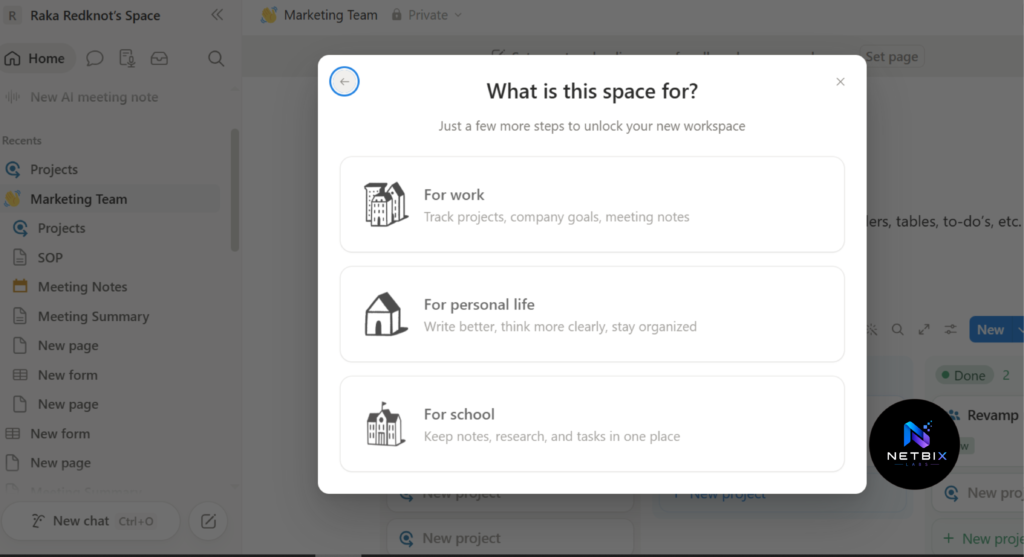
Step 2: Create Your Team’s Notion Workspace and Set Up the Meeting Database
Why it matters: The meeting database is the structural foundation of this workflow. Every meeting becomes a record in the database — and Notion AI operates on that record to extract, summarize, and categorize the meeting’s output automatically. Without this structure, AI assistance has nothing consistent to work with.
What to do:
Part A — Create your Notion workspace:
- Go to https://notion.so and sign up for a free account
- Create a new page titled Team Operations Hub
- This will be the central workspace for your team’s AI workflow
Part B — Build the Meeting Database:
- Inside your Team Operations Hub page, type
/databaseand select Database — Full Page - Name it: Meeting Intelligence Database
- Set up the following properties (Columns) in the database by clicking + Add a property:
- Meeting Name — Text (default, already exists)
- Date — Date property
- Attendees — Person property (lets you tag team members)
- Meeting Type — Select property — add options: Standup, Project Review, Client Call, Strategy, 1:1
- Raw Notes — Text property (where the unprocessed notes go)
- AI Summary — Text property (where Notion AI will generate the summary)
- Action Items — Text property (where AI extracts tasks)
- Status — Select property — add options: Notes Pending, AI Processing, Summary Ready, Actions Assigned
Expected result: A structured database where every meeting becomes a row, and each column captures a specific piece of the meeting’s information — ready for AI to process.
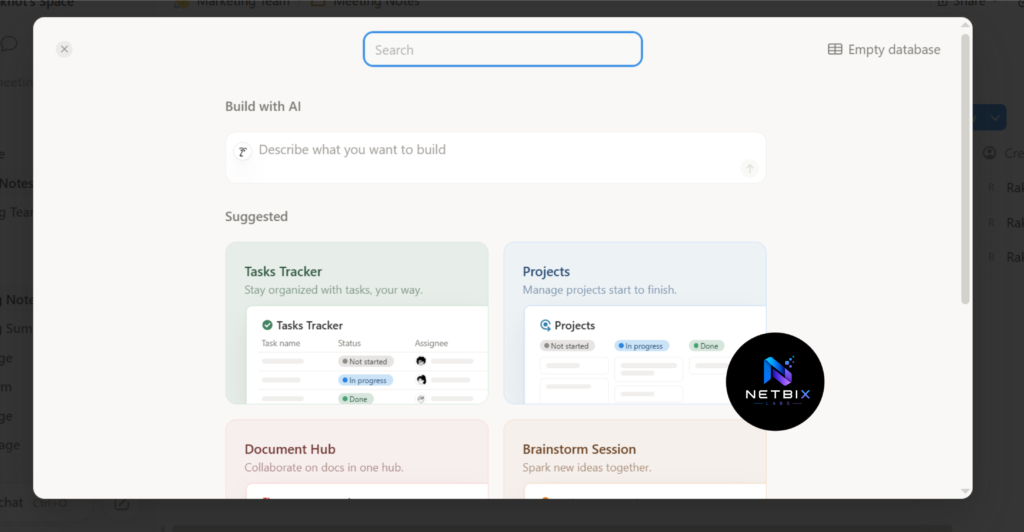
Step 3: Configure Notion AI to Process Meeting Notes
Why it matters: This is the core of the workflow — the step where raw, unstructured meeting notes become a clean, organized summary with action items extracted and attributed to specific owners. What previously required someone to manually write up meeting notes becomes a thirty-second AI task.
What to do:
Part A — Enable Notion AI:
- In your Notion workspace, go to Settings (gear icon, bottom left)
- Click Plans and confirm your plan includes Notion AI — if on the free plan, AI is available for individual use; team AI access requires the Plus plan ($10/user/month)
- Once confirmed, the AI assistant is available throughout your workspace
Part B — Set up the AI processing template:
- Open any entry (row) in your Meeting Intelligence Database
- Click into the Raw Notes field and paste real meeting notes from a recent meeting — include everything, even if it’s messy or informal
- Click into the AI Summary field
- Press the Space bar to open the Notion AI command, or click the AI icon that appears
- Select Summarize — Notion AI will read the Raw Notes field and generate a structured summary
- After the summary generates, click into the Action Items field
- Open Notion AI again and type this custom prompt:
Extract all action items from the Raw Notes above.
For each action item, list:
- The task
- The person responsible (if mentioned)
- The deadline (if mentioned)
Format as a numbered list.
- Review the extracted action items — edit any that are incomplete or misattributed
Part C — Create a reusable template:
- In your Meeting Intelligence Database, click the dropdown arrow on the New button
- Select + New template
- Name it: Standard Meeting Template
- Pre-fill the AI prompt instructions in the Action Items field so the same extraction prompt runs every time a new meeting entry is created
Expected result: A meeting entry where raw notes go in, and a clean AI-generated summary plus a numbered action item list come out — all inside the same database row, accessible to everyone on the team.
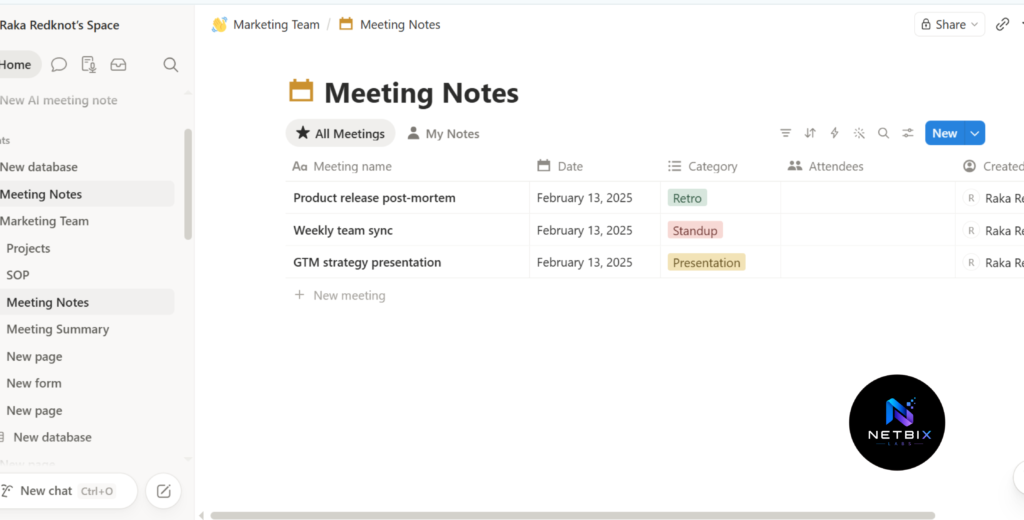
Step 4: Build the Team Collaboration Layer
Why it matters: A workflow that only one person can operate isn’t a team workflow. This step makes the meeting intelligence system accessible and usable for every team member — so the workflow runs consistently regardless of who attended the meeting or who takes the notes.
What to do:
Part A — Create a shared view for the team:
- In your Meeting Intelligence Database, click + Add a view
- Select Board view
- Group by Status — this creates a kanban-style board showing meetings moving from Notes Pending → AI Processing → Summary Ready → Actions Assigned
- Share this view with your team by clicking Share in the top right of the page and inviting team members via email
Part B — Set up a team SOP page:
- Create a new page inside your Team Operations Hub called Meeting Workflow SOP
- Use Notion AI to generate the initial SOP — open AI and prompt:
Write a simple Standard Operating Procedure for how our team
should document meetings using this workflow:
1. Take raw notes during the meeting
2. Paste notes into the Meeting Intelligence Database
3. Run Notion AI to generate summary and action items
4. Assign owners to each action item
5. Update the status to Summary Ready
Keep it under 300 words, written for a non-technical audience.
- Review and edit the AI-generated SOP to match your team’s specific language and context
- Link this SOP page in your Team Operations Hub so every team member can find it
Expected result: A shared team workspace where every member can see all meeting summaries in one board, follow a clear SOP for adding new meetings, and access action items without needing to ask anyone for the notes.
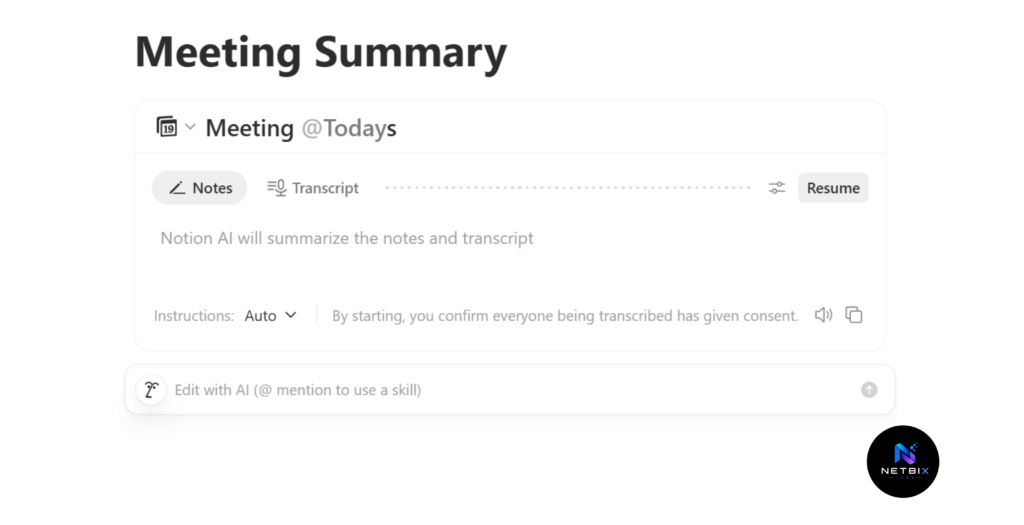
Step 5: Expand the Workflow to Cover Daily Operational Routines
Why it matters: The meeting intelligence workflow proves the concept. Once your team is using it consistently, the same architecture — a structured Notion database with AI processing built into specific fields — applies to every other repetitive operational process your team runs.
What to do: Identify the next two operational processes from your Step 1 audit and build the same structure for each:
For weekly status reports:
- Create a Weekly Status Database with properties: Team Member, Week Of, Key Accomplishments, Blockers, Priorities Next Week, AI Summary
- Each team member fills in their raw update — Notion AI generates a consolidated team summary automatically
- The summary gets shared with leadership without anyone manually compiling it
For onboarding new team members:
- Create an Onboarding Hub page with a checklist database
- Use Notion AI to generate role-specific onboarding checklists from a job description prompt
- New employees work through the checklist independently — managers only step in for tasks that genuinely require their time
Expected result: A growing operational AI workflow system — each new database adding another layer of automated intelligence to how your team captures, processes, and acts on information every day.
Tutorial Video
Seeing firsthand how the database is built, how Notion AI processes meeting notes, and how the team interface looks once the workflow is live is much easier to understand visually. The video tutorial below shows the complete process from start to finish—from auditing existing processes, building the Meeting Intelligence Database, configuring Notion AI for summary and action item extraction, creating team SOPs, and adding a weekly workflow status report as the first expansion.
This video is designed for team leads, operations managers, and HR directors who want to see how a real-life team AI workflow system is built from scratch.
How Businesses Use This Tool
Startups
Early-stage startups use Notion AI to build operational infrastructure before they can afford dedicated operations staff. Founders set up the meeting intelligence and status reporting workflows once, and the team runs on them without anyone manually managing the coordination layer.
Agencies
Agencies build client-specific workspaces in Notion where every client interaction — calls, briefs, feedback — gets processed by Notion AI into structured summaries. Account managers spend less time writing up notes and more time acting on them.
Marketing Teams
Marketing teams use Notion AI to maintain a living campaign intelligence database — every campaign review, performance debrief, and strategy session gets summarized and stored, building an institutional knowledge base that survives team turnover.
HR Departments
HR teams build onboarding systems where Notion AI generates role-specific checklists, drafts offer letter templates, and summarizes interview notes into structured evaluation forms — reducing the administrative burden of hiring and onboarding significantly.
Operations Teams
Operations teams maintain their SOP library in Notion, using AI to draft initial procedure documents from verbal descriptions, keep them updated as processes evolve, and ensure every team member can find and understand the correct process for any task.
Enterprise Teams
Large organizations use Notion AI as a department-level operational intelligence layer — standardizing how every team captures and processes meeting output, creating searchable knowledge bases from years of decisions and context, and giving leadership consistent visibility into operational status without manual reporting.
Creators and Consultants
Individual consultants and small creative teams use Notion AI to maintain client knowledge bases — every project brief, feedback session, and deliverable review is summarized and stored, making it easy to onboard new team members to existing client relationships without lengthy handoff meetings.
Best Practices
Design the process before you add AI to it. The single most important principle in workflow architecture is that AI should assist a defined process, not substitute for one that doesn’t exist yet. Map your team’s current workflow on paper first — then identify exactly which steps benefit from AI assistance.
Start with one workflow and prove it before expanding. The meeting intelligence workflow in this guide is a complete, functional starting point. Run it for four weeks before building the status report or onboarding workflows. Depth and adoption matter more than breadth.
Write your AI prompts as if writing for a new team member. The clearer and more specific your Notion AI prompts, the more consistent the output. Include context about your team, your terminology, and what a good output looks like — don’t assume the AI understands your organization’s specific language.
Make the SOP the entry point, not the database. Every new team member should encounter the SOP first and the database second. A workflow without clear instructions on how to use it gets used inconsistently — which defeats the purpose of building it.
Review AI output before it becomes official. Notion AI summaries and action item extractions are excellent first drafts — not final documents. Build a brief human review step into the workflow before summaries are distributed to leadership or archived as official records.
Use the database status property as your workflow health indicator. If entries are consistently stuck in “Notes Pending” or “AI Processing,” something in the workflow is breaking down. Monitor the board view regularly and address bottlenecks before they become habits.
Common Mistakes to Avoid
Building the workflow without explaining it to the team. A beautifully architected Notion workspace that nobody knows how to use is wasted effort. Roll out any new AI workflow with a short team walkthrough, a written SOP, and a designated person to answer questions in the first few weeks.
Using AI to process information that was never captured in the first place. Notion AI can summarize meeting notes. It cannot create notes that were never taken. If your team doesn’t currently document meetings, start there — add the AI layer once the documentation habit exists.
Making the workflow too complex on the first version. Seven database properties, three views, and five AI prompts in the first week overwhelms teams and leads to abandonment. Start with the minimum: Raw Notes in, AI Summary out, Action Items listed. Add complexity only when the simple version is running reliably.
Not assigning ownership of the workflow itself. Every operational AI workflow needs one person responsible for maintaining it — updating prompts when they drift, fixing broken steps, and onboarding new team members. Without this ownership, the workflow degrades silently over weeks.
Treating Notion AI output as infallible. AI-generated summaries occasionally miss nuance, misattribute action items, or omit context that was implied rather than stated. Build the expectation into your team’s culture that AI output is a strong first draft — not a finished document.
FAQ
What is a corporate AI workflow and how is it different from just using an AI tool? A corporate AI workflow is a structured, repeatable process where AI assistance is built into specific steps — not a single tool used ad hoc. The difference is architecture: a workflow defines what happens, in what order, who’s responsible, and where the output goes. AI assistance accelerates the most time-consuming steps within that defined process.
Does the whole team need to be technical to use Notion AI? No. Notion’s interface is designed for non-technical users — it works like a combination of Google Docs and a simple spreadsheet. The AI features activate through text prompts typed in plain language. Most team members can start using a pre-built Notion AI workflow within a single thirty-minute onboarding session.
How much does Notion AI cost for a corporate team? Notion’s free plan includes individual AI access. Team-wide AI access requires the Plus plan at $10 per user per month billed annually, which also includes unlimited Blocks, collaborative workspaces, and advanced permission controls. For a ten-person team, that’s $100 per month — typically less than the cost of one hour of manual report compilation per week across the team.
Can Notion AI connect to other tools our team already uses? Notion integrates with Slack, Google Drive, GitHub, Jira, and many others for data import and notifications. However, Notion AI processes content inside Notion itself — it doesn’t natively pull live data from external apps. For teams needing deeper integrations, tools like Zapier or Make can connect Notion to other platforms.
How long does it take to build and roll out a team AI workflow? The meeting intelligence workflow in this guide — from blank workspace to the full team using it — typically takes one to two days of focused setup time, plus a one-hour team walkthrough session. More complex multi-workflow architectures covering several departments may take one to two weeks of configuration and onboarding.
Is data stored in Notion AI secure for corporate use? Notion maintains SOC 2 Type 2 compliance and offers enterprise-grade security controls on higher-tier plans, including custom data retention, advanced access permissions, and audit logs. For teams handling sensitive data — HR records, financial information, legal documents — review Notion’s security documentation before storing that content in the workspace.
What if our team already uses a different tool like Confluence or SharePoint? The workflow architecture described in this guide — structured database, AI processing layer, status tracking, team SOP — can be adapted to other platforms. Confluence and SharePoint both offer AI features with different interfaces and capability sets. The underlying design principle applies regardless of which platform your team uses: define the process first, add AI to specific steps, make the SOP the entry point.
Alternatives Worth Considering
Confluence with Atlassian Intelligence
What it does: Atlassian’s team wiki and documentation platform with AI assistance built in through Atlassian Intelligence — generating page summaries, drafting content, and answering questions from your team’s existing documentation. When it’s better: When your team already uses Jira for project management and wants AI workflow assistance tightly integrated with your existing issue tracking and project context. Best for: Engineering and product teams already in the Atlassian ecosystem who want AI assistance without adopting a new platform. Official Website: https://confluence.atlassian.com
Microsoft Copilot for Teams
What it does: Microsoft’s AI layer across Teams, Word, Excel, and Outlook — summarizing meetings, drafting documents, and generating reports directly inside Microsoft 365. When it’s better: When your organization is standardized on Microsoft 365 and wants AI workflows that operate inside the tools your team already uses daily — email, calendar, Teams channels — without introducing any new platform. Best for: Enterprise organizations with existing Microsoft 365 licenses where adoption of a new tool creates compliance, security, or procurement friction. Official Website: https://adoption.microsoft.com/en-us/copilot/
Key Takeaways
- Corporate AI workflows solve coordination and information flow problems — not just individual task speed. The architecture matters as much as the AI tool itself.
- Notion AI is the most accessible platform for corporate teams to build and maintain AI workflow systems without technical support, because AI assistance lives inside the same workspace the team already uses.
- Always audit your current process before building any AI workflow — AI should enhance a defined process, not substitute for one that doesn’t exist.
- The meeting intelligence workflow — raw notes in, AI summary and action items out — is the highest-value starting point for most corporate teams because it addresses a universal operational failure point.
- Assign ownership of every workflow to one person. Workflows without owners degrade silently.
- Human review of AI output is non-negotiable for any workflow where the output influences decisions or gets distributed to leadership.
- Start with one workflow, prove it works, then expand. Depth of adoption delivers more value than breadth of implementation.
Conclusion
The teams gaining the most from corporate AI workflows are not necessarily the ones with the largest budgets or the most sophisticated technology. They are the ones that took the time to understand where their operational friction actually lives — and built a structured, AI-assisted system to address it at the source.
Meeting intelligence, status reporting, onboarding, knowledge management — these are the coordination layers that determine how effectively a team functions day to day. When they work well, information flows, decisions get made faster, and people spend their time on the work that actually requires their judgment. When they don’t, skilled people spend significant hours on tasks that have nothing to do with their expertise.
Notion AI provides a practical, accessible starting point for building this kind of operational AI workflow architecture — without a technical implementation project, without a new platform that requires months of adoption work, and without abandoning the tools and habits your team already has.
Build the meeting intelligence workflow this week. Run it for a month. Then look at what else on your coordination overhead list deserves the same treatment.
That’s how corporate AI workflows get built — one structured, proven process at a time.