Discover how top executives use AI productivity workflows, calendar automation, and AI business systems to reclaim hours every week and lead more effectively.
Introduction
The average executive spends more than 23 hours per week on meetings alone. Not counting emails, report reviews, and decision-making — the time left to actually lead is almost nonexistent.
The problem isn’t a lack of productivity. The problem is that the two most time-consuming tasks for executives — managing meeting schedules and documenting meeting outcomes — are still handled manually in most organizations.
The good news: you don’t need to learn a lot of new tools to change that. Just Google Calendar that you already use daily, plus one AI tool called Fireflies.ai that automatically turns every meeting into a structured summary.
This article is built for executives, managers, HR teams, and startup founders who want a productivity system that’s simple and can be implemented today — no long learning curve, no new tools to master, and no need to be a tech expert.
Quick Summary
- Just two tools: Google Calendar (you already have it) and Fireflies.ai (the only one you need to learn)
- Google Calendar is optimized to protect focus time and manage schedules with more discipline
- Fireflies.ai automatically joins your meetings, records, transcribes, and sends summaries along with action items
- Both integrate seamlessly — no complex configuration needed
- Fireflies.ai setup is done in under 30 minutes
Table of Contents
- What You’ll Learn
- Tools Overview
- Step by Step: Setup and Workflow
- Video Tutorial Suggestion
- How Businesses Use This Workflow
- Best Practices
- Common Mistakes to Avoid
- FAQ
- Tool Alternatives
- Key Takeaways
- Conclusion
What You’ll Learn
- How to optimize Google Calendar so your focus time is truly protected
- How to set up Fireflies.ai from scratch until it’s ready to record your first meeting
- How to connect both into a single workflow that runs automatically
- Real use cases for various types of businesses and departments
- Common mistakes to avoid from the start
Tools Overview
Google Calendar — The Foundation You Already Have
Google Calendar is more than just a place to log meeting schedules. When used properly, it can become a powerful time management system — protecting focus time, giving visibility to the entire team, and ensuring no meetings overlap.
You might also like: How Small Businesses Use AI to Reduce Operational Costs
Related guide: How Professionals Use Notion AI to Organize Daily Workflows
Features that are often overlooked:
- Color coding to differentiate event types (focus, meetings, deadlines, personal)
- Focus time blocks marked as “Busy” so others can’t book meetings over them
- Appointment scheduling to share a scheduling link without back-and-forth emails
- Meeting notifications that can be configured to give enough preparation time
Official Website: https://calendar.google.com
Fireflies.ai — AI-Powered Automatic Meeting Notes
Fireflies.ai is an AI meeting assistant that automatically joins every meeting, records the entire discussion, transcribes in real time, then sends a structured summary complete with action items and decisions — all without anyone needing to take notes manually.
Key features:
- Auto-join to Google Meet, Zoom, and Microsoft Teams
- Real-time transcription with speaker identification
- AI summaries with action items, decisions, and key topics
- Searchable meeting archive across the entire team
- Integrations with Notion, Asana, Slack, HubSpot, and Salesforce
Official Website: https://fireflies.ai Official Documentation: https://guide.fireflies.ai
Step by Step: Setup and Workflow
Step 1: Optimize Google Calendar for Productivity
Why it matters: Before adding any tool, make sure your calendar foundation is solid. An unstructured Google Calendar will still be a mess even with AI added on top. This step ensures your time is protected before other people’s meetings fill everything up.
What to do:
- Create a consistent color coding system to differentiate event types:
- Red — important deadlines
- Green — focus time / deep work
- Blue — internal meetings
- Yellow — external meetings / client calls
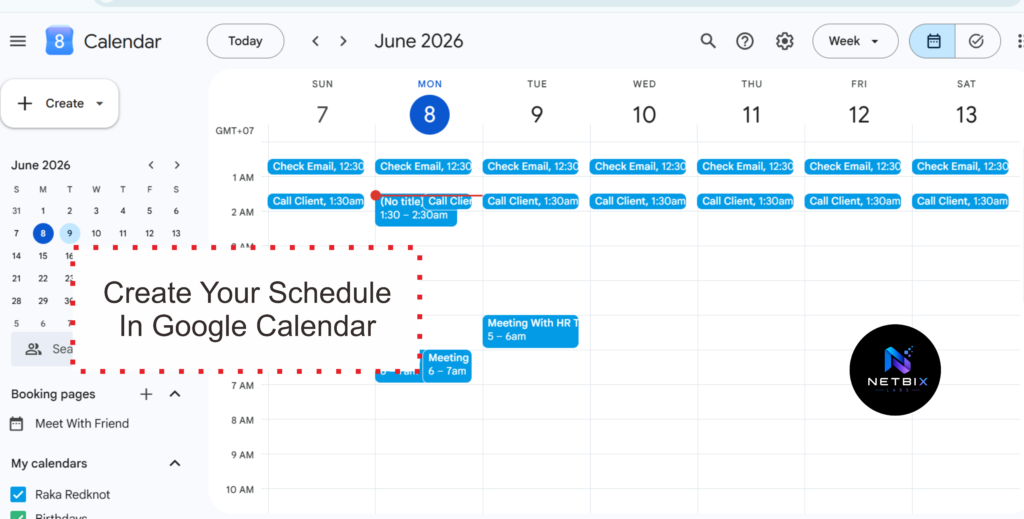
- Block focus time every day — create recurring events for work sessions that cannot be interrupted, for example every morning from 09:00–11:00, and mark the status as “Busy”
- Enable the Appointment Scheduling feature in Google Calendar to share a scheduling link without back-and-forth emails:
- Open Google Calendar → click “+ Create” → select “Appointment schedule”
- Set duration, availability, and buffer between sessions
- Share the link with anyone who wants to schedule a meeting with you
- Set meeting notifications — add a 15-minute reminder before meetings so there’s enough preparation time
Expected outcome: Your calendar reflects your actual priorities — not just a collection of meeting requests from other people. Focus time is protected, and meetings go into slots that were specifically set aside for them.
Step 2: Setup Fireflies.ai
Why it matters: This is the only new tool you need to learn. Fireflies.ai eliminates the need for manual note-taking during meetings — something that previously forced you to choose between focusing on the discussion or focusing on taking notes. With Fireflies, you don’t have to choose anymore.
What to do:
- Go to fireflies.ai and click “Get Started Free”
- Sign up using your work Google account
- Allow Fireflies to access Google Calendar when prompted — this is what enables it to automatically detect upcoming meetings
- Connect the meeting platforms you use:
- Google Meet — automatically detected via Google Calendar
- Zoom — connect via the Integrations menu in the dashboard
- Microsoft Teams — connect via the Integrations menu
- Set the bot’s name and profile photo so meeting participants know who’s joining
Expected outcome: Your Fireflies.ai account is active and connected to your calendar and meeting platforms. Ready for the next step.
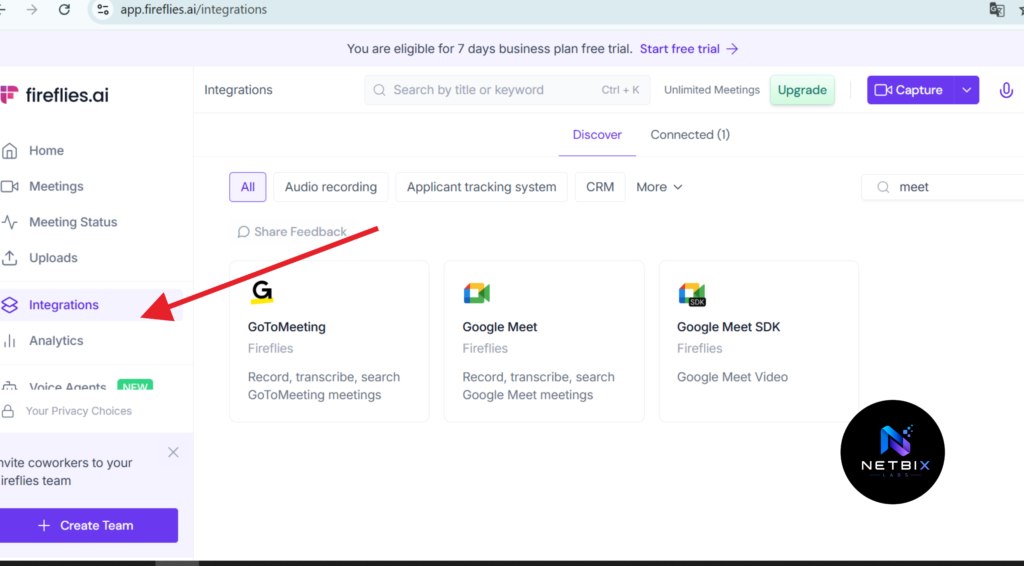
Step 3: Connect Fireflies to Google Calendar
Why it matters: The connection between Fireflies and Google Calendar is the core of this entire workflow. Once connected, Fireflies will automatically detect every meeting on your calendar and join without you needing to do anything else.
What to do:
- In the Fireflies dashboard, go to Settings → Notetaker
- Enable Auto-join — choose whether Fireflies joins all meetings or only specific ones:
- All meetings — recommended to start
- Only meetings I own — if you want to be more selective
- Set who receives the summary after the meeting:
- Only you
- All meeting participants
- A specific Slack channel
- Enable pre-meeting notifications — Fireflies will remind you 5 minutes before it starts joining
- For meetings you don’t want recorded, simply remove the Fireflies bot from the participant list in Google Calendar before the meeting starts
Expected outcome: From now on, every meeting on your Google Calendar will automatically be attended by Fireflies. You don’t need to do anything — just run your meetings as usual.
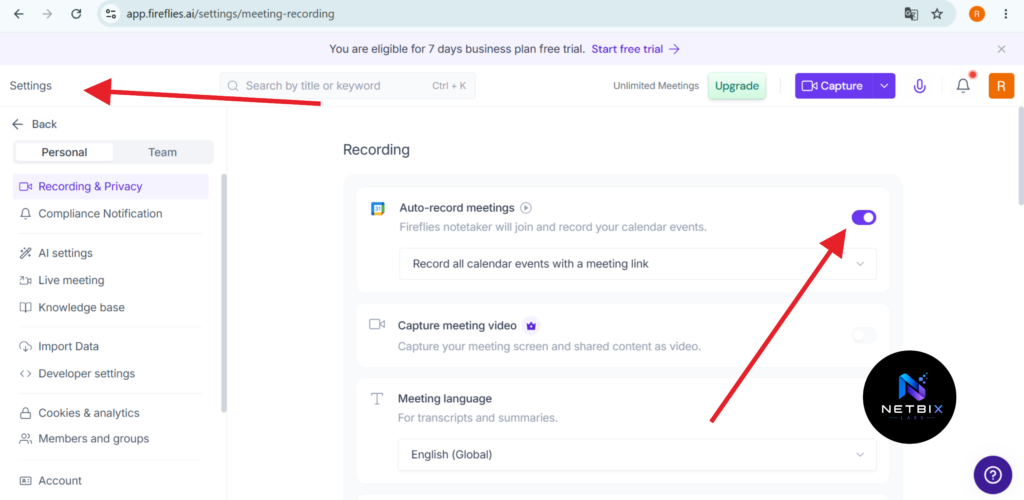
Step 4: Build an Automated Post-Meeting Workflow
Why it matters: Meeting summaries are only useful if they immediately reach the right place. By connecting Fireflies to the tools your team already uses — Slack, Notion, or Asana — action items from meetings go directly into your work system without any additional manual steps.
What to do:
- In Fireflies, open Integrations and choose what’s most relevant for your team:
- Slack — summaries automatically sent to a designated channel after the meeting ends
- Notion — summaries go into a Notion database as a new page
- Asana or Todoist — action items from meetings automatically become new tasks
- HubSpot or Salesforce — client meeting notes are saved directly to your CRM
- Choose one primary integration first — don’t activate all of them at once
- Test the integration by holding a short meeting and check whether the summary landed in the right place
- Adjust the summary format if needed via Settings → Summary Preferences
Expected outcome: After the meeting ends, the summary immediately appears in your team’s Slack or Notion database — without anyone needing to copy, re-send, or manually summarize anything. Action items are already tasks ready to be worked on.
Step 5: Establish a Weekly Review Routine
Why it matters: Even great tools won’t deliver maximum results without a supporting routine. A 20-minute weekly review every Friday ensures no action items fall through the cracks and your system keeps improving over time.
What to do:
Every Friday afternoon, do this in order:
- Open the Fireflies dashboard — open the “Meetings” tab and scan this week’s meeting summaries
- Look for unfinished action items — use Fireflies’ search feature with keywords like “action item” or “follow up”
- Flag important items and make sure they’ve been added to the task manager or delegated to the right person
- Review next week’s Google Calendar — make sure focus time is still protected and no meetings overlap
- Adjust focus blocks if this week revealed patterns that need changing — for example, too many meetings on a particular day
Expected outcome: Monday morning starts with a clear head and well-defined priorities. No action items fall through the gaps. The system becomes more efficient every week.
Video Tutorial
To make your learning process easier, here we provide a short video tutorial for setting up Google Calendar and FireFiles AI.
How Businesses Use This Workflow
Startups
Founders wearing many hats often lose context between meetings. Fireflies ensures every investor discussion, product review session, and team one-on-one is well-documented. A structured Google Calendar helps founders block strategic time amid a packed schedule.
Agencies
Account managers handle multiple clients simultaneously. Fireflies summaries go directly to the CRM after every client call — nothing gets forgotten, nothing needs to be re-entered manually. Google Calendar is used to separate project execution time from client communication time.
Marketing Teams
CMOs and marketing directors often get caught between campaign review meetings and strategic work. Fireflies automatically documents all campaign decisions. Focus blocks in Google Calendar ensure there’s dedicated time for creative work that can’t be interrupted by meetings.
HR Teams
HR executives managing recruitment and onboarding often lose details from numerous interviews. Fireflies transcribes all candidate interview sessions — reducing bias and making it easier to compare candidates. Google Calendar helps schedule interviews efficiently without overlaps.
Operations Teams
COOs and ops leads rely on clear meeting outcomes to ensure execution stays on track. Fireflies summaries with clear action items shorten the time it takes to distribute meeting results across the team. Google Calendar is used to schedule weekly planning sessions that cannot be moved.
Enterprise
At the enterprise level, Fireflies integrates directly with Salesforce, Slack, and existing systems. Large teams can access a searchable meeting archive whenever needed, while each individual continues using the familiar Google Calendar they already know.
Best Practices
- Block focus time in Google Calendar before others fill it. Create recurring events for your daily deep work sessions and mark them as “Busy.” This is the simplest yet highest-impact step.
- Let meeting participants know Fireflies is active. Transparency builds trust. Fireflies already appears as a participant so everyone can see it — but mentioning it at the start of the meeting is still good etiquette.
- Review Fireflies summaries within 24 hours. Action items lose momentum quickly. Make summary review a morning habit after every major meeting.
- Choose one primary integration first. Don’t connect Fireflies to every platform at once. Start with Slack or Notion, make sure it’s working well, then add other integrations as needed.
- Actively use Fireflies’ search feature. The searchable meeting archive is one of the most useful features — but it’s often overlooked. Make it a habit to search for context from past meetings before making major decisions.
- Evaluate Google Calendar color coding monthly. Needs change. Make sure the color system you’re using still reflects your current work patterns.
Common Mistakes to Avoid
Enabling Auto-join but never opening the summaries. Fireflies is only useful if the summaries are actually read and action items are followed up on. If summaries keep piling up in your inbox unopened, the review routine isn’t working yet. Schedule dedicated time for this, no matter how small.
Not blocking focus time in Google Calendar. Adding Fireflies without fixing Google Calendar first is a sequencing mistake. If your calendar is packed with meetings from morning to evening, even perfect meeting summaries won’t help much — because there’s no time left to act on them.
Recording every meeting without being selective. Not every meeting needs to be recorded. Informal brainstorming sessions, casual chats between colleagues, or highly sensitive discussions may be better left unrecorded. Use Auto-join selectively based on your needs.
Connecting Fireflies to too many places at once. Integrating with Slack, Notion, Asana, and your CRM all at the same time can create confusing duplication. Start with one integration, make sure it works well, then add others gradually.
Ignoring Google Calendar’s Appointment Scheduling feature. This feature is free, already built in, and immediately eliminates back-and-forth scheduling emails. Many people don’t know it exists — yet it can save significant time every week.
FAQ
Is Fireflies.ai free?
Yes, Fireflies.ai is available on a free plan with limits on the number of transcripts and features. For professional use — including unlimited transcripts, full integrations, and team access — paid plans are available starting at around $10 per month per user.
Can Fireflies.ai be used with Google Meet?
Yes. Fireflies.ai integrates directly with Google Meet through Google Calendar. Once both are connected, the Fireflies bot will automatically join every Google Meet scheduled on your calendar without any additional steps.
Can other meeting participants see that Fireflies is recording?
Yes. The Fireflies bot appears as a participant named “Fireflies.ai Notetaker” in the meeting room, so everyone can see it. This ensures transparency automatically without you needing to announce it manually — though mentioning it is still good practice.
Is it safe to use Fireflies for confidential meetings?
Fireflies uses data encryption and offers per-meeting access controls. For highly sensitive meetings — such as legal discussions or strategic negotiations — you can easily remove the bot from the participant list in Google Calendar before the meeting starts, so that meeting won’t be recorded.
How long does it take to set up Fireflies.ai?
The basic Fireflies.ai setup — from signing up to having Auto-join active and connected to Google Calendar — takes around 15–30 minutes. No technical expertise is required whatsoever; everything is done through an intuitive interface.
Is Google Calendar Appointment Scheduling different from Google Meet?
Yes, they’re different. Google Calendar Appointment Scheduling is a feature for sharing a scheduling link so others can pick an available slot without back-and-forth emails — similar to Calendly. Google Meet is a video conferencing platform. Both are part of the Google Workspace ecosystem and can be used together.
Can Fireflies.ai be used for Microsoft Teams meetings?
Yes. In addition to Google Meet and Zoom, Fireflies.ai also supports Microsoft Teams. You simply connect it through the Integrations menu in the Fireflies dashboard.
Tool Alternatives
Otter.ai (Fireflies.ai Alternative)
What it does: Otter.ai provides real-time transcription during meetings, with live captions that all participants can read, speaker identification, and automatic summaries.
When it’s better: When you need transcription that can be read live during the meeting — not just after it ends. Otter also has a simpler interface for new users.
Best for: Small teams, individuals, or professionals who prioritize ease of use and live captions during discussions.
Notion AI Calendar (Google Calendar Alternative)
What it does: Notion AI combines project management, notes, and a calendar in one workspace. Its AI features help summarize content and answer questions about stored documents.
When it’s better: When your team already uses Notion as the central documentation hub and wants to integrate the calendar into the same workspace.
Best for: Teams who want one platform for calendar, notes, and project management without switching between apps.
Microsoft Copilot for M365
What it does: Copilot integrates directly with Outlook Calendar and Microsoft Teams — generating meeting summaries, helping with scheduling, and documenting discussions without additional tools.
When it’s better: When your entire organization already uses Microsoft 365 and doesn’t want to add new vendors to the existing ecosystem.
Best for: Enterprises and corporate teams that operate fully within Microsoft infrastructure.
Key Takeaways
- You don’t need a new tool for the calendar side — an optimized Google Calendar is more than enough
- Fireflies.ai is the only new tool you need to learn, and the setup is done in under 30 minutes
- The connection between Google Calendar and Fireflies.ai is the core of the workflow — once connected, everything runs automatically
- Fireflies integration with Slack or Notion ensures meeting outcomes reach the right place without manual steps
- A 20-minute weekly review routine every Friday is the most important habit to make sure this system actually delivers results
- Start simple — one integration, one new habit — then build from there over time
Conclusion
Executive productivity doesn’t have to be complicated. The two most time-consuming tasks in nearly every organization — managing meeting schedules and documenting their outcomes — can be solved with a tool you already have and one AI tool that takes less than half an hour to set up.
An optimized Google Calendar ensures your time is protected and your schedule reflects your actual priorities. Fireflies.ai ensures every meeting produces clear documentation, recorded action items, and no important decisions get forgotten.
No complicated stack needed. No need to learn a lot of new things. Just two tools, one simple workflow, and a consistent weekly review routine.
Start today — optimize your Google Calendar, set up Fireflies.ai, and run your meetings as usual. The difference will be noticeable from the very first week.