Your team is already using AI — but without a clear policy, you’re one bad prompt away from a data leak. Here’s how to build a secure AI workflow using Notion, Make, and Slack, and automatically distribute your usage policy to everyone. All free.
Introduction
Most corporate teams are already using AI tools. ChatGPT for drafting emails. AI assistants for summarizing meetings. Generative tools for creating content and presentations. The adoption happened fast — often faster than any policy, guideline, or governance framework could keep up with.
The result is a silent risk most businesses haven’t addressed yet. Employees sharing client data with AI tools. Confidential financial information pasted into a public AI interface. HR records run through a third-party model that stores every input. Not out of negligence — but because no one ever told them what was and wasn’t acceptable.
Building a secure AI workflow for a corporate team doesn’t require an expensive governance platform or a dedicated security team. It requires three things: a clear policy that defines what employees can and cannot share with AI tools, a system to keep that policy current as AI usage evolves, and a reliable way to ensure every team member actually receives it.
This guide uses three tools — Notion, Make, and Slack — all available on free plans, to build exactly that. You’ll create an AI usage policy in Notion, automate its distribution through Make, and deliver it directly to your team’s Slack workspace. Every time the policy is updated, the notification goes out automatically — no manual announcement required.
Quick Summary
- Most businesses are using AI tools without any formal policy defining what data can and cannot be shared — this is a significant and underappreciated security risk.
- A secure AI workflow starts with a clear, written AI Usage Policy that every team member can access and understand.
- This guide uses Notion to build the policy, Make to automate distribution, and Slack to deliver it to the team — all on free plans with no technical setup beyond basic account connections.
- The workflow runs automatically — when the policy is updated in Notion, Make detects the change and sends a notification to the team’s Slack channel within 15 minutes.
- Suitable for corporate teams, HR departments, startups, and any organization where employees are using AI tools without a defined usage framework.
Table of Contents
- What You’ll Learn
- Why Every Business Needs an AI Usage Policy Before Anything Else
- Tool Overview: Notion + Make + Slack
- Step-by-Step: Build Your Secure AI Workflow
- Video Tutorial
- How Businesses Use This Workflow
- Best Practices
- Common Mistakes to Avoid
- Alternatives Worth Considering
- FAQ
- Key Takeaways
- Conclusion
What You’ll Learn
- Why the absence of an AI usage policy is a security risk, not just a compliance gap
- What a practical, enforceable AI usage policy actually contains
- How to build the policy in Notion with a structure any team member can follow
- How to connect Notion to Slack via Make so policy updates distribute automatically
- How to configure Make so updates trigger a Slack notification without any manual action
- Real use cases across corporate teams, HR, agencies, and enterprise departments
- What mistakes to avoid so the policy actually gets read and followed
Why Every Business Needs an AI Usage Policy Before Anything Else
Before any tool setup, it helps to understand exactly what risk an absent AI usage policy creates — because it’s more specific and more immediate than most businesses realize.
You might also like: How Corporate Teams Build AI Workflows for Daily Operations
Related guide: How Companies Protect Internal Data While Using AI Tools
When an employee opens ChatGPT, Gemini, or any other public AI tool and pastes in content, that content is processed by a third-party system outside the company’s control. In many cases, that content is used to improve the model. In all cases, it leaves the company’s secure environment entirely.
What employees commonly share with AI tools without realizing the risk:
- Client names, email addresses, and contact details
- Internal financial figures, budgets, and forecasts
- Unpublished contracts and legal agreements
- Employee performance data and HR records
- Proprietary product specifications and roadmaps
- Login credentials and access tokens pasted alongside instructions
None of this is malicious. It happens because AI tools are framed as productivity tools — not as data transmission systems that send information outside the organization’s security perimeter.
An AI usage policy changes this by creating explicit, written clarity about:
- Which data categories are never acceptable to share with any AI tool
- Which AI tools are approved for use and which are not
- Which use cases are encouraged, which require approval, and which are prohibited
- What employees should do if they’re unsure whether a task is within policy
This is the foundation of a secure AI workflow — and it costs nothing to build except time and clarity.
Tool Overview: Notion + Make + Slack
This workflow uses three tools working together. Each one has a specific role.
Notion — Policy Creation and Storage
Notion is a free workspace platform where the AI Usage Policy lives as a structured, editable document. As the policy evolves — and it will, as AI tools and business needs change — Notion is where updates happen. Its database structure allows the policy to be organized clearly, with sections that are easy to navigate and update.
Why Notion: Clean structure, easy to edit without technical knowledge, free plan is fully functional for this use case, and it integrates directly with Make.
Official Website: https://notion.so
Make — Automation and Distribution Trigger
Make is the connective layer. It monitors the Notion database for changes and triggers a Slack notification whenever the policy is updated. This is what removes the human step of remembering to announce policy changes — the automation handles it within 15 minutes of any update being saved in Notion.
Why Make: Free plan includes 1,000 operations per month, Notion and Slack integrations are both available natively, and the visual canvas makes the three-module workflow straightforward to configure without technical experience.
Official Website: https://make.com Official Documentation: https://www.make.com/en/help
Slack — Team Distribution
Slack is where the policy and its updates reach the team. A dedicated channel — for example, #ai-policy or #team-guidelines — receives automatic notifications from Make whenever the Notion policy is updated, with a direct link to the full policy document.
Why Slack: Most corporate teams already use Slack daily, free plan is sufficient for this workflow, and messages in a dedicated channel are visible and searchable by all team members.
Official Website: https://slack.com
What you’ll need before starting:
- A free Notion account → https://notion.so
- A free Make account → https://make.com
- A Slack workspace your team already uses (free plan is sufficient)
Step-by-Step: Build Your Secure AI Workflow
Step 1: Build Your AI Usage Policy in Notion
Why it matters: The policy is the entire point of this workflow. Everything else — the automation, the Slack distribution — exists to ensure this document reaches the team and stays current. A policy that is vague, incomplete, or poorly structured will not change employee behavior. This step requires the most thought and produces the most value.
What to do:
Part A — Create the Notion database:
- Go to https://notion.so and sign in to your free account
- In your workspace, click + New Page and title it: AI Governance Hub
- Inside this page, type
/databaseand select Database — Inline - Name the database: AI Usage Policy
- Add the following properties to the database by clicking + Add a property:
- Policy Section — Title (already exists by default)
- Status — Select property — add options: Active, Under Review, Archived
- Last Updated — Date property
- Owner — Person property (who is responsible for this section)
- Version — Text property (e.g., v1.0, v1.1, v2.0)
Part B — Create the policy sections:
Add a new row in the database for each of the following sections. Click + New for each one:
Row 1: What AI Tools Are Approved
- List which AI tools employees are permitted to use for work purposes
- Example: ChatGPT (personal account), Claude, Grammarly, Canva AI
- Note any tools that require manager approval before use
Row 2: Data You Can Share with AI Tools Open the row and in the page body, write clearly what is acceptable:
✅ APPROVED FOR AI USE:

- Publicly available information and general knowledge questions
- Draft content that contains no client, employee, or financial data
- Internal process documentation with no confidential details
- Brainstorming and ideation tasks with no proprietary context
- Editing and proofreading of content already approved for public use
- Generic templates and frameworks not tied to specific clients or projects
Row 3: Data You Must Never Share with AI Tools This is the most critical section. Write it clearly and specifically:
❌ NEVER SHARE WITH ANY AI TOOL:

- Client names, email addresses, phone numbers, or any personal data
- Financial data: revenue figures, budgets, forecasts, invoices, or account numbers
- Employee information: salaries, performance reviews, HR records, or personal details
- Unpublished contracts, proposals, or legal agreements
- Product roadmaps, unreleased features, or proprietary technical specifications
- Login credentials, API keys, passwords, or any authentication information
- Any data covered by NDA or confidentiality agreement
- Customer data of any kind, including usage data or behavioral data
Row 4: Use Cases That Require Approval Some tasks are not prohibited but require a manager’s sign-off before using AI:
- Using AI to process any client-related content
- Using an AI tool not on the approved list
- Using AI for any task involving financial or legal content
Row 5: Reporting and Accountability What employees should do if they accidentally share something they shouldn’t have, and who to contact.
Part C — Set the Status and Version:
- Set all rows to Active status
- Set Last Updated to today’s date
- Set Version to v1.0
- Assign an Owner to each section — typically the HR lead or operations manager
Expected result: A structured Notion database containing your organization’s complete AI Usage Policy — organized by section, versioned, and ready to share. Any team member given the link can navigate directly to the section most relevant to their question.
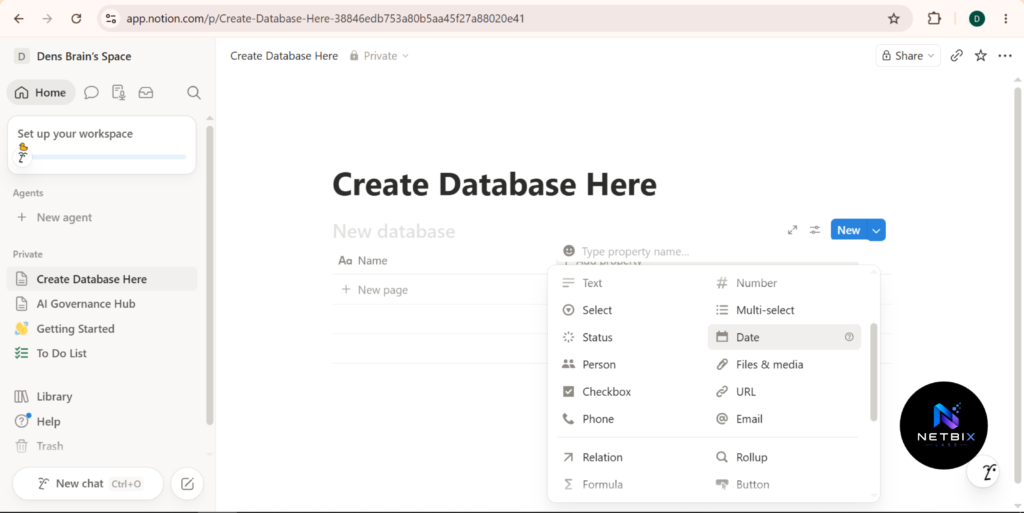
Step 2: Get the Notion Database Link and Share Settings
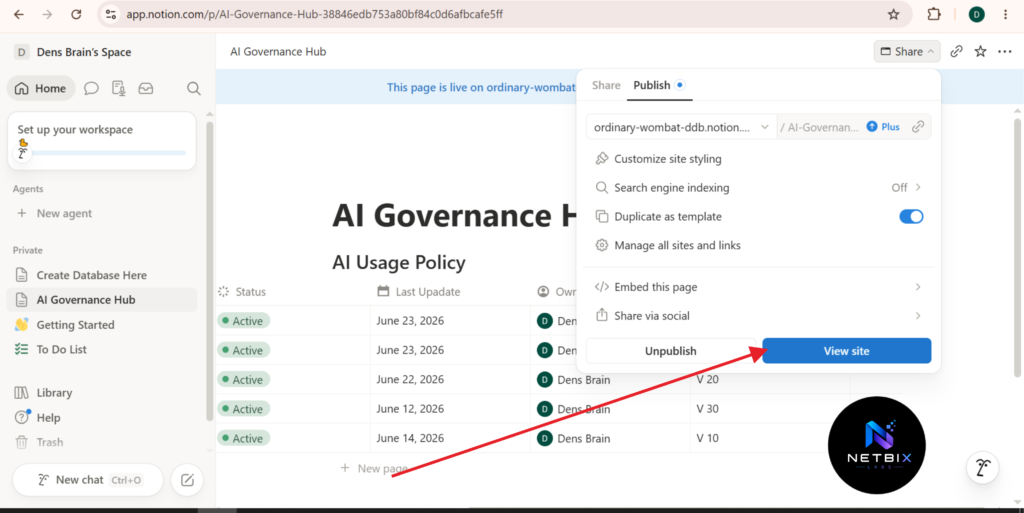
Why it matters: Make needs to connect to this specific Notion database to monitor it for changes. Before building the automation, you need the database accessible via Notion’s API — which requires a simple share configuration.
What to do:
- Inside your AI Usage Policy database in Notion, click Share in the top right corner
- Under Share to web, toggle it On — this generates a public link to the policy that anyone with the link can view
- Copy the page link — you’ll use this URL in the Slack message Make sends, so team members can click directly to the full policy
- Keep this tab open — you’ll also need to connect Notion to Make in the next step
Expected result: Your AI Usage Policy has a shareable link that you can embed in the Slack notification, giving every team member direct access to the full document when they receive the announcement.
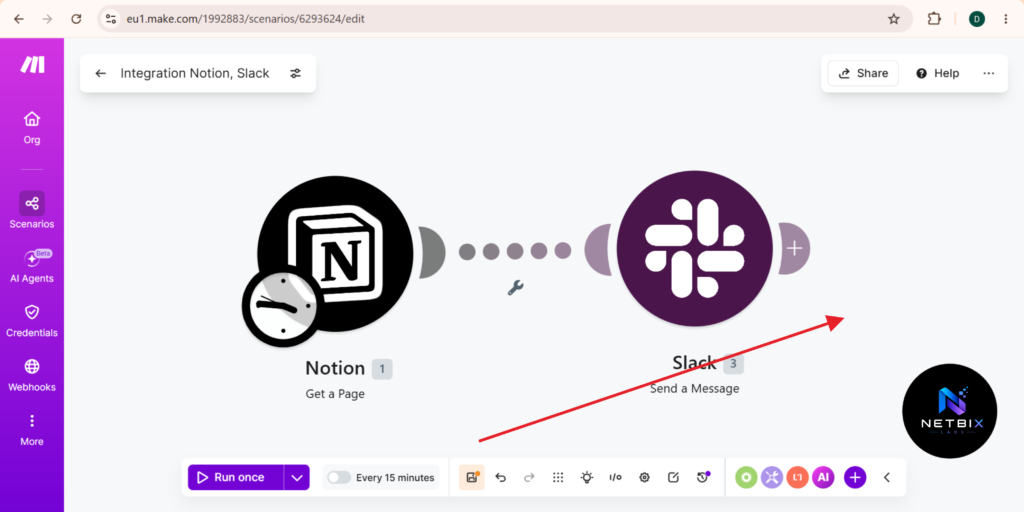
Step 3: Build the Make Automation — Notion to Slack
Why it matters: This step is what transforms a static policy document into a living, self-distributing system. Without this automation, every policy update requires someone to remember to announce it in Slack — which, in practice, often doesn’t happen. With it, the announcement is guaranteed every time the policy changes.
What to do:
Part A — Create the Make scenario:
- Log in to Make at https://make.com
- Click Create a new scenario
- Click the + button on the blank canvas to add your first module
Part B — Set up the Notion trigger:
- Search for Notion and select it
- Choose the trigger Watch Database Items — this tells Make to check your Notion database for new or updated rows
- Click Connect and authorize Make to access your Notion account:
- You’ll be redirected to Notion’s authorization page
- Select the workspace containing your AI Governance Hub
- Click Allow access
- Once connected, configure the trigger:
- Database: Select your AI Usage Policy database from the dropdown
- Filter: Leave as default (watches all changes) or filter by Status = “Active” to only trigger on active policy items
- Limit: Set to 10 (maximum items to check per run)
- Click OK to save the trigger
Part C — Add the Slack notification module:
- Click the + icon to the right of your Notion trigger module
- Search for Slack and select it
- Choose the action Create a Message
- Click Connect and authorize Make to access your Slack workspace:
- Sign in with your Slack account
- Select your workspace
- Click Allow
- Configure the Slack message:
- Channel: Type or select your policy channel — for example, #ai-policy or #team-guidelines. If the channel doesn’t exist yet, create it in Slack first, then return here
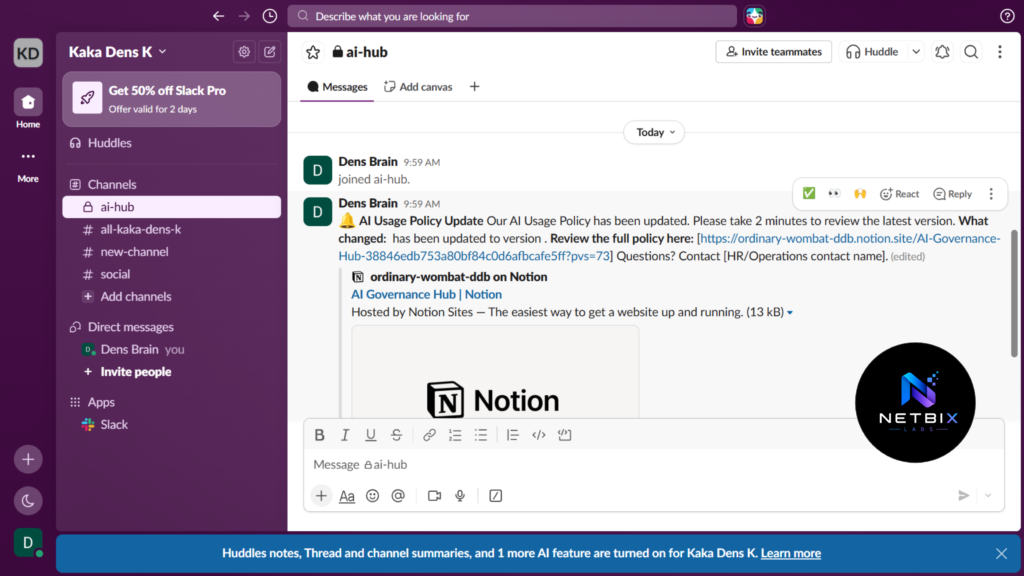
- Text: Write the notification message your team will receive. Use this template:
🔔 *AI Usage Policy Update*

Our AI Usage Policy has been updated.
Please take 2 minutes to review the latest version.

*What changed:* {{1.properties.Policy Section.title}}
has been updated to version {{1.properties.Version.rich_text}}.

*Review the full policy here:*
[paste your Notion policy link here]

Questions? Contact [HR/Operations contact name].
Note: The {{1.properties...}} variables pull the section name and version number directly from the Notion database row that triggered the automation — making each notification specific to what changed.
- Click OK to save the module
Part D — Configure the schedule and test:
- Click Run Once to test the full scenario
- Go to your Notion database and update one row — change the Last Updated date on any policy section to today
- Watch Make process the trigger — the Notion module should show a green checkmark, followed by the Slack module
- Check your Slack channel — the policy update notification should appear within a few seconds of the test run completing
- Once confirmed, click Scheduling at the bottom of the Make canvas and set the scenario to run every 15 minutes
- Activate the scenario using the Scheduling toggle
Expected result: A fully active automation. Every time a policy section is updated in Notion, Make detects the change within 15 minutes and sends a formatted Slack notification to your team channel — with a direct link to the updated policy and the specific section that changed.
Step 4: Announce the Policy to Your Team and Set Expectations
Why it matters: An automated workflow that no one knows about is a workflow no one uses. The first time the policy goes out, it should be accompanied by a human explanation — why the policy exists, what it means for day-to-day AI usage, and how the automated system will keep everyone informed going forward.
What to do:
- Before activating the Make automation, send a manual introductory message in your Slack channel:
👋 Hi team,

We're introducing our AI Usage Policy — a clear set of guidelines
for how we use AI tools in our work.

As AI becomes part of more of what we do every day, it's important
that we all understand what data is safe to use with AI tools and
what must always stay internal.

📋 Read the full policy here: [Notion link]

Key points:
• ✅ What you CAN share with AI tools
• ❌ What you must NEVER share with AI tools
• 📋 When to ask for approval before using AI

Going forward, any updates to this policy will be sent here
automatically. Please take 5 minutes to read through the policy
today.

Questions? Reply here or contact [name].
- Pin this message to the Slack channel so new team members can find it easily
- Add the Notion policy link to your team’s onboarding checklist — so every new hire encounters the policy on day one
Expected result: Every current team member has been notified of the policy, has a direct link to the full document, and understands that future updates will arrive in the same channel automatically. New hires encounter the policy as part of their onboarding process.
Step 5: Establish a Policy Review Schedule
Why it matters: AI tools evolve rapidly. A policy written in January may be missing critical guidance about tools that become mainstream by June. Building a quarterly review into your calendar ensures the policy stays relevant — and the Make automation ensures any updates reach the team automatically, no matter when they happen.
What to do:
- In your Notion AI Governance Hub, create a second database called Policy Review Schedule
- Add quarterly review entries — Q1, Q2, Q3, Q4 — with a designated reviewer assigned to each
- During each quarterly review, check:
- Are there new AI tools employees are using that aren’t on the approved list?
- Has any data category guidance become outdated?
- Have any regulatory changes affected what data can be processed by third-party AI tools?
- Have any incidents occurred that suggest the policy needs to be strengthened?
- Update the relevant Notion policy rows — Make will automatically notify the team within 15 minutes
Expected result: A policy that stays current with the pace of AI adoption in your organization, distributed automatically to the team every time it changes — with no manual announcement required after the first setup.
Tutorial Video
Seeing firsthand how policies are built in Notion, how Make automatically detects changes, and how notifications appear in Slack is much easier to understand visually. The video tutorial below shows the complete process from start to finish—from building the AI Usage Policy structure in Notion with all its sections, configuring Make with Notion triggers and Slack actions, conducting a test run with a real-life policy update, and seeing the notification automatically appear in the team’s Slack channel.
This video is designed for HR managers, operations leads, and team leads who want to see how an automated and secure AI policy distribution system can be built from scratch using three free tools.
How Businesses Use This Workflow
Startups
Early-stage startups use this workflow to establish AI governance before it becomes urgent. Founders build a simple policy covering the most critical data categories, distribute it via Slack, and update it as the company’s AI tool usage evolves — all without a dedicated compliance or HR team.
Marketing Teams
Marketing teams use the policy to define exactly which client and campaign data can be used in AI-assisted content production. The Slack notification means any change to approved tools or data guidelines reaches the marketing team immediately, without waiting for a team meeting to communicate the update.
HR Departments
HR teams deploy this workflow to protect the most sensitive data in the organization — employee records, compensation data, and performance information. The policy makes explicit that none of this data can be processed through external AI tools, and the Slack distribution ensures every team member who handles HR data has received and can reference the guideline.
Agencies
Digital agencies use this workflow to manage AI usage across client accounts. The policy distinguishes between generic content production — where AI assistance is encouraged — and client-specific data, which is off-limits for AI tools. The automated Slack distribution ensures account managers always have the current version.
Operations Teams
Operations teams build policies that cover the specific data categories most relevant to their workflows — vendor contracts, supply chain data, internal pricing — and use the Notion-to-Slack automation to ensure any operational policy changes reach field teams and remote workers immediately.
Enterprise Teams
Large organizations adapt this workflow at the department level — each team maintains its own AI usage guidelines in a dedicated Notion database, with department-specific Slack channels receiving automated updates. Central HR or legal teams maintain a master policy that department-level guidelines are aligned to.
Corporate Communications Teams
Communications teams use the policy to define where AI assistance is appropriate in drafting external communications — and where human authorship is required. The workflow ensures that external communications guidelines evolve alongside the organization’s AI adoption without requiring manual distribution of each update.
Best Practices
Write the policy in plain language, not legal language. The most effective AI usage policies read like clear workplace guidelines, not legal contracts. If an employee has to read a sentence three times to understand what it means, it won’t guide their behavior in a moment of uncertainty. Write for the average team member, not for a compliance audit.
Start with the “never share” list and make it specific. The clearest value in an AI usage policy is an unambiguous list of what must never enter an AI tool. Generic statements like “don’t share confidential data” are not actionable. Specific statements like “never paste client email addresses, invoice amounts, or contract terms into any AI tool” are.
Assign an owner to each policy section. When someone has a question about a specific section, they need to know who to ask. When a section needs updating, there needs to be a responsible person. Without named owners, policy sections become orphaned documents that no one feels accountable for maintaining.
Make the Notion policy link the single source of truth. Resist the urge to copy-paste policy content into Slack directly. Keep the full policy in Notion and link to it from Slack. This ensures there’s always one authoritative version — not multiple copies that can fall out of sync.
Acknowledge that the policy will change and communicate this proactively. AI tool capabilities and regulations around AI data usage are both evolving. Frame the policy to your team as a living document that will be updated regularly, not a one-time communication. This sets the right expectation and makes future updates feel normal rather than alarming.
Test the Make automation before relying on it. Run a test update in Notion and confirm the Slack notification arrives correctly before treating the automation as active. A workflow that silently fails means policy updates aren’t reaching the team — which defeats the entire purpose.
Common Mistakes to Avoid
Publishing a policy and never updating it. AI tool capabilities, approved tool lists, and regulatory requirements around data privacy all change. A policy last updated eighteen months ago is almost certainly missing something important. The quarterly review schedule in Step 5 exists specifically to prevent this.
Making the policy too long. A comprehensive policy that covers every possible edge case in five thousand words is a policy nobody reads. Focus on the most important categories — what’s allowed, what’s prohibited, and what requires approval — and keep the total document navigable in under ten minutes.
Sending the Slack notification without context. The Make automation sends a notification when the policy changes — but employees need to understand why the change was made, not just that it happened. Add a brief explanation of what changed and why to the Slack message template, even if it’s one sentence.
Not pinning the policy link in Slack. New team members who join after the initial policy announcement won’t see that message in their channel history by default. Pin the policy link in the Slack channel and add it to the team’s onboarding materials so every new hire encounters it on day one.
Treating the policy as an HR document rather than a team resource. The most effective AI usage policies are embraced by the team, not imposed on them. Frame the policy as a tool that protects both the company and individual employees — if someone accidentally shares data they shouldn’t have, a clear policy gives them the guidance that prevents it from happening.
FAQ
What is an AI usage policy and why does every business need one? An AI usage policy is a written set of guidelines defining which AI tools employees can use for work, what data can and cannot be shared with those tools, and what process applies when someone is unsure. Every business that has employees using AI tools in their daily work needs one — because without it, employees make individual judgment calls about data sharing that may create significant security and compliance risks.
Does building this workflow require any technical skills? No. Notion’s interface works like a document editor. Make’s visual canvas connects modules by clicking and configuring dropdown menus. Slack message setup requires typing a message template. None of these steps require coding, API knowledge, or technical background beyond basic familiarity with these platforms.
How does Make detect when the Notion policy has been updated? Make’s “Watch Database Items” trigger for Notion runs on a polling schedule — checking the database every 15 minutes for new or modified rows. When it finds a row where the Last Updated date has changed, it triggers the Slack notification. This means there’s a maximum 15-minute delay between a policy update in Notion and the team notification in Slack.
What if we use Microsoft Teams instead of Slack? Make integrates with Microsoft Teams as well as Slack. In Step 3, instead of selecting the Slack module, search for Microsoft Teams and select “Send a Message to a Channel.” The configuration is nearly identical — select the team, select the channel, and paste the message template. Everything else in the workflow remains the same.
How do we handle employees who don’t see the Slack notification? Pinning the policy link in the Slack channel ensures it’s always visible to anyone who opens the channel. For critical policy updates, consider following up the automated notification with a manual message asking for an emoji acknowledgment — a simple thumbs-up reaction gives you visibility into who has seen the update without requiring a formal sign-off process.
Should the AI usage policy be reviewed by legal counsel? For most small businesses and startups, a straightforward internal AI usage policy doesn’t require legal review. For organizations handling regulated data — medical records, financial data, legal information — or operating in jurisdictions with specific AI data regulations like the EU AI Act or CCPA, a legal review of the policy’s data classification and approved tool list is recommended before distributing it to the team.
What happens if an employee accidentally shares something they shouldn’t have? The policy should include a clear reporting section — who to contact immediately if a data sharing incident occurs. The priority is to understand what was shared, with which tool, and whether that tool’s data retention policy means the data needs to be removed or reported. The goal of the reporting section is to make employees feel safe reporting incidents immediately rather than hiding them out of fear of consequences.
Alternatives Worth Considering
Confluence + Microsoft Teams
What it does: Confluence serves as the policy documentation platform (similar to Notion) with Microsoft Teams handling distribution — a common combination in organizations already using the Microsoft 365 ecosystem. When it’s better: When your organization is already standardized on Microsoft 365 and Confluence, and introducing Notion and Slack would mean adding new tools rather than working within existing ones. Best for: Enterprise teams with established Microsoft 365 infrastructure who want to build AI governance workflows without adopting new platforms. Official Website: https://confluence.atlassian.com
Google Docs + Zapier + Google Chat
What it does: Google Docs stores the AI usage policy, Zapier automates distribution, and Google Chat delivers notifications — the Google Workspace equivalent of the Notion-Make-Slack workflow. When it’s better: When your organization runs entirely on Google Workspace and the team communicates primarily through Google Chat rather than Slack. Best for: Google Workspace organizations that want the same automated policy distribution workflow without switching to Notion or Slack. Official Website: https://workspace.google.com
Key Takeaways
- The absence of an AI usage policy is a security risk — not a compliance formality. Employees using AI tools without clear guidelines will make individual judgment calls about data sharing that can expose sensitive client, financial, and employee data.
- A practical AI usage policy has four essential components: approved tools, what data can be shared, what data must never be shared, and when approval is required before using AI for a task.
- Notion provides the structure and single source of truth for the policy. Make automates distribution when the policy changes. Slack delivers the notification to the team. All three are available on free plans with no technical setup beyond basic account connections.
- Make’s Notion-to-Slack automation runs every 15 minutes — any policy update reaches the team automatically without manual announcement, removing the most common failure point in policy communication.
- Pin the policy link in Slack, add it to your onboarding checklist, and assign named owners to each policy section. These three steps are what make the policy a living resource rather than a forgotten document.
- Review the policy quarterly. AI tool capabilities, approved tool lists, and data regulations evolve — a policy that isn’t reviewed regularly will fall behind the pace of AI adoption in your organization.
Conclusion
The businesses that handle AI adoption securely are not necessarily the ones with the most sophisticated governance platforms or the largest security teams. They’re the ones that established clear, simple rules early — defined what employees can and cannot do with AI tools, communicated those rules clearly, and built a system to keep everyone informed as the rules evolve.
The workflow in this guide does exactly that. A structured policy in Notion that any team member can navigate. An automated Make scenario that ensures every update reaches the team without requiring anyone to remember to send an announcement. A dedicated Slack channel that becomes the single place employees look for AI usage guidance.
None of this requires a compliance budget, a security team, or technical expertise beyond what your HR manager or operations lead already has. It requires clarity about what data matters most in your organization, the discipline to write that down explicitly, and thirty minutes to build the automation that keeps it current.
Build your AI Usage Policy this week. The employees who are currently making individual judgment calls about what to share with AI tools are waiting for guidance that makes their decisions easier — not harder.
Give them that clarity before the next judgment call goes the wrong way.