Discover how agencies use AI content design tools to automate creative workflows, scale graphics production, and cut turnaround time by up to 80%.
Introduction
Creative agencies are under more pressure than ever. Clients expect more content, faster delivery, across more channels — all while budgets stay flat or shrink. A social campaign that once required a week of design work now needs to ship in two days. A brand refresh that used to mean dozens of bespoke assets now means hundreds.
The teams that are keeping up are not working harder. They are working with smarter tools.
AI content design has become the operational backbone for agencies that need to scale without proportionally scaling headcount. From generating on-brand social graphics and ad variations to producing presentation decks and marketing templates at volume, AI design automation is changing what a lean creative team can realistically produce in a week.
This guide is written for agency creative directors, marketing managers, startup founders, and corporate design leads who want a clear, practical understanding of how AI creative workflows actually work in a professional context — and how to implement one without disrupting the team you already have.
By the end, you will know which tools lead the category, how to build a scalable AI design workflow step by step, where the real time savings come from, and which mistakes agencies make when they first adopt these tools.
Quick Summary
- AI design automation tools let agencies produce branded graphics, templates, and visual content at scale without increasing team size.
- The best tools combine AI generation with brand kit integration, template locking, and batch export.
- Agencies report 60–80% reductions in time spent on repetitive design tasks after adopting AI creative workflows.
- Top tools include Canva AI, Adobe Firefly, Looka, Kittl, and Microsoft Designer.
- Core workflow: define brand inputs → build AI templates → generate variations → review → export by channel.
- AI templates are the force multiplier — build once, scale indefinitely.
Table of Contents
- What You’ll Learn
- Why Agencies Are Adopting AI Content Design
- Tool Overview: Canva AI for Agency Design Workflows
- Step-by-Step Tutorial: Building a Scalable AI Design Workflow
- Video Tutorial
- How Businesses Use This Tool
- Best Practices for AI Creative Workflows
- Common Mistakes
- FAQ
- Alternative Tools
- Key Takeaways
- Conclusion
- Related Guides
What You’ll Learn
- What AI design automation tools can do for agency-scale production
- How to set up a repeatable, brand-consistent AI creative workflow
- How to build AI templates that non-designers can operate
- How to generate dozens of on-brand asset variations in minutes
- How to manage client brand kits inside AI design platforms
- How to export assets optimized for every channel simultaneously
Why Agencies Are Adopting AI Content Design
The math is straightforward. A mid-size agency managing ten clients, each requiring weekly social content, email graphics, and ad creative, is looking at hundreds of individual design tasks per month. Even with a strong team, that volume creates bottlenecks — rushed work, missed deadlines, or expensive freelance overflow.
You might also like: How Businesses Create AI-Powered Content Pipelines
Related guide: How to Create Professional Marketing Visuals with Leonardo AI
AI creative workflows solve the volume problem without sacrificing quality.
1. Template-first production at scale AI design tools allow agencies to build master templates locked to client brand guidelines. Once a template exists, generating 50 size variations or seasonal refreshes takes minutes, not days.
2. Consistent brand output across accounts Maintaining visual consistency across a client’s entire content library — fonts, colors, spacing, tone — is one of the hardest things to do at scale. AI templates enforce consistency automatically.
3. Faster client iteration cycles AI tools make it easy to generate three or five creative directions quickly, present options, and refine based on feedback — without rebuilding from scratch each time.
4. Empowering non-designer team members With well-built AI templates, account managers, copywriters, and social media coordinators can produce publish-ready assets independently. This removes design bottlenecks from the delivery pipeline entirely.
5. Cost efficiency per asset When the cost of producing a single social graphic drops from 45 minutes of designer time to 5 minutes of template-based generation, the economics of agency delivery change permanently.
Tool Overview: Canva AI for Agency Design Workflows
What It Is
Canva AI is the AI-powered layer built into Canva’s design platform — the world’s most widely used visual communication tool. For agencies, Canva AI combines a massive template library, a brand kit system, and AI generation capabilities (text-to-image, background generation, Magic Write, Magic Design) into a single collaborative workspace.
Unlike standalone AI image generators, Canva is purpose-built for business design output — social posts, presentations, email headers, ad creatives, documents — with professional export and team collaboration built in from the start.
Key Features
- Magic Design — generates complete design layouts from a text prompt or uploaded image
- Magic Edit / Magic Eraser — AI-powered image editing within existing designs
- Background Generator — creates custom AI backgrounds from text prompts
- Brand Kit — stores and enforces brand colors, fonts, and logos across all team designs
- Template Locking — locks brand elements so non-designers cannot accidentally break visual consistency
- Bulk Create — connects a spreadsheet to a template and generates hundreds of personalized assets automatically
- Resize & Magic Switch — resizes any design to any format in one click
- Team Collaboration — real-time multi-user editing with comments and approval workflows
Why Ecommerce Teams Use It
Canva AI is the most accessible entry point into AI design automation for agencies and corporate teams. It requires no technical skills, integrates directly with major publishing platforms (Meta, LinkedIn, Mailchimp), and supports team structures ranging from solo operators to enterprise accounts with hundreds of users.
Ideal Use Cases
- Social media content production at scale
- Branded presentation and pitch deck creation
- Ad creative variation testing
- Client brand management across accounts
- Internal communications design (HR, ops, corporate)
- Email marketing graphics and newsletter headers
Official Website: https://www.canva.com
Official Documentation / Help Center: https://www.canva.com/help
Step-by-Step Tutorial: Building a Scalable AI Design Workflow with Canva AI
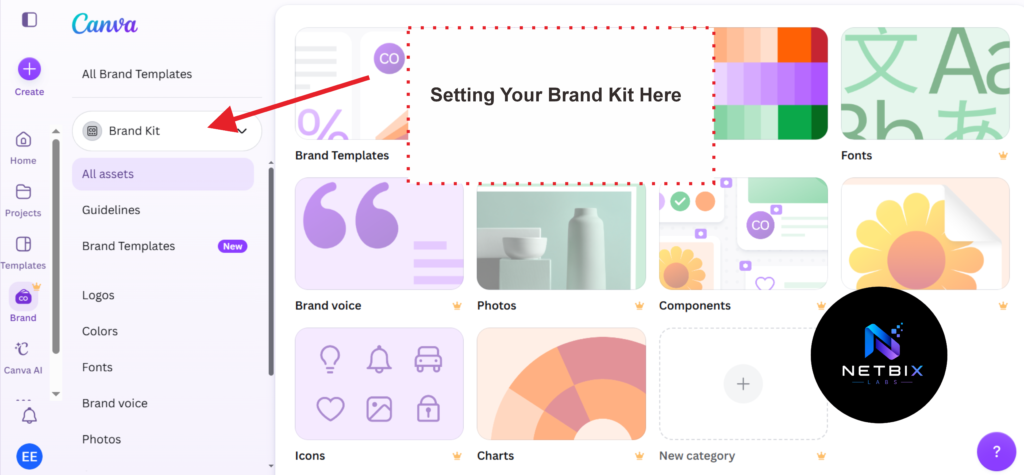
Step 1: Set Up Your Brand Kit
Why it matters: Every scalable AI design workflow starts with a brand kit. Without it, your team will produce visually inconsistent output — even with the best tools. The brand kit is the foundation everything else builds on.
What to do:
- Navigate to Brand Kit in your Canva account (available on Teams and Pro plans).
- Upload your client’s logo in PNG format with transparent background.
- Add all brand colors using HEX codes.
- Set primary, secondary, and accent fonts by uploading custom font files or selecting from Canva’s font library.
- Add any brand imagery or background patterns that appear regularly in client content.
Expected result: A complete brand kit that automatically applies your client’s visual identity to any new design created under that brand profile.
Step 2: Build Your Master Template Library
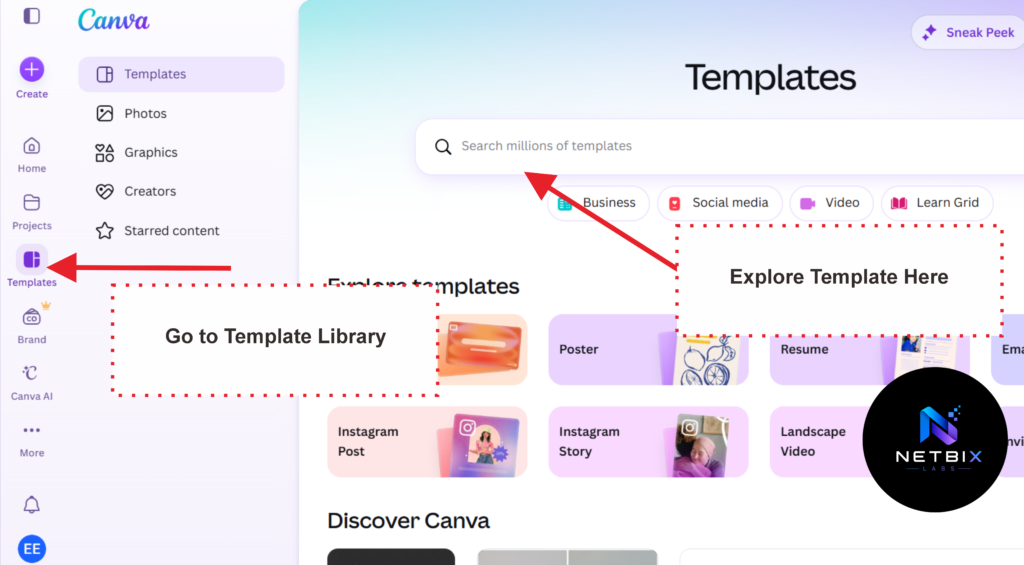
Why it matters: Templates are the core of any scalable AI graphics workflow. A well-structured template library means your team — including non-designers — can produce publish-ready assets without starting from scratch every time.
What to do:
- Identify the five to ten most frequently produced asset types for each client (e.g. Instagram post, LinkedIn banner, email header, story graphic, ad creative).
- For each asset type, build a master template in Canva using the client’s brand kit.
- Use Template Locking to lock brand elements (logo position, color backgrounds, font styles) while leaving content zones (headline text, image area, CTA) editable.
- Name templates clearly: Client Name — Asset Type — Format (e.g. “Acme Co — IG Post — 1:1”).
- Store templates in a dedicated client folder within your Canva Teams workspace.
Expected result: A locked, branded template library that any team member can use to produce on-brand assets without design experience.
Step 3: Use Magic Design to Generate Layout Variations
Why it matters: Once your templates exist, AI layout generation lets you create fresh creative directions without rebuilding manually. This is where the time savings compound — especially for campaigns requiring multiple visual concepts.
What to do:
- Open a new design in the correct format for your asset type.
- Click “Magic Design” in the design toolbar.
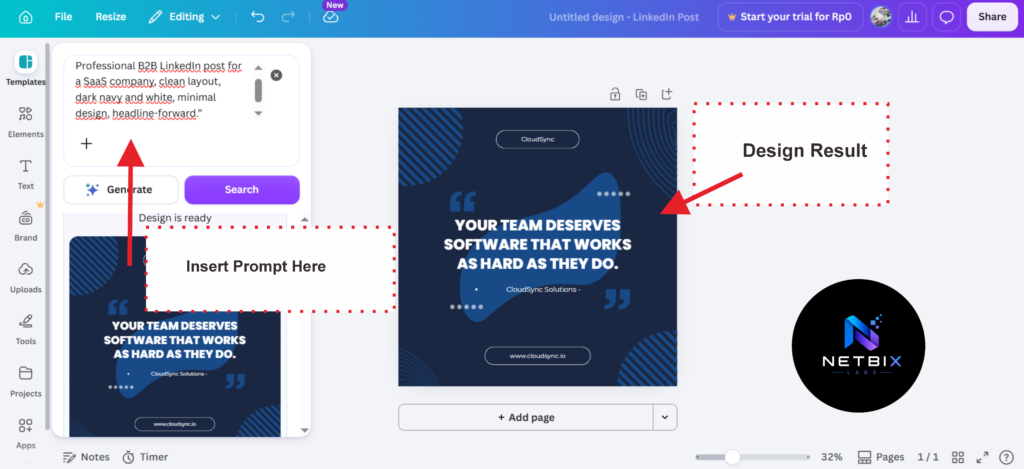
- Enter a descriptive prompt: “Professional B2B LinkedIn post for a SaaS company, clean layout, dark navy and white, minimal design, headline-forward.”
- Review the generated layout options (Canva generates 8–12 variations).
- Select the closest match to your brief and apply your brand kit to align colors and fonts.
- Adjust the layout as needed — AI-generated layouts serve as starting points, not final designs.
Expected result: Three to five viable layout options generated in under two minutes, ready for brand application and content insertion.
Step 4: Use Bulk Create for High-Volume Asset Production
Why it matters: Bulk Create is the most powerful scalable feature in Canva for agencies. It connects a data source (spreadsheet) to a template and generates personalized, unique assets for every row automatically. This is the feature that turns a two-hour task into a ten-minute one.
What to do:
- Prepare a CSV or Google Sheets file with columns mapping to your template’s variable fields (e.g. Headline, Subtext, Image URL, CTA Text).
- Open your master template in Canva.
- Click Apps → Bulk Create → Connect Data.
- Map each spreadsheet column to the corresponding template element.
- Click Generate — Canva creates one complete design per data row.
- Review the generated set for any formatting issues.
Expected result: 50, 100, or 500 individually personalized, on-brand assets generated automatically from a single template — each correctly populated with unique content.
Step 5: Generate AI Backgrounds and Imagery
Why it matters: Stock photography is expensive, overused, and often generic. AI-generated backgrounds and imagery allow agencies to produce unique, brand-appropriate visuals for every campaign without licensing fees or repetitive stock imagery.
What to do:
- Within any Canva design, select the background layer and click “Edit Image” → “Background Generator.”
- Enter a scene description: “Abstract gradient in deep teal and midnight blue, soft light bokeh, minimalist tech aesthetic.”
- Generate three to five options and select the most appropriate for the campaign brief.
- Alternatively, use “Magic Edit” to modify an existing image — replace backgrounds, remove objects, or recolor elements using text prompts.
- Apply generated imagery to your locked template background layer.
Expected result: Unique, high-quality background imagery that matches the campaign brief, generated in under 60 seconds without any stock library cost.
Step 6: Export by Channel with Resize & Magic Switch
Why it matters: Every channel has different format requirements. Manually resizing the same design for Instagram, LinkedIn, email, and web banners wastes significant time. Magic Switch eliminates this step entirely.
What to do:
- With your completed design open, click “Resize” in the top toolbar.
- Select all required output formats: 1080×1080 (IG Square), 1080×1920 (Story), 1200×628 (LinkedIn/Facebook), 600×200 (Email Header), 728×90 (Web Banner).
- Click “Copy & Resize” — Canva generates a separate, correctly sized version of each format.
- Review each version for any layout adjustments needed due to format changes.
- Export all formats simultaneously as PNG, JPEG, or PDF depending on channel requirements.
Expected result: A complete set of channel-optimized assets from a single master design, exported in under five minutes.

Video Tutorial: How to Use Canva AI for Your Agency Workflow
Before you start building your design workflow, we highly recommend watching this short video. It covers the key features most relevant to agency needs—including how to set up a Brand Kit, use Magic Design to generate layouts, leverage Bulk Create for mass asset production, and export results to multiple channel formats. This tutorial is suitable for both beginners and teams already familiar with Canva.
How Businesses Use This Tool
Startups
Early-stage startups with no dedicated design team use Canva AI to produce investor decks, launch campaigns, and social content that looks professionally designed from day one. A founder can maintain brand consistency across all channels without hiring a designer.
Agencies
Digital and creative agencies use Canva AI’s Brand Kit and Bulk Create features to manage multiple client accounts simultaneously. Account managers can produce and schedule client content independently, freeing senior designers for higher-value creative work.
Marketing Teams
In-house marketing teams use AI templates and Magic Design to run rapid creative testing — generating five ad variations per campaign in an afternoon rather than a week. This enables faster A/B testing cycles and better campaign performance data.
HR Teams
HR departments use Canva AI to produce internal communications at scale — onboarding materials, policy documents, company announcements, and training graphics — all consistently branded without depending on the design team for every asset.
Operations Teams
Operations and product teams use Canva AI to create process documentation, workflow diagrams, and internal training materials that are visually clear and on-brand, without routing every asset through a creative review cycle.
Creators and Solopreneurs
Individual content creators, coaches, and consultants use Canva AI to produce professional-grade content across social media, email, and digital products — competing visually with much larger teams.
Enterprise Workflows
Large organizations use Canva Enterprise with Brand Kit locking and team permissions to enforce brand standards across hundreds of users in multiple departments and regions, ensuring all externally facing content meets global brand guidelines automatically.
Best Practices for AI Content Design
Build your brand kit before touching templates. Every minute spent on brand kit setup saves ten minutes of manual corrections later. It is the most high-leverage investment in your AI design workflow.
Lock templates before distributing to non-designers. Unlocked templates get broken. Use Canva’s element locking and template permissions to protect brand elements while keeping content zones flexible.
Create a naming convention for all templates. Consistent naming (Client — Format — Variant — Date) makes template libraries navigable as they grow. Disorganized template libraries slow down the teams that are supposed to benefit from them.
Use Bulk Create for any task exceeding five similar assets. If you are manually duplicating and editing the same design more than five times, Bulk Create will do it faster and more accurately. Build the habit early.
Generate three AI layout options before choosing one. Resist the urge to use the first Magic Design output. Generating three options and selecting the best one takes 30 extra seconds and consistently produces stronger creative.
Run a QA check on all Bulk Create outputs. AI-generated batch assets occasionally contain formatting errors — truncated text, misaligned elements, wrong image placement. A quick visual scan before client delivery catches 95% of issues.
Keep a master client brand reference document. Document each client’s brand guidelines — tone, colors, do’s and don’ts — in a shared file. This ensures new team members can set up brand kits correctly without tribal knowledge.
Common Mistakes
Skipping brand kit setup and designing ad hoc. Teams that skip the brand kit step produce inconsistent output and spend more time fixing brand errors than they save using AI. Setup takes one hour. Do not skip it.
Using AI-generated layouts as finished designs. Magic Design outputs are starting points, not final creative. Teams that publish AI-generated layouts without brand adaptation often produce content that looks generic or inconsistent with their client’s voice.
Building templates without locking brand elements. An unlocked template is not a template — it is a blank canvas. Always lock logo placement, brand color fills, and font styles before distributing templates to the broader team.
Ignoring format requirements per channel. A LinkedIn banner resized automatically for an Instagram Story will often have layout issues. Always review Resize outputs individually rather than publishing without a channel-specific check.
Overloading a single template with too many variable fields. Bulk Create works best with simple, focused templates — typically two to four variable fields. Templates with ten or more variable fields become unreliable and difficult to maintain.
Not training the team on the tools before rollout. AI design tools change existing workflows. Teams that receive new tools without training often revert to old habits or use the tools incorrectly. A 30-minute onboarding session per tool pays significant dividends.
FAQ
What is AI content design and how does it work for agencies? AI content design refers to using artificial intelligence to assist in generating, editing, and scaling visual design assets. For agencies, this typically means using tools like Canva AI to automatically generate layout options, create branded templates, produce image variations, and export assets across multiple formats — significantly reducing the manual design time required per deliverable.
Can AI design tools maintain brand consistency across multiple clients? Yes. The best AI design platforms — including Canva Teams, Adobe Express, and Figma — offer brand kit systems that store each client’s colors, fonts, and logos separately. Template locking features prevent brand elements from being accidentally modified, ensuring consistent output across every asset produced for a given client.
How much time can AI design automation save an agency? Most agencies report 60–80% reductions in time spent on repeatable design tasks after implementing AI creative workflows. High-volume tasks like social content production, ad variant generation, and presentation formatting see the largest time savings. The exact figure depends on the volume and complexity of the work.
Do you need design skills to use AI design tools for agencies? Not for template-based production. Once a designer sets up branded templates in a tool like Canva AI, non-designers — account managers, social media coordinators, copywriters — can produce publish-ready assets independently using those templates. Advanced features like custom AI image generation benefit from some creative direction skills.
What is the best AI design tool for agencies in 2025? The most widely adopted options are Canva AI (best for full-team accessibility and brand kit management), Adobe Firefly in Adobe Express (best for teams already in the Adobe ecosystem), and Kittl (best for editorial and typographic design work). The right choice depends on your team size, existing tool stack, and the types of content you produce most frequently.
How do AI templates work in a scalable content design workflow? AI templates are master design files with locked brand elements and open content zones. When connected to a data source through features like Canva’s Bulk Create, a single template can generate hundreds of unique, individually populated assets automatically. This is the mechanism that allows a two-person design team to produce the output volume of a ten-person team.
Is AI-generated design content safe to use commercially? Yes, for the major platforms covered in this guide. Canva AI, Adobe Firefly, and Microsoft Designer all use commercially licensed training data, meaning the images and designs you generate are cleared for commercial use. Always verify the commercial usage terms for any AI tool before using generated assets in client-facing or paid advertising contexts.
Alternative Tools
Adobe Express with Firefly
What it does: Adobe Express integrates Adobe Firefly’s generative AI directly into a template-based design tool built on Adobe’s commercial asset library. It offers text-to-image generation, background removal, brand kit management, and template creation within the Adobe ecosystem.
When it’s better: When your team already uses Adobe Creative Cloud and needs AI design capabilities that integrate with Photoshop, Illustrator, and InDesign workflows. Firefly’s image generation quality is particularly strong for photorealistic and editorial design work.
Who should use it: Agencies with existing Adobe licenses, creative teams needing deep Photoshop integration, enterprise marketing teams.
Website: https://www.adobe.com/express
Kittl
What it does: Kittl is an AI-powered design platform focused on high-quality typographic and editorial design. It specializes in poster design, merchandise graphics, brand identity work, and print-ready assets, with an AI image generator trained on illustrative and design-forward styles.
When it’s better: When the design output requires strong typographic treatment, vintage or editorial aesthetics, or print-quality graphics. Kittl’s output style is more distinctive than general-purpose tools.
Who should use it: Agencies producing brand identity work, merchandise designers, print and packaging teams, creative directors focused on editorial aesthetics.
Website: https://www.kittl.com
Microsoft Designer
What it does: Microsoft Designer is an AI-first design tool integrated with Microsoft 365. It generates complete social posts, presentations, and graphics from text prompts, with deep integration into PowerPoint, Teams, and SharePoint workflows.
When it’s better: When your organization operates primarily within Microsoft 365 and needs AI design capabilities without adding a new tool to the stack. Designer is particularly strong for internal communications and presentation design.
Who should use it: Corporate teams, HR departments, operations teams, and enterprises standardized on Microsoft 365.
Website: https://designer.microsoft.com
Looka
What it does: Looka is an AI brand identity generator that creates logos, brand color palettes, typography systems, and brand asset packages from a brief questionnaire. It is not a general-purpose design tool — it is specifically designed for brand creation workflows.
When it’s better: When a client needs a complete brand identity built from scratch, and the budget or timeline does not support a full manual brand design process. Looka produces professional-grade brand systems quickly and affordably.
Who should use it: Agencies onboarding new clients who need rapid brand identity creation, startups building their first brand, and solo founders who need a complete visual identity package.
Website: https://looka.com
Key Takeaways
- AI content design tools reduce agency design time by 60–80% on repeatable production tasks.
- Brand kit setup is the most high-leverage first step — it enables everything else in the workflow.
- Locked AI templates allow non-designers to produce on-brand assets independently, removing design bottlenecks.
- Bulk Create (and equivalent features in other tools) is the mechanism that makes true scale possible — one template, hundreds of outputs.
- AI layout generation is most valuable as a starting point for creative exploration, not as a finished product.
- The right tool depends on team size, existing stack, and the types of assets you produce most often.
- A human QA step remains essential — AI batch outputs require a review pass before client delivery.
Conclusion
The agencies winning on content volume in 2025 are not the ones with the largest design teams. They are the ones with the most efficient AI creative workflows.
AI content design has moved from an experimental tool to a professional production standard. The brands and agencies that have built structured workflows — brand kits, locked templates, batch generation, multi-format export — are producing more content, faster, at higher consistency, with smaller teams. That is a durable competitive advantage.
The tools covered in this guide — Canva AI, Adobe Express with Firefly, Kittl, Microsoft Designer, and Looka — represent the current best-in-class options for different agency contexts. None of them require significant technical investment to get started. Most agencies can build a functional AI design workflow in a single afternoon.
The approach is straightforward: lock down your brand inputs, build reusable templates, use AI to generate at scale, and review before publishing. Teams that follow this structure consistently report dramatic reductions in production time and significant improvements in the consistency of their client output.
Start with your highest-volume content type. Build one template. Run a batch. Measure the time saved.
Then build the rest of the system.