
Learn how companies use AI task automation with Make to eliminate repetitive work — scheduling, emails, reporting, and more. No coding required.
Introduction
Performing repetitive tasks in a company can be incredibly tedious if done manually. One such task is reading and receiving emails.
Email is one of the most time-consuming repetitive tasks in any business. The same inquiries arrive daily — questions about services, requests for information, follow-ups that all need a prompt, professional response. And while each email only takes a few minutes to answer, those minutes add up to hours every single week.
What if every incoming email got an intelligent, personalized reply — automatically — without anyone on your team lifting a finger?
That’s exactly what this guide will show you. Using two tools — Make and ChatGPT — you can build an AI agent that reads incoming emails, understands what they’re asking, generates a professional reply, and sends it automatically. The entire setup takes around 30 minutes and requires zero coding experience.
This guide is for corporate teams, startups, HR departments, and business professionals who want to eliminate one of the most common repetitive tasks in their workday — without complex software or a technical team.
Quick Summary
- Auto-replying emails with AI is one of the simplest and most impactful repetitive task automations any business can implement.
- The workflow uses just two tools: Make (automation platform) and ChatGPT via OpenAI (AI reply generator).
- Setup takes approximately 30 minutes with no coding required.
- The AI reads each incoming email, generates a contextual reply, and sends it automatically from your Gmail account.
- Works for any business that receives recurring, predictable email inquiries.
Table of Contents
- What You’ll Learn
- Why Email Auto-Reply Is the Perfect First AI Automation
- Tool Overview: Make + ChatGPT
- Step-by-Step: Build Your Email Auto-Reply AI Agent
- Video Tutorial
- How Businesses Use This Workflow
- Best Practices
- Common Mistakes to Avoid
- Alternatives Worth Considering
- FAQ
- Key Takeaways
- Conclusion
What You’ll Learn
- Why email handling is the ideal starting point for AI task automation
- How Make and ChatGPT work together to create an intelligent auto-reply system
- A simple 3-step workflow you can build and activate in under 30 minutes
- How to customize ChatGPT’s replies to match your brand tone and context
- Real examples of how business teams use this exact workflow
- What to watch out for so your AI replies stay accurate and professional
Why Email Auto-Reply Is the Perfect First AI Automation
Most businesses don’t start automating email because they think it’s complicated. It’s not — and it’s one of the highest-return automations you can build.
You might also like: How to Build AI-Powered Approval Systems for Corporate Teams
Related guide: How to Create Multi-Agent AI Workflows for Business Teams
Here’s why email is the ideal first automation for any team:
- It’s universal — every business receives email, every day
- The pattern is predictable — most incoming inquiries fall into 3–5 recurring categories
- The cost of slow replies is real — studies consistently show that response time directly affects conversion rates and customer satisfaction
- The fix is immediate — once the automation is live, every new email gets an instant response
For an HR team receiving the same employee questions about leave policies daily, a startup fielding the same product inquiries repeatedly, or a consultant managing a high volume of initial outreach — an AI email auto-reply agent removes the burden entirely while maintaining a professional, responsive image.
Tool Overview: Make + ChatGPT
This workflow uses two tools working together. Here’s what each one does:
Make
Make is a visual workflow automation platform that connects apps and defines what happens when a trigger event occurs. In this workflow, Make watches your Gmail inbox, passes incoming emails to ChatGPT, and then sends the generated reply — all automatically.
You build the workflow by connecting three modules on a visual canvas. No coding. No scripting. Just drag, connect, and configure.
Why Make: It’s the most visual and beginner-friendly automation platform available. You can see exactly what the workflow does at every step, which makes it easy to build, understand, and adjust.
Official Website: https://make.com Official Documentation: https://www.make.com/en/help
ChatGPT (via OpenAI API)
ChatGPT is the AI that reads the incoming email and generates the reply. You give it instructions about your business, your tone, and how you want it to respond — and it produces a professional, contextual reply based on the actual content of each email.
Why ChatGPT: It understands natural language, handles varied email content intelligently, and produces replies that read like a human wrote them — not a template.
Official Website: https://openai.com API Access: https://platform.openai.com
What you’ll need before starting:
- A free Make account → https://make.com
- A Gmail account connected to Make
- An OpenAI API key → available at https://platform.openai.com/api-keys (free credits included for new accounts)
Step-by-Step: Build Your Email Auto-Reply AI Agent
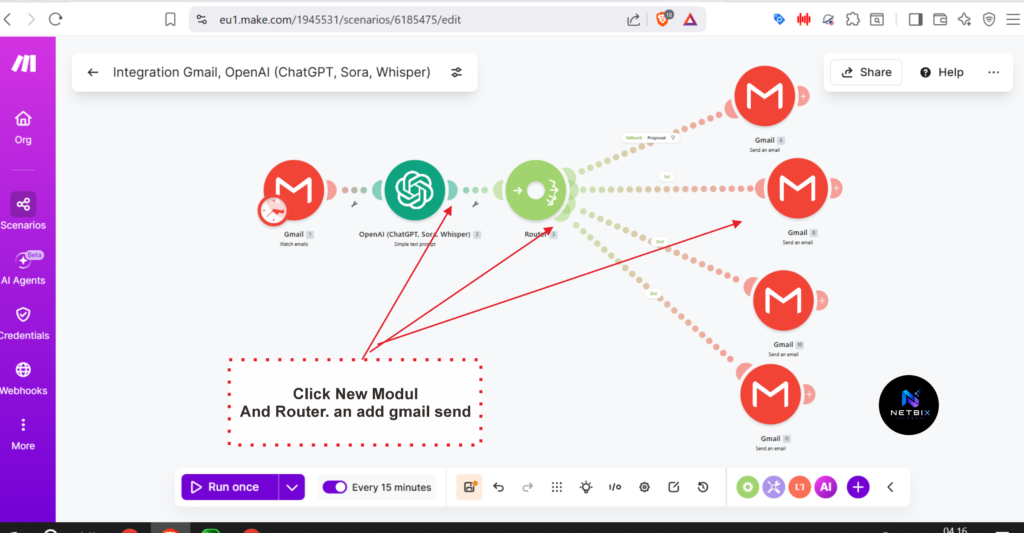
This workflow has three modules in Make: Gmail (Watch Emails) → OpenAI (Generate Reply) → Gmail (Send Reply)
That’s it. Three steps. Let’s build it.
Step 1: Set Up Gmail as Your Trigger
Why it matters: This is the starting point of the entire workflow. Make needs to watch your Gmail inbox and detect when a new email arrives. Without this trigger, the automation has nothing to react to.
What to do:
- Log in to your Make account at https://make.com
- Click Create a new scenario
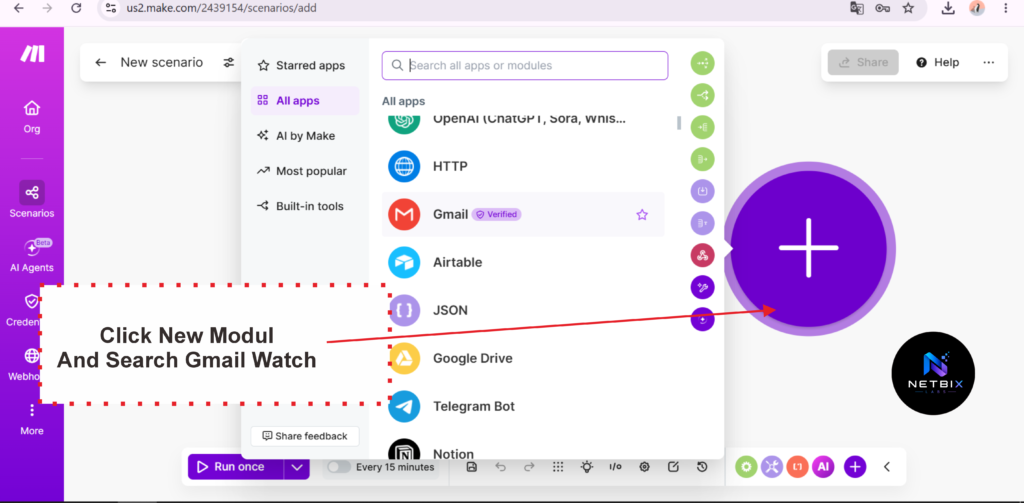
- Click the + button on the blank canvas
- Search for Gmail and select it
- Choose the trigger Watch Emails
- Click Connect and sign in to authorize Make to access your Gmail account
- Configure the trigger settings:
- Folder: Select Inbox
- Criteria: Select All emails to start, or filter by a specific label if you only want to auto-reply to certain emails
- Maximum number of results: Set to 1 (processes one email per run)
Expected result: Your first module appears on the canvas — a Gmail circle labeled “Watch Emails.” Make is now monitoring your inbox and will trigger the workflow each time a new email arrives.
Step 2: Connect ChatGPT to Generate the Reply
Why it matters: This is the intelligence layer of the workflow. Instead of sending a fixed template reply, ChatGPT reads the actual content of each incoming email and generates a relevant, contextual response. This is what makes it feel like a human replied rather than an automated system.
What to do:
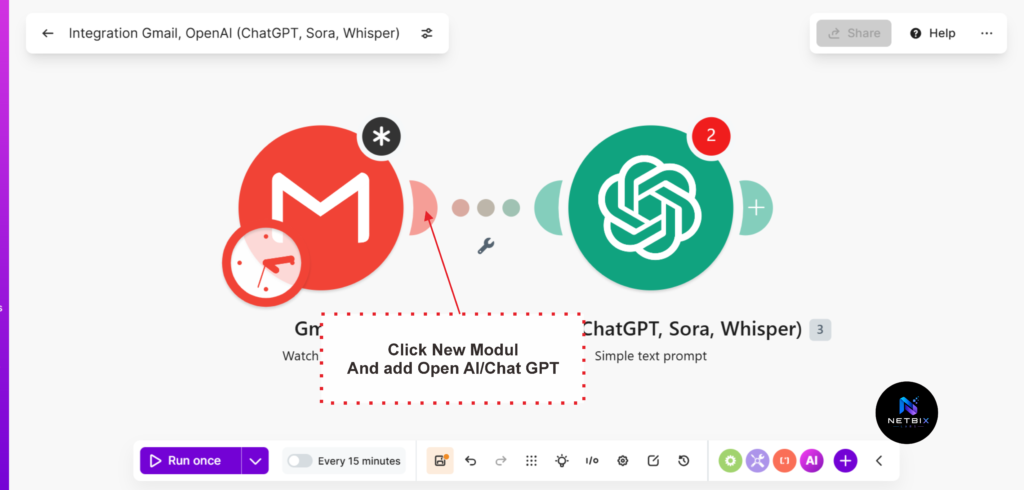
- Click the + icon to the right of your Gmail module
- Search for OpenAI (ChatGPT) and select it
- Choose the action Create a Completion (or Create a Chat Completion depending on your Make version)
- Click Connect and enter your OpenAI API key when prompted
- In the Messages field, set up your prompt using this structure:
System message (this defines ChatGPT’s role — paste this in):
You are a professional email assistant for [Your Company Name].
Your job is to write clear, professional, and helpful email replies
on behalf of the team. Always maintain a [formal / friendly /
professional] tone. Keep replies concise — no longer than
150 words unless the question genuinely requires more detail.
Never make up information you don't have. If the email asks
something you cannot answer, politely acknowledge it and let
the sender know the team will follow up shortly.
User message (this is the actual email content — map it dynamically):
Please write a professional reply to this email:

From: [map the "From" field from your Gmail trigger]
Subject: [map the "Subject" field from your Gmail trigger]
Message: [map the "Text" or "Body" field from your Gmail trigger]
Expected result: A configured OpenAI module that takes the content of each incoming email and generates a professional, contextual reply — customized to your business based on the system message you defined.
Step 3: Send the AI-Generated Reply via Gmail
Why it matters: This final step closes the loop — taking the reply ChatGPT generated and actually sending it from your Gmail account to the person who emailed you. Without this step, the reply exists only inside Make and never reaches anyone.
What to do:
- Click the + icon to the right of your OpenAI module
- Search for Gmail again and select Send an Email
- Configure the fields as follows:
- To: Map the From field from your Gmail trigger (this sends the reply back to whoever emailed you)
- Subject: Type Re: then map the Subject field from your Gmail trigger
- Content: Map the Result or Content output from your OpenAI module — this is the AI-generated reply text
- Click Run Once to test the full workflow
- Send a test email to your Gmail inbox and watch all three modules process it in sequence
- Check your Gmail Sent folder to confirm the reply was sent correctly
- Once confirmed, activate the scenario using the Scheduling toggle and set it to run every 15 minutes
Expected result: A fully active, three-module automation. Every new email that arrives in your Gmail inbox gets read by ChatGPT, which generates a professional reply, and Make sends it automatically — within 15 minutes of the email arriving, around the clock.
Tutorial Video
Seeing these three modules connected directly is much easier to understand than reading their descriptions. The video tutorial below shows the complete process from start to finish—from opening Make, connecting Gmail, setting up a ChatGPT prompt, to performing a test run and activating the automation.
This video is specifically designed for beginners who are new to using Make and the OpenAI API and want to see the results in action before trying it themselves.
How Businesses Use This Workflow
Startups
Startups use this workflow to maintain a responsive, professional image during early stages when the team is too small to monitor email constantly. Every inquiry gets an immediate, intelligent reply — giving the impression of a larger, well-organized operation.
HR Departments
HR teams set up auto-replies specifically for recurring employee questions — leave balance inquiries, policy clarifications, onboarding questions. ChatGPT is given the relevant HR policy content in its system prompt so it can answer accurately without HR staff reading each message manually.
Marketing Teams
Marketing teams use the workflow to handle inbound leads from campaign landing pages. When a prospect emails after seeing an ad or content piece, they receive an immediate, personalized response — dramatically improving the lead response rate without additional headcount.
Agencies
Agencies use the workflow to manage new business inquiries outside of business hours. A prospect emailing at 11pm on a Friday receives a professional, relevant response immediately — rather than waiting until Monday morning when the interest may have cooled.
Operations Teams
Operations teams configure the workflow to handle internal request emails — routing, acknowledging, and providing status updates on common operational requests without a coordinator manually managing each one.
Consultants and Solopreneurs
Individual consultants and freelancers use the workflow to maintain responsiveness during client work. While they’re focused on delivering for existing clients, the AI handles new inquiries and keeps prospects engaged.
Enterprise Teams
Large organizations deploy this workflow as a first-response layer for high-volume email channels — customer inquiries, partner communications, or internal helpdesk addresses. The AI handles the initial response and flags emails that require escalation to a human.
Best Practices
Write a detailed system prompt. The quality of ChatGPT’s replies depends entirely on the instructions you give it. Include your company name, what you do, your tone, what to do when it doesn’t know the answer, and any specific information it should always include or avoid.
Filter which emails trigger the automation. Not every email in your inbox should get an AI auto-reply — internal team emails, newsletters, and automated notifications don’t need one. Use Gmail labels or Make’s filter settings to limit the trigger to the specific email categories you want automated.
Always include a human follow-up line. Have ChatGPT end every reply with something like: “A member of our team will follow up with you shortly if any additional information is needed.” This sets expectations and ensures nothing important falls through the cracks.
Test with diverse email types before activating. Send yourself five different test emails covering different scenarios — a simple inquiry, a complex question, a frustrated message, an irrelevant email, and a very short one-line message. Check that ChatGPT handles each appropriately.
Review replies weekly when you first launch. Check your Sent folder regularly for the first two weeks to confirm reply quality is consistent. Adjust your system prompt based on anything that looks off.
Set a reply frequency that makes sense. Running Make every 15 minutes is standard. For very high-volume inboxes, you can reduce this to every 5 minutes. For lower-volume inboxes, every 30 minutes is fine.
Common Mistakes to Avoid
Using a vague system prompt. “Reply to emails professionally” is not enough instruction. ChatGPT needs context about your business, your services, and your tone to produce replies that are genuinely useful. The more specific your prompt, the better the output.
Auto-replying to every single email in the inbox. Applying this workflow to your entire inbox without filtering will result in AI replies being sent to newsletters, spam, internal team messages, and automated notifications. Always filter by label or sender criteria before activating.
Not testing before activating. The test run in Make takes two minutes. Skipping it risks sending a misconfigured or poorly worded reply to a real customer or business contact. Always test first.
Forgetting to monitor the OpenAI API usage. OpenAI charges per token used. A workflow processing hundreds of emails per day can accumulate meaningful API costs. Monitor your usage at https://platform.openai.com/usage and set a spending limit to avoid surprises.
Expecting ChatGPT to know things you haven’t told it. The AI only knows what’s in its system prompt and the incoming email. It cannot access your calendar, your CRM, or your order management system unless you explicitly connect those. Don’t configure it to make promises about things it can’t verify.
FAQ
Can ChatGPT really reply to emails intelligently, or does it just send templates? ChatGPT reads the actual content of each incoming email and generates a unique reply based on what was written. It’s not a fixed template — the reply changes based on the question, tone, and context of the email. With a well-written system prompt, the replies are consistently professional and contextually relevant.
Will the auto-reply send to everyone who emails me, including spam? Only if you configure it that way. You control which emails trigger the workflow using Make’s filter settings. Most users set the automation to trigger only for emails with a specific Gmail label — which means you apply the label manually or via a Gmail filter rule, and only those emails get the auto-reply.
Does this workflow cost money to run? Make’s free plan includes 1,000 operations per month — each module run counts as one operation, so this three-module workflow uses three operations per email. OpenAI charges per token used; for short email replies, costs are typically fractions of a cent per email. For most small to medium business volumes, monthly costs are under $5.
How fast does the auto-reply send after an email arrives? The reply sends within the interval you set for Make to run — typically 15 minutes. If you need faster responses, you can reduce the interval to 5 minutes on Make’s paid plans.
Can I customize the reply style for different types of emails? Yes. You can create multiple scenarios in Make — each with a different Gmail label trigger and a different ChatGPT system prompt. For example, one scenario for sales inquiries with a sales-focused prompt, and another for support questions with a support-focused prompt.
Is it safe to give Make access to my Gmail? Make uses OAuth to connect to Gmail — the standard, secure authorization method used by all major apps that integrate with Google. Make does not store your email content permanently. You can revoke Make’s Gmail access at any time through your Google account security settings.
Alternatives Worth Considering
Zapier + ChatGPT
What it does: Zapier offers the same Gmail → ChatGPT → Gmail workflow through its own automation platform. The interface is slightly simpler than Make for basic two-step workflows. When it’s better: When you want an even faster initial setup and don’t anticipate needing more complex workflow logic in the future. Best for: Absolute beginners who want the simplest possible path to a working email auto-reply. Official Website: https://zapier.com
Superhuman AI
What it does: An AI-powered email client that generates reply suggestions directly inside the email interface — you review and send with one click rather than fully automating. When it’s better: When you want AI assistance with email replies but prefer to review and approve each response before it sends, rather than full automation. Best for: Professionals who want AI to draft replies but aren’t comfortable with fully automated sending. Official Website: https://superhuman.com
Key Takeaways
- Auto-replying emails with ChatGPT and Make is one of the simplest, highest-impact AI automations any business can implement — and it takes about 30 minutes to set up.
- The workflow has just three modules: Gmail watches for new emails, ChatGPT generates a reply, Gmail sends it.
- The quality of your system prompt determines the quality of the replies. Invest time in writing a detailed, specific prompt before activating.
- Always filter which emails trigger the automation — not every message in your inbox should receive an AI reply.
- Test with real emails before going live to confirm reply quality across different email types.
- Monitor your OpenAI API usage to keep costs predictable, especially on higher-volume inboxes.
- This workflow is the ideal starting point for any business new to AI task automation — prove the concept here, then build from this foundation.
Conclusion
Replying to emails is one of the most universal and most consistently underestimated time costs in business. It feels manageable until you add up the hours — and for most teams, those hours are significant.
Building an AI email auto-reply agent with ChatGPT and Make is not a complex project. It’s a 30-minute setup that connects two tools most professionals are already familiar with, using a three-step workflow that any team member can build without technical help.
The result is immediate: every email gets a fast, professional, intelligent reply — automatically, at any hour, without anyone on your team having to read and respond to the same types of messages repeatedly.
If you’ve been looking for the simplest possible starting point for AI task automation in your business, this is it. Build this workflow first, confirm it works reliably, and you’ll have both the confidence and the foundation to automate the next repetitive task on your list.
The best automation is the one that’s actually running. Start here.