Learn how to build an AI approval workflow for your team. A step-by-step guide to automated approvals, business process automation, and no-code AI workflow systems.
Introduction
Approval processes are where work goes to slow down. A purchase request sits in a manager’s inbox for three days. An expense report gets lost between Slack and email. A leave application requires four people to sign off and nobody is sure who goes first. A contract needs legal review but nobody knows how to route it there.
These delays are not caused by bad intentions — they are caused by bad systems. Manual approval chains rely on individuals remembering to act, knowing who approves what, and having time to review and respond promptly. When any of those conditions fails, the process stalls.
AI approval workflows solve this by replacing manual routing, chasing, and tracking with an automated system that knows the rules, notifies the right people, follows up automatically, and logs every decision with a complete audit trail. Combined with AI integrations that can pre-screen submissions, summarize requests, and flag exceptions, corporate approval systems can move from days to hours — or minutes — without sacrificing oversight.
This guide is written for operations managers, HR directors, finance teams, startup founders, and corporate IT leads who want to build structured, automated approval systems their teams will actually use. The tool covered here is Make (formerly Integromat), one of the most powerful no-code platforms for building multi-step approval workflows with conditional logic and AI integrations.
By the end, you will have a working blueprint for an automated approval system — from request submission through AI pre-screening, manager notification, decision logging, and requester notification — built entirely without code.
Quick Summary
- Manual approval processes cause predictable delays, lost requests, and zero audit visibility.
- AI approval workflows automate routing, notification, follow-up, and logging — removing human bottlenecks from the process flow while keeping humans in the decision seat.
- Make (formerly Integromat) is used as the reference platform — its visual scenario builder and conditional logic make it ideal for multi-step approval workflows.
- The workflow in this guide covers: form submission → AI pre-screening → manager notification → decision capture → requester notification → Google Sheets logging.
- All tools in the tutorial (Google Forms, Google Sheets, Gmail, Make free tier) are either free or low-cost.
- AI integrations (OpenAI via Make) add intelligent pre-screening — flagging high-value requests, summarizing submissions, and generating draft approval or rejection responses.
Table of Contents
- What You’ll Learn
- Why Manual Approval Processes Break Down
- Tool Overview: Make for AI Workflow Automation
- Step-by-Step Tutorial: Build an AI Approval Workflow
- Tutorial Video
- How Businesses Use AI Approval Workflows
- Best Practices for Automated Approvals
- Common Mistakes in AI Workflow Systems
- FAQ
- Alternative Tools for Business Process Automation
- Key Takeaways
- Conclusion
- Related Guides
What You’ll Learn
- Why manual approval chains fail and what an automated system fixes
- How to set up a Google Form as the submission entry point for any approval request
- How to add an AI pre-screening step that summarizes and flags requests before human review
- How to route approvals to the right manager automatically based on request type or value
- How to capture manager decisions and trigger the correct follow-up action
- How to log every request and decision in Google Sheets for full audit visibility
- How to notify requesters automatically when their request is approved or rejected
Why Manual Approval Processes Break Down
Every organization has approval processes. Most of them are broken in the same ways.
You might also like: How to Create Multi-Agent AI Workflows for Business Teams
Related guide: How Corporate Teams Build AI Workflows for Daily Operations
No single system of record. Requests come in through email, Slack, paper forms, and verbal conversations. Nobody knows where to look for the current status of a pending request.
No routing logic. Approvals get forwarded to the wrong person, or the requester has to figure out who to ask — which means they either ask the wrong person or delay asking altogether.
No automated follow-up. When a manager does not respond within 24 hours, the requester has to manually chase. When the chaser forgets to chase, the request disappears.
No audit trail. When a decision was made, by whom, and on what basis is rarely recorded systematically. This creates compliance risk and makes process improvement impossible because there is no data to analyze.
AI operations automation addresses all four of these failure modes simultaneously. A well-built AI workflow system captures every request in a structured format, routes it to the correct approver automatically, follows up on pending items without human prompting, and logs every action with a timestamp and actor — creating a complete, searchable record of every approval decision the organization makes.
Tool Overview: Make for AI Workflow Automation
What It Is
Make (formerly Integromat) is a visual no-code automation platform that connects apps and services through “scenarios” — flowchart-style workflows that can include conditional logic, multiple branches, loops, error handling, and AI processing steps. Unlike Zapier’s linear structure, Make’s visual canvas allows you to build genuinely complex approval logic — routing requests differently based on value, type, department, or any other data field.
Make’s native OpenAI module allows AI processing to be inserted at any point in the workflow — making it the most capable no-code platform for building intelligent, branching approval systems without writing code.
Key Features
- Visual scenario builder — drag-and-drop flowchart interface for building multi-branch workflows
- Conditional routing (Routers) — split a workflow into multiple paths based on data values
- OpenAI integration — native module for GPT-4 text generation, summarization, and classification
- Google Workspace integration — native connectors for Google Forms, Sheets, Gmail, Drive, and Calendar
- Webhooks — receive data from any external system to trigger a scenario
- Error handling — configure fallback actions when a step fails
- Execution history — full log of every scenario run with input/output data at each step
- Free tier — 1,000 operations per month free; paid plans from $9/month
Why Businesses Use It
Operations teams, HR departments, and finance functions use Make to replace email-based approval chains with structured, automated workflows that are faster, more reliable, and fully auditable. Make’s conditional routing capability — absent in simpler tools like Zapier on lower plans — is what makes it the right platform for approval workflows that need to behave differently based on the nature of the request.
Ideal Use Cases
- Purchase request and expense approval workflows
- HR leave request and onboarding approval processes
- Contract review routing and sign-off workflows
- Budget authorization workflows with value-based escalation
- IT access request approval and provisioning workflows
Official Website: https://www.make.com
Official Documentation: https://www.make.com/en/help
Step-by-Step Tutorial: Build an AI Approval Workflow
The workflow we are building handles one of the most common corporate approval scenarios: a purchase request that is submitted by an employee, pre-screened by AI, routed to the appropriate manager, and logged in Google Sheets with a full audit trail.
The tools used: Google Forms (request submission), Make (workflow automation), OpenAI via Make (AI pre-screening), Gmail (notifications), Google Sheets (audit log). All free or included in Make’s free tier for low-volume use.
Step 1: Set Up Your Google Form as the Submission Entry Point
Why it matters: A structured form is the foundation of any reliable approval system. It ensures every request contains the minimum required information before entering the workflow — eliminating the incomplete submissions that cause most approval delays in email-based systems.
What to do:
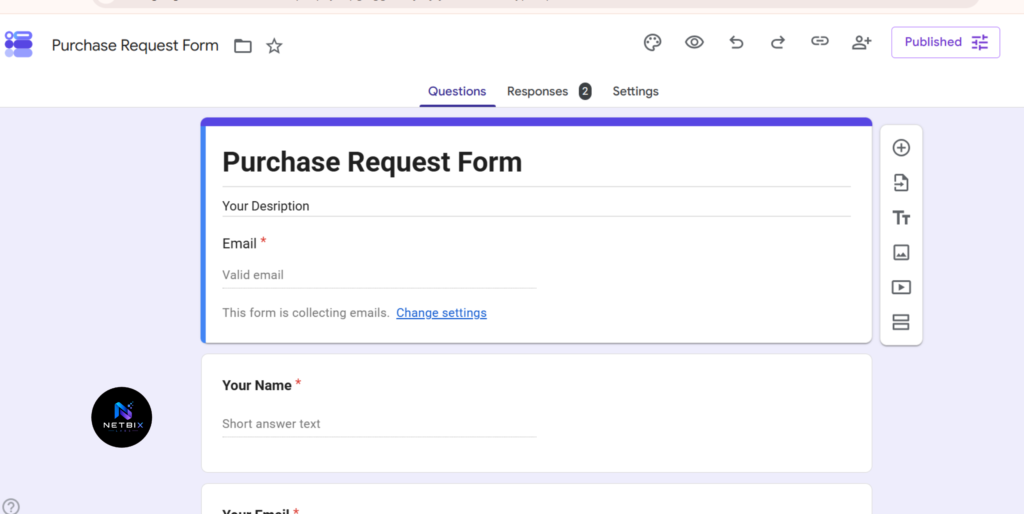
- Open Google Forms and create a new form titled “Purchase Request Form”.
- Add the following fields:
- Your Name (Short answer, required)
- Your Email (Short answer, required)
- Department (Dropdown: Finance / Marketing / Operations / HR / IT)
- Item or Service Requested (Short answer, required)
- Business Justification (Paragraph, required)
- Estimated Cost (USD) (Short answer, required — add response validation for numbers only)
- Urgency (Multiple choice: Standard / Urgent)
- In Form Settings, enable “Collect email addresses” so the submitter’s email is automatically recorded.
- Link the form to a Google Sheet: click the Responses tab → green Sheets icon → “Create a new spreadsheet.” Name it “Purchase Requests — Approval Log.”
- Add two extra columns manually to the spreadsheet after the auto-generated form columns: Approval Status and Approver Notes — these will be populated by the workflow later.
Expected result: A structured Google Form connected to a Google Sheet, ready to receive purchase requests. Every submission automatically creates a new row in the spreadsheet with all required fields captured.
Step 2: Connect Google Forms to Make and Set the Trigger
Why it matters: The Make scenario needs to know when a new form response arrives so it can start the workflow. Connecting Google Forms as the trigger creates this real-time link — the scenario fires automatically within seconds of a form submission, with no manual checking required.
What to do:
- Open Make at https://www.make.com and create a free account.
- Click “Create a new scenario” from the dashboard.
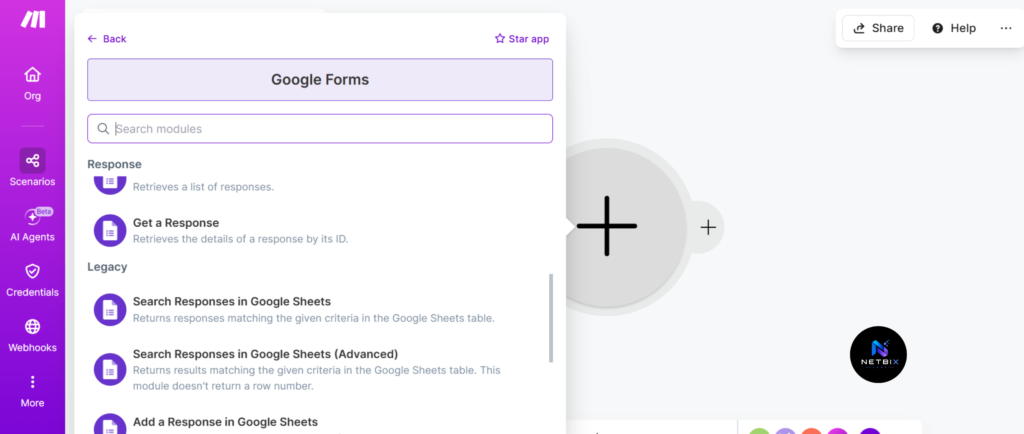
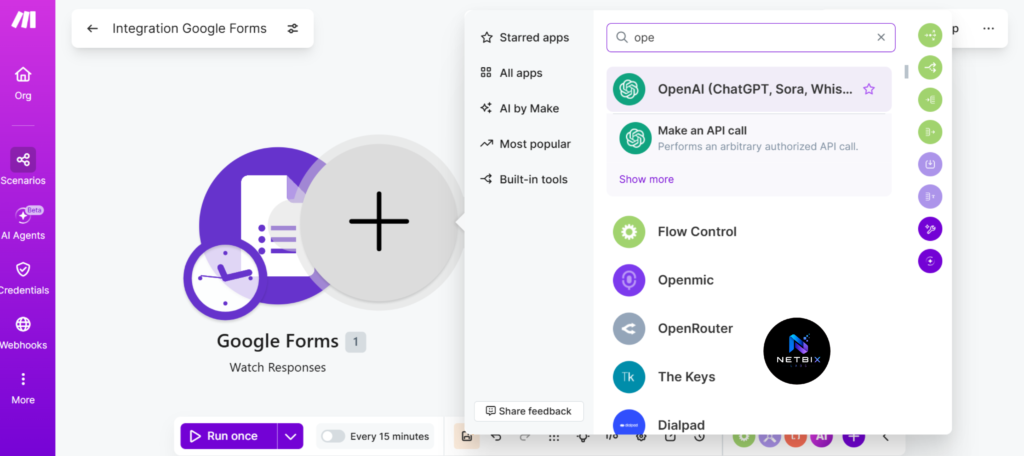
- Click the large “+” in the center of the canvas to add your first module.
- Search for “Google Forms” and select it.
- Choose the trigger: “Watch Responses” — this fires every time a new form response is submitted.
- Connect your Google account and select the “Purchase Request Form” from the dropdown.
- Click “OK” and then “Run once” to test — Make will wait for a test submission.
- Submit a test entry through your Google Form with realistic sample data.
- Confirm Make captures the submission and shows all form fields populated in the output panel.
Expected result: A live Make trigger that fires automatically every time a new purchase request is submitted, with all form field data available as variables for use in subsequent modules.
Step 3: Add an AI Pre-Screening Step
Why it matters: Before routing the request to a manager, the AI step reads the submission and produces two things: a concise summary of the request (saving the approver from reading a raw form dump), and a risk flag that categorizes the request as Standard, Elevated, or Escalate based on cost and justification quality. This gives approvers context immediately and ensures high-value or unclear requests are flagged for closer attention.
What to do:
- Click “+” after the Google Forms module to add a new module.
- Search for “OpenAI (DALL-E, Whisper, ChatGPT)” and select it.
- Choose action: “Create a Completion” (GPT-4 model).
- Connect your OpenAI account (API key from platform.openai.com).
- In the prompt field, enter the following — using Make’s variable insertion to map form fields dynamically:
“You are a business operations assistant reviewing a purchase request. Summarize the following request in 2 sentences. Then classify it as one of: Standard (routine, clear justification, under $500), Elevated (over $500 or requires closer review), or Escalate (over $2000 or justification is unclear). Return your response in this format: Summary: [your summary] | Flag: [Standard / Elevated / Escalate]
Requester: {{Name}} | Department: {{Department}} | Item: {{Item Requested}} | Justification: {{Business Justification}} | Cost: ${{Estimated Cost}} | Urgency: {{Urgency}}”
- Set max tokens to 200 and temperature to 0.3 for consistent, factual output.
- Click “OK” and run the module to verify the AI output.
Expected result: For each request, the AI returns a clean two-sentence summary and a flag level — giving the approving manager immediate context without needing to read the full form submission, and flagging high-value or unclear requests automatically.
Step 4: Route the Request to the Correct Manager
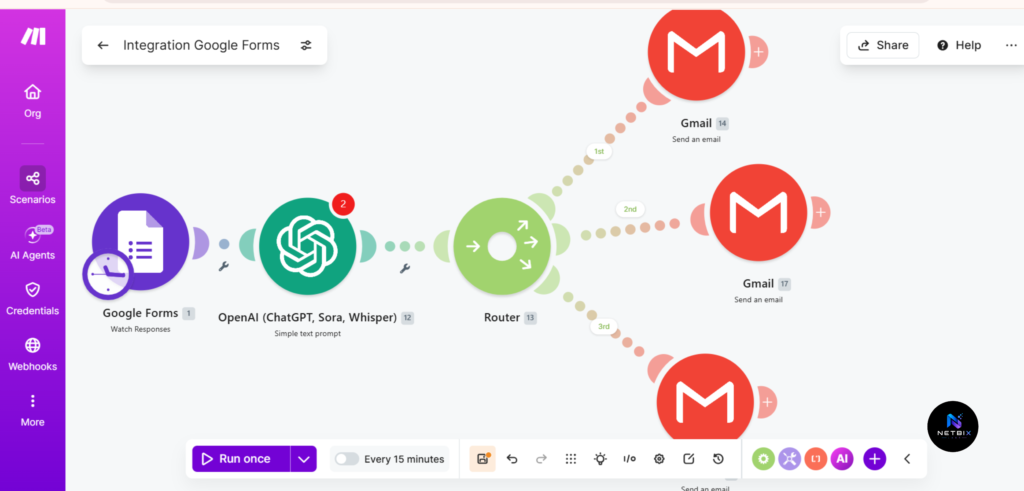
Why it matters: Different requests need different approvers. A purchase from the Marketing department should go to the Marketing lead, not the Finance director. Make’s Router module creates branching logic that reads the Department field and sends the notification to the correct person — replacing the manual “figure out who to email” step that slows down most approval processes.
What to do:
- Click “+” after the OpenAI module and add a “Router” module (found under Flow Control).
- The Router creates multiple branches. Set up one branch per department (or use a simpler two-branch setup: under $500 → direct manager, over $500 → senior manager).
- For a department-based setup, configure each branch’s filter:
- Branch 1: Department = “Marketing” → route to marketing manager’s email
- Branch 2: Department = “Operations” → route to operations manager
- Branch 3: Department = “HR” → route to HR director
- (Add branches for each department in your organization)
- On each branch, add a Gmail “Send an Email” module:
- To: the relevant manager’s email address (set as a static value per branch)
- Subject:
"Approval Required: {{Item Requested}} — {{Department}} ({{Flag Level}})"— map the AI Flag from Step 3 for instant priority context - Body: compose a clear approval request email:
“A new purchase request requires your approval.
Requester: {{Name}} Department: {{Department}} Item: {{Item Requested}} Cost: ${{Estimated Cost}} Urgency: {{Urgency}}
AI Summary: {{AI Summary from Step 3}} Risk Flag: {{Flag Level}}
Please reply to this email with APPROVED or REJECTED and any notes.”
Expected result: Every new purchase request is automatically emailed to the correct department manager within seconds of submission, with the AI-generated summary and risk flag included — giving the approver everything they need to make a decision in a single email.
Step 5: Log Every Request and Decision to Google Sheets
Why it matters: A system with no audit trail is not a system — it is just faster email. Logging every request, AI flag, notification timestamp, and eventual decision to Google Sheets creates the complete, searchable record that compliance teams need, process improvement requires, and managers can review at any time without asking anyone.
What to do:
- After each Gmail notification branch in the Router, add a “Google Sheets — Update a Row” module.
- Connect to the “Purchase Requests — Approval Log” spreadsheet created in Step 1.
- Map the following fields to the correct spreadsheet columns:
- Row identifier: match by the Timestamp column (to find the correct row for this submission)
- Approval Status column → set to “Pending” as a static value at this stage
- Approver Notes column → map the AI Summary from Step 3 as the initial notes entry
- Add a “Google Sheets — Add a Row” module as an alternative if your setup creates new rows rather than updating existing ones — mapping all form fields plus the AI flag and timestamp to the correct columns.
- Verify the spreadsheet updates correctly by running a full test submission through the form and checking that the row updates with “Pending” status and the AI summary.
Expected result: Every purchase request is logged in Google Sheets with its current status, AI-generated summary, department, and cost — creating a live dashboard of all pending and processed approvals that any stakeholder can access without asking someone to compile a report.
| Step | Manual | AI Automated |
|---|---|---|
| Request submission | Email / verbal | Structured Google Form |
| Routing to approver | Requester figures it out | Automatic by department |
| Approver briefing | Reads full email thread | AI summary in 2 sentences |
| Follow-up on pending | Manual chasing | Automatic reminder (optional) |
| Decision logging | Rarely done | Automatic to Google Sheets |
| Requester notification | Manually replied to | Triggered automatically |
| Average time to decision | 2–5 days | 2–24 hours |
Tutorial Video
This video tutorial walks you through the complete process of building AI-powered approval systems for corporate teams, from designing approval workflows and defining business rules to implementing intelligent automation that streamlines decision-making. You’ll learn how AI can automatically route requests, prioritize approvals, reduce bottlenecks, enforce compliance policies, and improve operational efficiency across departments. Whether you’re a business leader, operations manager, or IT professional, this guide provides practical insights into creating scalable, secure, and efficient approval processes that support modern digital transformation initiatives.
How Businesses Use AI Approval Workflows
Startups
Early-stage teams use AI approval workflows to create structure before hiring dedicated operations staff. A five-person startup can run a proper purchase approval process — with routing, logging, and audit trail — without anyone dedicated to managing it. The system handles the process; the team handles the decisions.
Agencies
Creative and digital agencies use automated approval workflows to manage client sign-off requests, vendor invoice approvals, and internal budget requests. When a project manager submits a scope change request, the workflow automatically routes it to the account director with the AI-generated summary — cutting the back-and-forth that typically adds days to scope change decisions.
Marketing Teams
Marketing teams use AI automation for campaign budget approvals and vendor onboarding. A new vendor request submitted through Google Forms is automatically pre-screened for completeness, routed to the marketing director with a risk flag, and logged with a timestamped record — replacing the scattered email threads that make budget tracking nearly impossible at the end of a quarter.
HR Teams
HR departments use AI approval workflows for leave requests, hiring approvals, and onboarding task routing. A leave request submitted through Google Forms is automatically checked against team calendar availability (via Google Calendar integration), routed to the line manager, and logged with the decision and date — creating the complete HR record that compliance requires without additional manual logging.
Operations Teams
Operations teams use automated approval workflows for purchase requests, equipment orders, and facility access requests. The AI pre-screening step is particularly valuable here — flagging unusual requests (unusually high cost, unclear justification, duplicate submissions) for closer review before they reach a senior approver.
Creators and Solopreneurs
Individual consultants and small business owners use simplified approval workflows to manage client approvals for deliverables, proposals, and change requests. A Google Form linked to a Make scenario can capture client feedback, route it to the project file, and trigger the next task automatically — creating a lightweight client management system without dedicated project management software.
Enterprise Workflows
Large organizations use Make’s enterprise plan to build multi-level approval hierarchies — where requests above a certain value escalate to a second-level approver automatically, and any request flagged “Escalate” by the AI is simultaneously routed to both the line manager and the finance director. The full audit log in Google Sheets or a connected data warehouse provides the compliance documentation that enterprise governance requires.
Best Practices for Automated Approvals
Design the form before the workflow. The quality of your approval system depends entirely on the quality of the data it receives. Spend time designing a form that captures everything an approver needs to make a decision — before building any automation around it. An incomplete form produces incomplete requests that get delayed or rejected for the wrong reasons.
Keep AI prompts specific and output-constrained. For the pre-screening step, define exactly what format you want the AI to return — Summary and Flag in a consistent format that Make can parse reliably. Unconstrained AI outputs produce variable formatting that breaks downstream field mapping.
Test every branch of your Router. Make’s Router splits the workflow into multiple paths. Every branch needs to be tested with data that matches its filter condition — not just the most common path. An untested branch that fails silently means approval requests from that department disappear without anyone knowing.
Add a fallback branch for unmatched requests. Configure a “catch-all” Router branch that fires when no other filter matches — sending an alert to a default approver or admin email rather than dropping the request. This prevents edge cases from disappearing silently.
Set up error notifications in Make. Make can send an email alert when a scenario encounters an error. Enable this for any production approval workflow — so errors are caught immediately rather than discovered when a requester asks why their request was never processed.
Keep the approver action simple. If approvers need to log into a portal, click multiple buttons, or navigate to a new system to record their decision, adoption will be low. The simplest approach — reply to an email with APPROVED or REJECTED — creates the least friction. If you need a more structured response, a linked Google Form with a pre-filled approval URL works well.
Common Mistakes in AI Workflow Systems
Building the automation before defining the process. Teams that build approval workflows before agreeing on who approves what, under what conditions, and with what SLA consistently build the wrong system — and then rebuild it. Map the approval process on paper first. Automate what is already agreed.
Using free-form text fields where dropdowns would work. Free-form department or category fields produce inconsistent values (“Mktg”, “marketing”, “MKT”) that break routing logic. Always use dropdowns or multiple choice for fields that drive routing decisions.
Not including the AI summary in the approver notification. Adding AI pre-screening but not surfacing the output in the approver email means the AI step adds no value to the actual decision. Make the summary prominent in the notification — it should be the first thing the approver sees.
Forgetting to update the Google Sheet when a decision is made. The logging step only records the initial “Pending” status if you do not build the decision-capture loop. For a complete audit trail, you need a second trigger — typically a webhook or a Google Form for the approver to submit their decision — that updates the Approval Status column when the manager responds.
Skipping the requester notification step. A system that notifies the approver but never tells the requester what happened is only half-built. Always include a final notification step that confirms approval or rejection to the person who submitted the request — this is the step that makes people trust and use the system.
FAQ
What is an AI approval workflow and how does it work? An AI approval workflow is an automated business process that handles the submission, routing, review, and logging of approval requests without manual coordination. It typically works as follows: a requester submits a structured form; an AI step processes the submission to produce a summary and risk classification; the system routes the notification to the correct approver; the approver reviews and decides; the decision is logged automatically; and the requester is notified of the outcome. The entire sequence runs without human coordination — the only human action required is the approval decision itself.
What types of approvals can be automated with AI? Most rule-based approval processes are candidates for automation. The most common include: purchase and expense requests, leave and time-off requests, contract review routing, budget authorization, vendor onboarding, IT access requests, project scope change approvals, and hiring requisitions. Any approval process with a consistent submission format, defined routing rules, and a binary or limited set of outcomes (approve / reject / escalate) is well suited to an AI approval workflow.
Do I need coding skills to build an AI approval workflow? No. Platforms like Make, Zapier, and Microsoft Power Automate are designed for non-technical users. The workflow in this guide uses only visual drag-and-drop configuration, form builders, and spreadsheet tools — no coding required at any step. The AI integration (OpenAI via Make) requires only a prompt written in plain English, not programming. Basic familiarity with Google Workspace tools is sufficient to build and maintain the entire system.
How does AI pre-screening improve the approval process? AI pre-screening adds value in three ways. First, it summarizes the request in two to three sentences — saving the approver from reading a raw form dump and reducing decision time. Second, it classifies the request by risk level (Standard, Elevated, Escalate) based on cost and justification quality — allowing approvers to prioritize their queue without manual triage. Third, it can flag incomplete or inconsistent submissions before they reach the approver — catching the requests that would be returned for more information anyway, earlier in the process.
What is the difference between Make and Zapier for approval workflows? Both are no-code automation platforms, but Make is better suited for approval workflows specifically. Make’s Router module enables genuine conditional branching — routing requests differently based on department, value, or request type — in a visual, maintainable format. Zapier supports conditional routing through Paths on higher plans, but Make’s visual canvas makes complex multi-branch logic easier to build and audit. For simple two-step automations, Zapier is faster to set up. For multi-branch approval workflows, Make provides more control.
How do I handle the approver’s decision in the automated workflow? The simplest approach is to have the approver reply to the notification email with APPROVED or REJECTED. Make can be configured to watch for email replies (via Gmail “Watch Emails” trigger) and parse the response. A more structured approach uses a linked Google Form pre-filled with the request ID — the approver clicks a link in the notification email, lands on a pre-filled form with just an Approval Status dropdown and optional Notes field, submits the form, and Make’s second scenario updates the audit log and triggers the requester notification. The second approach provides cleaner, more structured decision data.
Alternative Tools for Business Process Automation
Zapier with Paths
What it does: Zapier’s Paths feature (available on Professional and higher plans) enables conditional branching within a Zap — routing workflows differently based on data values. Combined with Zapier’s AI by Zapier step and Gmail or Slack integrations, it can handle moderate-complexity approval routing.
When it’s better: When your team already uses Zapier for other automations and your approval routing logic has two to three branches at most. For simpler approval workflows, Zapier’s easier setup and larger template library makes it the faster starting point.
Who should use it: Teams already on Zapier Professional, organizations with simple routing logic, and businesses that prefer to manage all automation in a single platform.
Website: https://zapier.com
Microsoft Power Automate
What it does: Microsoft Power Automate is Microsoft’s enterprise workflow automation platform with native approval management built in — including the “Start and wait for an approval” action that handles the full approval loop (notification, response capture, routing) in a single step. Deep integration with Microsoft 365, Teams, SharePoint, and Dynamics 365 makes it the natural choice for Microsoft-standardized organizations.
When it’s better: When your organization uses Microsoft 365 and you want approval notifications and decisions to happen directly inside Microsoft Teams — with approvers tapping Approve or Reject in the Teams interface without leaving the platform. Power Automate’s native approval module is significantly more purpose-built than generic email-based approval approaches.
Who should use it: Enterprise teams and corporate organizations standardized on Microsoft 365, particularly those wanting Teams-integrated approval experiences.
Website: https://powerautomate.microsoft.com
Monday.com Automations
What it does: Monday.com’s built-in automation engine handles approval workflows within its project management platform — routing items between boards, changing statuses, sending notifications, and logging decisions as items move through defined approval stages.
When it’s better: When your team already manages work in Monday.com and you want approvals to live inside the same platform as the work they govern — rather than in a separate automation tool. Monday.com approval workflows are simpler to build but less flexible than Make or Power Automate for complex routing logic.
Who should use it: Teams using Monday.com as their primary operations platform, project-based businesses managing client approvals alongside project tasks, and organizations that want a single tool for work management and approval tracking.
Website: https://monday.com
Notion + Zapier
What it does: Combining Notion’s database and form tools with Zapier automation creates a lightweight approval system where requests are logged as Notion database entries, status fields track approval progress, and Zapier handles notifications and routing. This approach works well for teams that use Notion as their primary knowledge and operations hub.
When it’s better: When your team already lives in Notion and you want approval requests to be visible alongside related documentation, project pages, and team wikis — rather than in a separate spreadsheet or system.
Who should use it: Knowledge workers, startups, and small teams using Notion as their primary workspace who want approval workflows without adopting an additional dedicated tool.
Website: https://www.notion.so
Key Takeaways
- AI approval workflows replace manual routing, chasing, and logging with an automated system that is faster, more reliable, and fully auditable — without removing humans from the actual decision.
- Make’s visual scenario builder and Router module make it the most capable no-code platform for multi-branch approval logic that routes differently based on department, value, or request type.
- The AI pre-screening step — summarizing requests and flagging risk level — is the highest-value addition to any approval workflow. It saves approver time and surfaces high-priority requests without manual triage.
- Google Sheets provides a free, accessible audit log that any stakeholder can access without system permissions — making compliance documentation effortless.
- Design the approval process before building the automation. The most common reason AI workflow systems fail is that they automate an undefined or inconsistent process.
- Start with one approval type, build it completely (including the requester notification), test it with real requests, and then replicate the pattern for other approval categories.
Conclusion
AI approval workflows are not a luxury for large enterprises — they are a practical improvement available to any team that has a Google account and 90 minutes to build the system.
The workflow in this guide — Google Form submission, AI pre-screening via Make and OpenAI, manager notification with AI summary, Google Sheets audit log, and requester confirmation — covers the full approval lifecycle with tools that cost nothing or close to it. More importantly, it creates a system your team will actually trust because requests do not disappear, decisions are recorded, and outcomes are communicated automatically.
Business process automation at this level is not about replacing human judgment. The manager still approves or rejects. The value is in removing every other step — routing, chasing, logging, notifying — from the human workload, and replacing those steps with a system that runs consistently, 24 hours a day, without anyone remembering to do it.
Start with your most painful manual approval process. Map it on paper. Build it in Make. Test it with ten real requests. Then watch it run.