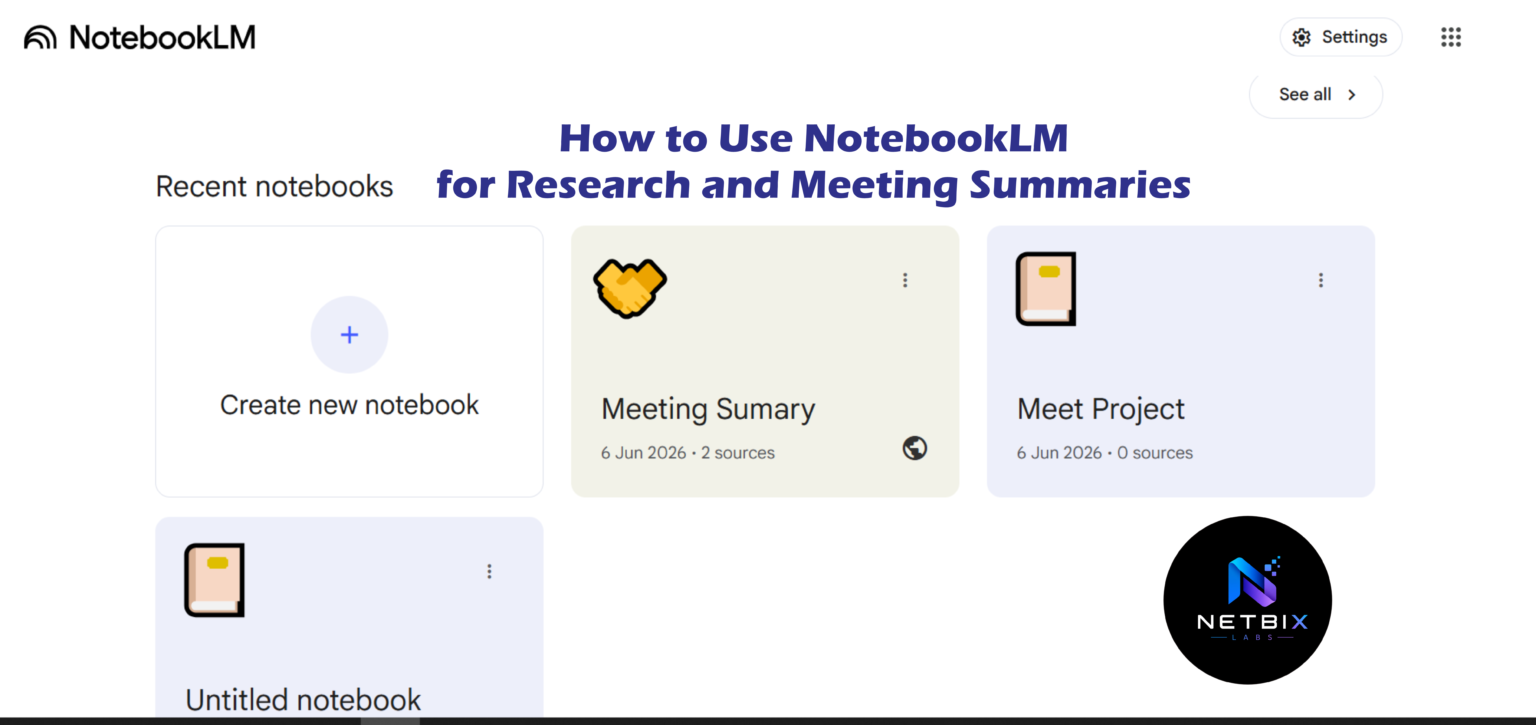
Learn how to use NotebookLM as an AI research assistant and meeting summary tool. A step-by-step NotebookLM tutorial for business teams, HR, and startups.
Introduction
Every week, professionals across industries sit through hours of meetings — and spend even more time trying to remember what was decided, who owns what, and what comes next. Research workflows aren’t much better. Teams sift through dozens of PDFs, reports, and documents, manually pulling out insights that should take minutes to surface.
The tools most people rely on — shared Google Docs, color-coded highlights, manual note-taking — haven’t kept pace with the volume of information modern businesses deal with daily.
That’s where NotebookLM comes in.
NotebookLM is Google’s AI research assistant designed specifically for knowledge work. It lets you upload your own documents — reports, contracts, meeting transcripts, research papers — and interact with them through a conversational AI interface. Unlike general AI chatbots, it doesn’t pull answers from the internet. Every response is grounded exclusively in the sources you provide, with citations to back it up.
For corporate teams, this means faster research cycles. For HR departments, it means structured candidate comparisons without hours of manual review. For startups, it means walking into investor meetings fully briefed — even when the prep time is short.
This NotebookLM tutorial is built for business professionals who want to move from reading and summarizing manually to working with information intelligently. You’ll learn how to set up the tool, generate AI meeting summaries from transcripts, build a private AI knowledge base, and apply it to real workflows across your organization.
Whether you’ve never opened NotebookLM before or you’ve explored it briefly without a clear system — this guide gives you a complete, practical foundation.
Quick Summary
- NotebookLM is Google’s AI-powered research and document assistant built on Gemini
- It lets you upload documents, PDFs, meeting transcripts, and Google Docs — then ask questions, get summaries, and build a private AI knowledge base
- Ideal for corporate teams, HR departments, startups, researchers, and agencies
- This guide walks you through setup, core workflows, business use cases, and best practices
- It’s free to use and requires only a Google account
Table of Contents
- What Is NotebookLM?
- What You’ll Learn
- Tool Overview
- Step-by-Step Tutorial
- Video Tutorial
- How Businesses Use NotebookLM
- Best Practices
- Common Mistakes to Avoid
- FAQ
- Alternative Tools
- Key Takeaways
What Is NotebookLM?
If your team still spends hours reading lengthy reports, manually writing meeting recaps, or digging through dozens of PDFs to find one key insight — there’s a better way.
Related guide: How Teams Build AI Knowledge Bases for Internal Documentation
NotebookLM is Google’s AI research assistant that lets you upload your own documents and turn them into an interactive, queryable knowledge base. Unlike general AI chatbots, it works exclusively with the sources you provide. Every answer it gives is grounded in your uploaded content — with citations to prove it.
For business professionals, this changes the game. You can upload a 60-page strategy report and ask, “What are the three biggest risks mentioned?” in seconds. You can paste in a meeting transcript and get a structured summary with action items. You can combine multiple sources — contracts, research papers, internal memos — and ask cross-document questions.
This NotebookLM tutorial is built for corporate teams, HR departments, startups, agencies, and anyone who wants to work with information faster and more intelligently.
What You’ll Learn
- How to set up NotebookLM and create your first notebook
- How to upload and manage multiple document sources
- How to use AI to summarize documents and research materials
- How to generate accurate AI meeting summaries from transcripts
- How to build a private AI knowledge base for your team’s workflows
- Best practices for getting high-quality outputs
- Real business use cases across departments
Tool Overview
NotebookLM is a free AI research and document summarizer built by Google Labs, powered by Google’s Gemini model. It was designed specifically for knowledge work — not general conversation.
You might also like: How AI Agents Can Automate Business Research and Reporting
Key Features
- Multi-source notebooks — Upload PDFs, Google Docs, Google Slides, web URLs, YouTube links, and plain text files
- AI-generated summaries — Instantly get a summary of any uploaded source
- Source-grounded answers — Every response cites the exact passage it’s pulling from
- Briefing documents — Auto-generate FAQ docs, study guides, timelines, and table of contents
- Audio Overviews — Turn your notes into a podcast-style audio summary (a standout feature)
- Notebook Guide — A smart panel that suggests questions and organizes your content
- Shareable notebooks — Collaborate with teammates on shared research spaces
Who Should Use It
| Role | Primary Use |
|---|---|
| Corporate teams | Summarizing reports, contracts, and strategy docs |
| HR departments | Processing interview notes, policy docs, and onboarding materials |
| Startups | Rapid research, investor prep, competitive analysis |
| Agencies | Briefing docs, client research, content research |
| Researchers | Literature review, cross-document analysis |
| Operations | SOP management, meeting summaries, process documentation |
Official Links
Official Website: https://notebooklm.google.com
Official Documentation / Help Center: https://support.google.com/notebooklm
Step-by-Step Tutorial
[WORKFLOW DIAGRAM SUGGESTION: Upload Sources → Ask Questions → AI Generates Grounded Answers → Export Summary → Share with Team]
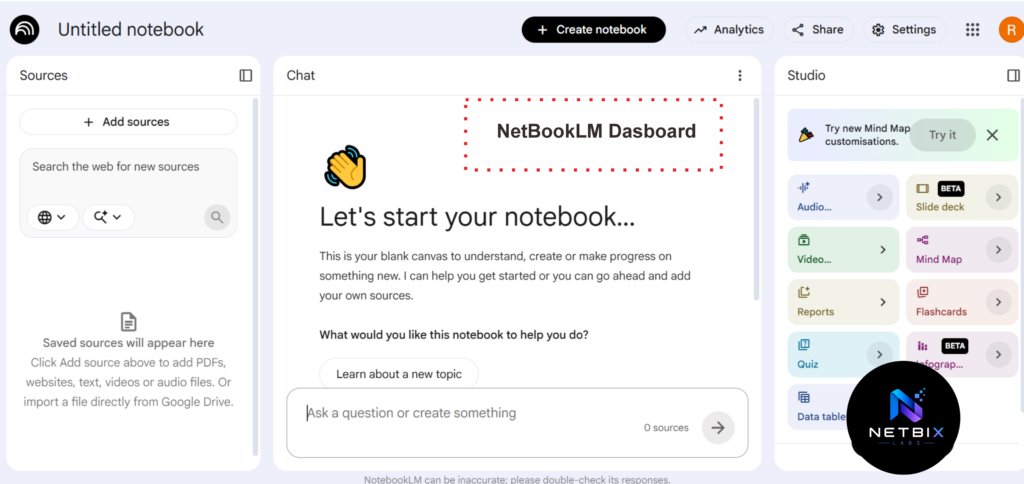
Step 1: Create Your First Notebook
Why it matters: Notebooks are how NotebookLM organizes your work. Each notebook is a separate workspace with its own sources, notes, and AI conversation history. Creating a focused notebook for each project keeps your research clean and relevant.
What to do:
- Go to notebooklm.google.com
- Sign in with your Google account
- Click “New Notebook” in the top-left corner
- Give your notebook a clear, project-specific name (e.g., “Q3 Strategy Research” or “October All-Hands Meeting”)
Expected result: A blank notebook workspace opens with a source panel on the left and a chat interface on the right.
Step 2: Upload Your Sources
Why it matters: NotebookLM is only as useful as the sources you give it. Unlike general AI tools that draw from the internet, NotebookLM works only within your uploaded content. This makes it more accurate, more private, and more relevant for business use.
What to do:
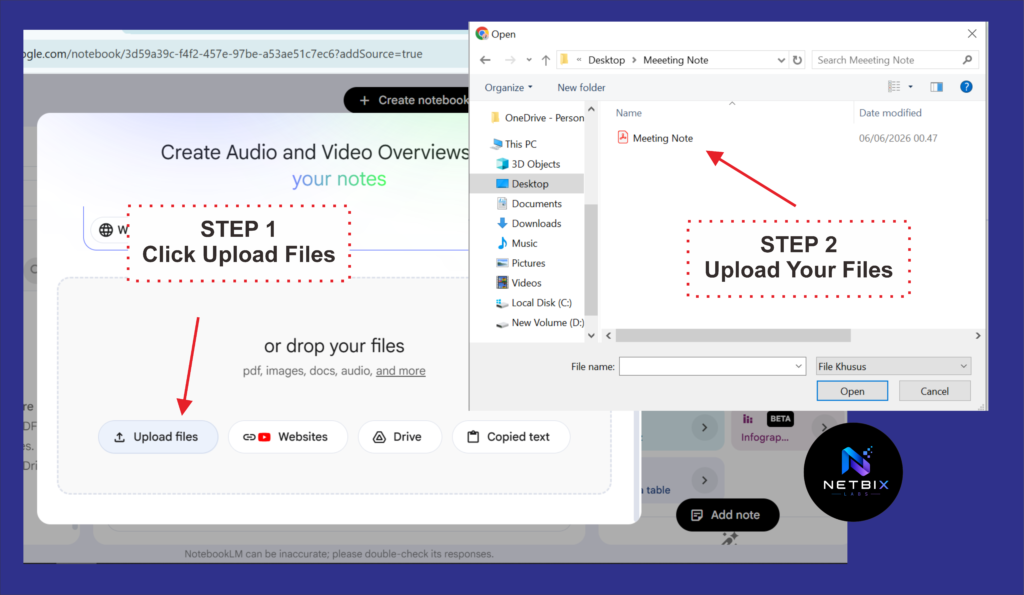
- Inside your notebook, click “Add Sources” in the left panel
- Choose your source type:
- Google Drive — connect a Doc, Sheet, or Slide
- PDF — upload directly from your computer
- Website URL — paste a public web page link
- YouTube URL — paste a video link (NotebookLM transcribes it automatically)
- Copied text — paste raw text directly
- Upload between 1–50 sources per notebook (current limit)
- Wait for processing — typically 10–30 seconds per document
Pro tip: For meeting summaries, upload the raw transcript file (exported from Zoom, Google Meet, or Microsoft Teams) as a plain text or PDF file.
Expected result: Each source appears in the left panel with a green checkmark. NotebookLM automatically generates an individual summary for each source upon upload.
Step 3: Generate a Document Summary
Why it matters: For long documents — annual reports, research papers, legal contracts — reading every word is impractical. NotebookLM’s document summarizer AI creates accurate, source-cited summaries in seconds.
What to do:
- Click on any source in the left panel
- The source viewer opens on the right
- In the Notebook Guide panel (top right), click “Summarize this source”
- Alternatively, type in the chat: “Summarize this document in 5 bullet points” or “What are the main conclusions from this report?”
Expected result: A structured summary appears in the chat panel, with inline citations (highlighted in yellow) that link directly back to the relevant passages in the original document.
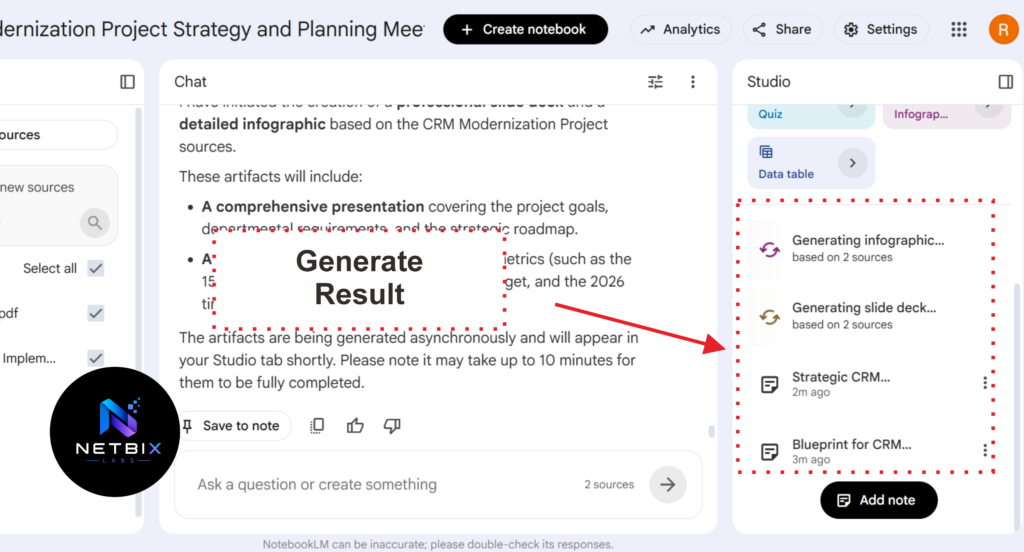
Step 4: Create AI Meeting Summaries
Why it matters: Meeting notes are consistently one of the most time-consuming administrative tasks in any organization. A well-structured AI meeting summary captures decisions, action items, and discussion points — without anyone having to take notes manually.
What to do:
- Export your meeting transcript from your video conferencing platform:
- Zoom: Go to Account > Recordings > select transcript (.vtt or .txt)
- Google Meet: Enable transcription in settings; transcript is saved to Drive
- Microsoft Teams: Download transcript from meeting details
- Upload the transcript file to your NotebookLM notebook
- Once uploaded, use these prompts in the chat:
- “Summarize this meeting in 3–5 key points”
- “List all action items mentioned with the person responsible”
- “What decisions were made during this meeting?”
- “Create a follow-up email summary of this meeting”
Expected result: A structured meeting summary with clearly organized sections — key discussion points, decisions, and action items — each cited back to the original transcript.
Step 5: Ask Questions Across Multiple Sources
Why it matters: One of NotebookLM’s most powerful capabilities for business research is cross-document querying. When you upload multiple sources — a market research report, a competitor analysis, and your internal sales data — you can ask questions that synthesize insights from all of them at once.
What to do:
- Upload 2 or more sources to your notebook
- In the chat, ask a cross-source question such as:
- “What do these three reports agree on regarding market trends?”
- “Are there any contradictions between the two strategy documents?”
- “Based on all sources, what are the top three risks for our project?”
- Review the answer and click the citation chips to verify the source passages
Expected result: A synthesized answer that draws from multiple documents, with citations indicating which source contributed which insight.
Step 6: Generate Briefing Documents and Study Guides
Why it matters: The Notebook Guide panel lets you auto-generate structured output formats without writing prompts. These are especially useful for onboarding, client briefs, or preparing for meetings.
What to do:
- Open the Notebook Guide by clicking the compass icon in the top-right panel
- Select a format:
- FAQ — auto-generates common questions and answers from your sources
- Study Guide — creates a learning-oriented breakdown with quiz questions
- Table of Contents — maps out the structure of your content
- Timeline — extracts chronological events from your sources
- Briefing Doc — creates a structured executive summary
- Click “Generate” next to your chosen format
Expected result: A formatted document appears in the notes panel on the right, which you can edit, copy, or share directly from NotebookLM.
Step 7: Share and Export Your Outputs
Why it matters: Research and summaries are only valuable when they reach the right people. NotebookLM lets you share notebooks with collaborators or copy outputs for use in other tools.
What to do:
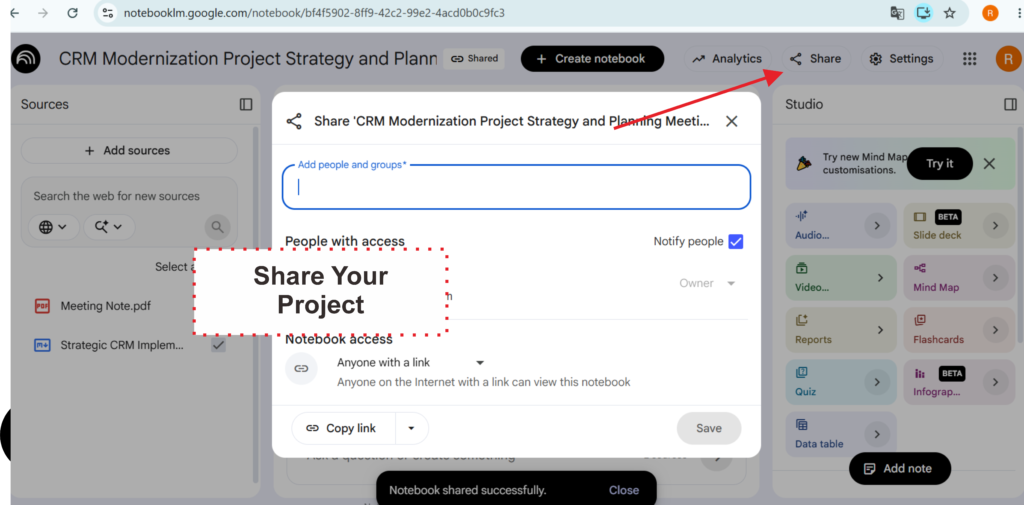
- Share a notebook: Click the share icon (top-right) → add collaborators by email → set permissions (viewer or editor)
- Copy output to clipboard: Select text in the chat or notes panel → copy and paste into Docs, Notion, Slack, or email
- Pin important notes: Click the pin icon on any AI response to save it as a permanent note in your notebook
- Export notes: Open a note → click the three-dot menu → copy to clipboard or open in Google Docs
Expected result: Teammates can access the shared notebook in real time, view sources, and ask their own questions within the same workspace.
Tutorial Video
How Businesses Use NotebookLM
Startups
Founders use NotebookLM to synthesize market research before investor meetings. Upload 10 industry reports, ask for a competitive landscape summary, and walk into a pitch fully prepared — in under an hour.
Agencies
Creative and strategy agencies upload client briefs, brand guidelines, and competitor research into a single notebook. Account managers can then ask specific questions instead of re-reading every document before a client call.
Marketing Teams
Marketing professionals use it as a document summarizer AI for processing campaign reports, trend articles, and customer feedback. Instead of reading 15 research pieces, they upload them and query the combined knowledge base.
HR Departments
HR teams upload job descriptions, candidate interview notes, and performance frameworks to create structured comparison summaries across candidates — reducing bias and saving hours of manual review.
Operations Teams
Operations managers use NotebookLM to build searchable SOP libraries. Upload standard operating procedures as PDFs, then ask natural-language questions like: “What is the escalation process for a Tier 2 complaint?”
Enterprise Workflows
Large enterprises use NotebookLM for regulatory and compliance research. Legal and compliance teams upload policy documents, legislation updates, and internal guidelines, then query for specific requirements without manual document review.
Best Practices
- Name notebooks clearly. Use project-specific names like “Product Launch Q4 — Research” rather than generic labels. This becomes critical when you have many notebooks.
- Upload high-quality transcripts. AI meeting summaries are only as good as the transcript. Ensure your transcription software is set to high accuracy before uploading.
- Use specific prompts. Vague questions get vague answers. Instead of “summarize this,” try “List the five most important action items with deadlines from this meeting.”
- Combine source types. Mix PDFs, Google Docs, and YouTube videos in one notebook to build a richer, multi-format AI knowledge base.
- Pin critical outputs. Use the pin feature to save important AI-generated summaries as permanent notes — they won’t disappear when the conversation resets.
- Verify citations. Always click through citation chips when using outputs for formal reports. NotebookLM is highly accurate, but source verification is a professional habit worth keeping.
- Separate projects into separate notebooks. Don’t dump everything into one notebook. Focused notebooks produce more relevant, accurate answers.
Common Mistakes to Avoid
Uploading too many unrelated sources. Mixing unrelated documents into one notebook confuses the AI’s context. Keep notebooks focused on a single project or topic.
Expecting answers outside your sources. NotebookLM will not pull information from the internet or its general training knowledge. If a question falls outside your uploaded content, it will say so. That’s a feature, not a bug — it keeps answers accurate.
Ignoring citation chips. The yellow citation chips are there for a reason. Ignoring them means missing the opportunity to verify accuracy — especially important for business-critical documents.
Using poor-quality transcripts. Auto-generated transcripts with heavy speaker crosstalk or technical jargon often produce lower-quality meeting summaries. Clean up transcripts before uploading when accuracy matters.
Not using the Notebook Guide. Many users only use the chat panel and miss the Notebook Guide entirely. The auto-generated FAQ, briefing docs, and study guides save significant time and don’t require prompt writing.
Treating it like a general chatbot. NotebookLM is not ChatGPT. It’s a source-grounded research tool. Asking it to write creative content or answer general knowledge questions is not its purpose — and it will tell you so.
FAQ
What is NotebookLM and how does it work?
NotebookLM is a free AI research assistant from Google that lets you upload your own documents — PDFs, Google Docs, transcripts, URLs — and ask questions about them. Instead of using the open internet, it generates answers grounded in the sources you provide, with citations linking to the original passages.
Is NotebookLM free to use?
Yes. As of 2025, NotebookLM is free to use with a Google account. Google has also launched NotebookLM Plus as part of Google One AI Premium plans, which offers higher usage limits and team features.
Can I use NotebookLM for AI meeting summaries?
Absolutely. Upload a meeting transcript (from Zoom, Google Meet, or Teams) and ask NotebookLM to summarize the meeting, extract action items, identify decisions, or draft a follow-up email. It’s one of the most practical business applications of the tool.
How many sources can I upload to one notebook?
Each notebook supports up to 50 sources. Each source can be up to 500,000 words (approximately 200MB for PDFs). For most business research and meeting summary workflows, this is more than sufficient.
Is my data private in NotebookLM?
Google states that your NotebookLM data is not used to train their AI models. Notebooks are private by default unless you explicitly share them. Always review Google’s current privacy policy and your organization’s data governance policies before uploading sensitive materials.
How is NotebookLM different from ChatGPT or Claude?
General AI chatbots like ChatGPT and Claude draw from broad training data and internet access. NotebookLM works only with the sources you upload — making it far more accurate and reliable for specific business documents. It won’t hallucinate facts outside your sources.
Can multiple team members use the same notebook?
Yes. You can share notebooks with collaborators via email, assigning viewer or editor permissions. This makes it useful for team research projects, shared meeting archives, and collaborative knowledge bases.
What file types does NotebookLM support?
NotebookLM supports PDFs, Google Docs, Google Slides, plain text, web URLs, YouTube video links, and audio files. New formats are added regularly — check the official help center for the most up-to-date list.
Alternative Tools
Fireflies.ai
What it does: Fireflies is a dedicated AI meeting assistant that joins calls, records audio, transcribes in real time, and generates structured summaries automatically.
When it’s better: When you need an automated meeting summary solution that works without manual transcript uploads. Fireflies integrates directly with Zoom, Google Meet, and Teams.
Best for: Teams that run many meetings per week and want fully automated summaries without any manual steps.
Otter.ai
What it does: Otter provides real-time AI transcription and meeting notes with speaker identification, keyword highlights, and action item extraction.
When it’s better: When live transcription during meetings is a priority. Otter joins calls in real time and delivers summaries before the meeting ends.
Best for: Sales teams, recruiters, and journalists who need immediate, live transcription.
Notion AI
What it does: Notion AI brings AI writing, summarization, and Q&A capabilities directly into your Notion workspace.
When it’s better: When your team already lives in Notion and wants AI assistance integrated into your existing project management and documentation workflow.
Best for: Teams using Notion as their primary knowledge base who want AI features without switching tools.
Microsoft Copilot (Teams)
What it does: Microsoft Copilot integrates AI into Teams meetings, Word, and Outlook — generating meeting recaps, action items, and document summaries within the Microsoft 365 ecosystem.
When it’s better: When your organization is already on Microsoft 365 and wants AI meeting summaries natively inside Teams.
Best for: Enterprise teams standardized on Microsoft infrastructure.
Key Takeaways
- NotebookLM is a powerful, free AI research assistant that works exclusively with your uploaded documents — making it far more accurate than general chatbots for business use
- It excels at three core tasks: summarizing research documents, generating AI meeting summaries from transcripts, and building a queryable AI knowledge base across multiple sources
- Setup takes under five minutes — create a notebook, upload your sources, and start asking questions
- Citation-backed answers mean every output is verifiable — critical for professional, business-grade use
- Best practice is to keep notebooks project-focused, use specific prompts, and always verify citations for high-stakes outputs
- Teams can share notebooks for collaborative research and knowledge management
- For fully automated meeting workflows, consider pairing NotebookLM with a transcription tool like Fireflies or Otter to remove the manual upload step
Conclusion
The way professionals handle research and meeting documentation is changing — and NotebookLM sits at the center of that shift.
For corporate teams drowning in reports, HR departments juggling candidate notes, or startups trying to move faster than the competition, a reliable AI research assistant and document summarizer AI isn’t a luxury anymore — it’s a practical necessity. NotebookLM delivers exactly that, without requiring any technical setup or expensive software subscriptions.
What makes it genuinely useful for business is its core design principle: every answer it gives is grounded in your sources, not fabricated from the internet. That level of reliability is what separates it from general-purpose AI chatbots when you’re working with real business documents.
Whether you’re using it to generate AI meeting summaries from weekly standups, building a searchable AI knowledge base for your team, or synthesizing weeks of research into a concise briefing doc — the workflow is the same: upload, ask, verify, and act.
Start with one notebook. Upload your next meeting transcript or a report you’ve been putting off reading. Run through the steps in this NotebookLM tutorial, and you’ll see within minutes why it’s become a go-to tool for modern knowledge workers.
The goal isn’t to replace your judgment — it’s to give you more time to use it.