Learn how to use Notion AI to organize your daily workflows, automate tasks, and build a smarter AI workspace. A practical Notion AI tutorial for business teams.
Introduction
Most professionals do not have a productivity problem — they have a systems problem. Their tasks live in one app, their notes in another, their project updates in a third, and their team’s shared documents somewhere else entirely. The result is a workday spent context-switching between tools, searching for information that should be instantly accessible, and rebuilding context every time they pick up a task that was set aside.
Notion AI solves this by combining a flexible workspace — where tasks, notes, wikis, databases, and project tracking all coexist — with an AI layer that can write, summarize, translate, extract action items, and answer questions about the content already in your workspace. The combination creates something genuinely useful: a single system that not only stores your work but actively helps you process and act on it.
This guide is written for business professionals, corporate team leads, HR managers, startup operators, and anyone running a demanding workload who wants a clear, practical introduction to building an ai workspace using Notion AI — from initial setup through daily workflow integration.
By the end, you will have a functional Notion AI workspace organized around your daily workflow, with AI features actively reducing the time you spend on writing, summarizing, and organizing information.
Quick Summary
- Notion AI is an AI layer built directly into Notion’s workspace — it writes, summarizes, translates, and answers questions without leaving the page you are working on.
- The most valuable daily use cases are: meeting note summarization, action item extraction, first-draft writing, weekly review generation, and database querying in plain language.
- A well-organized Notion workspace paired with Notion AI acts as a workflow management AI system — reducing the mental overhead of tracking tasks, projects, and information simultaneously.
- Setup time for a functional AI-powered Notion workspace: approximately 90 minutes.
- Notion AI is available as an add-on ($10/member/month) on top of any Notion plan, including the free tier.
- This guide uses a practical five-step setup covering: workspace structure, daily task system, meeting notes with AI, project tracking, and AI-powered weekly review.
Table of Contents
- What You’ll Learn
- Why Most Productivity Systems Break Down Without AI
- Tool Overview: Notion AI for Workflow Management
- Step-by-Step Tutorial: Build Your Notion AI Daily Workflow System
- Video Tutorial: How to Set Up Your Notion AI Workspace
- How Businesses Use Notion AI
- Best Practices for AI Productivity Tools
- Common Mistakes When Setting Up Notion AI
- FAQ
- Alternative AI Workspace Tools
- Key Takeaways
- Conclusion
- Related Guides
What You’ll Learn
- How to structure a Notion workspace that supports daily professional workflows
- How to use Notion AI to summarize meeting notes and extract action items automatically
- How to build a task management system in Notion that AI can help you prioritize and review
- How to use Notion AI Q&A to find information across your workspace without searching manually
- How to generate a weekly review summary using AI in under two minutes
- Which Notion AI features deliver the most value for business professionals day to day
Why Most Productivity Systems Break Down Without AI
The fundamental problem with most productivity systems is maintenance cost. A well-designed system — GTD, time blocking, Zettelkasten, whatever the framework — works when it is regularly updated, reviewed, and acted on. It breaks down the moment maintaining the system becomes a job in itself.
You might also like: How Teams Build AI Knowledge Bases for Internal Documentation
Related guide: How Executives Use AI Productivity Systems to Save Time
Most professionals reach this breaking point eventually. The task database that was meticulously tagged in January has 40 overdue items by March. The meeting notes page that started organized has become a scroll of unprocessed text. The project tracker has projects that nobody has updated in six weeks.
The issue is not the system — it is that updating and processing the system requires the same cognitive energy as the actual work it is supposed to organize.
Notion AI reduces this maintenance cost directly. It summarizes meeting notes so you do not have to. It extracts action items from long documents so you do not have to read everything to find the tasks. It generates a weekly review from your existing data so you do not have to assemble it manually. The AI does not replace your workflow management AI system — it removes the friction that causes people to abandon it.
Tool Overview: Notion AI for Workflow Management
What It Is
Notion AI is an AI assistant built natively into Notion — the all-in-one workspace platform used by over 30 million professionals globally. Unlike standalone AI tools that require copying and pasting content, Notion AI operates directly on your existing workspace content — it can summarize a page you wrote last week, extract tasks from a meeting notes block, draft a follow-up email based on context in your CRM database, or answer questions about your company wiki.
This native integration is what makes Notion AI genuinely useful as a workflow management AI tool rather than just another AI writing assistant.
Key Features
- AI Writing Assistant — draft, edit, rewrite, and improve any text block with AI directly on the page
- Summarize — instantly generate a summary of any page, document, or database view
- Extract Action Items — identify and list tasks from unstructured meeting notes or project documents
- Translate — translate any content into 20+ languages without leaving Notion
- Notion AI Q&A — ask questions about your workspace in plain language and receive answers with source references (“What did we decide about the Q3 budget in last month’s meeting?”)
- Autofill Database Properties — automatically populate database fields using AI based on page content
- Generate from Template — create structured documents (PRDs, meeting agendas, project briefs) from a simple prompt
- Fix spelling and grammar — clean up any writing with one click
Why Businesses Use It
Professionals and teams use Notion AI because it reduces the gap between capturing information and acting on it. Meeting notes become action item lists automatically. Long documents become summaries. Questions about past decisions get answered in seconds rather than requiring a search through dozens of pages. The workspace becomes not just a storage system but an active participant in daily work.
Ideal Use Cases
- Meeting notes processing (summarization + action item extraction after every meeting)
- Daily task organization and weekly review generation
- First-draft writing for internal documents, briefs, and communications
- Team wikis and knowledge bases with AI-assisted search
- Project status updates generated automatically from database content
- HR documentation, policy drafting, and onboarding materials
Official Website: https://www.notion.so/product/ai
Official Documentation: https://www.notion.so/help/guides/getting-started-with-notion-ai
Step-by-Step Tutorial: Build Your Notion AI Daily Workflow System
Step 1: Set Up Your Workspace Structure
Why it matters: Notion AI is powerful, but its power depends on your workspace being organized in a way that makes information findable and processable. A cluttered, unstructured workspace means AI summarizes the wrong things, extracts tasks from irrelevant content, and cannot answer your questions accurately. Five minutes of structure setup pays off every day after.
What to do:
Create a simple top-level sidebar structure in Notion with four sections:
- Home — your daily dashboard (built in Step 2)
- Projects — one page per active project, each with a consistent sub-structure
- Meetings — a database of all meeting notes, dated and tagged by attendees and project
- Resources — reference material, company wiki, SOPs, and templates
To create this structure:
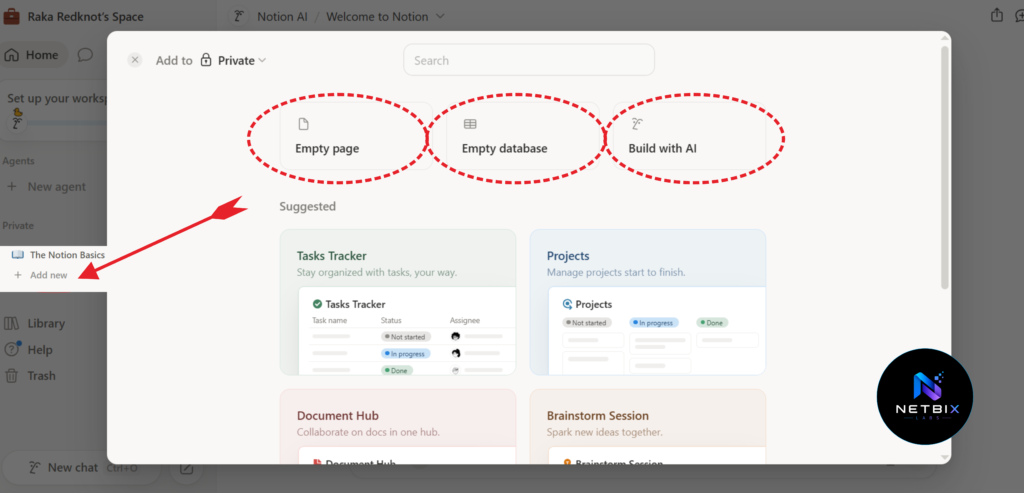
- In Notion’s left sidebar, click “+ Add a page” for each section.
- For Meetings, create it as a Database (Full page) rather than a regular page — this enables filtering, sorting, and AI Q&A by date, attendee, or project tag.
- For Projects, create each project page using a consistent template. Click into a project page, then use “+ New template” to define a default sub-structure: Overview, Goals, Tasks (linked database), Meeting Notes (filtered view), and Status.
Expected result: A clean four-section workspace structure that gives Notion AI a consistent, organized content environment to work within — and gives you a predictable place to find everything without searching.
Step 2: Build Your Daily Dashboard with AI
Why it matters: A daily dashboard is the command center of your workflow — the page you open first every morning that shows you what matters today without requiring you to check five different places. Adding Notion AI to your dashboard means you can generate a daily briefing, review yesterday’s notes, and surface today’s priorities in under two minutes.
What to do:
- Open your Home page and build the following sections using Notion blocks:
Section 1 — Today’s Focus (manual) A simple bulleted list where you write your top three priorities for the day. Keep it manual — the act of writing these three things is itself a useful cognitive exercise.
Section 2 — Task Database View (linked)
- Create a Tasks database if you do not have one (Database → Inline → add properties: Task Name, Status, Due Date, Project, Priority).
- On your Home page, create a linked database view filtered to show only tasks Due = Today and Status ≠ Done.
- This gives you a live view of today’s tasks directly on your dashboard without duplicating data.
Section 3 — AI Daily Briefing (generated)
- Add a text block labeled “Daily Briefing.”
- Each morning, click into this block, type /ai, and select “Summarize” — then reference your Meetings database for yesterday.
- Or use the prompt: “Summarize my open tasks and any meeting notes from the past 48 hours. List the top three things I should focus on today.”
- This takes 30 seconds and gives you a synthesized view of where things stand.
Expected result: A Home page dashboard that shows your top three priorities, today’s task list, and an AI-generated daily briefing — all in a single page that takes under two minutes to review and update each morning.
Step 3: Set Up AI-Powered Meeting Notes
Why it matters: Meeting notes are the highest-value use case for Notion AI in a professional context. The average knowledge worker attends 10–15 meetings per week. Without a system, those meetings produce scattered notes that are rarely reviewed and almost never actioned systematically. Notion AI converts raw meeting notes into structured summaries and action item lists automatically — making every meeting more valuable without requiring more time.
What to do:
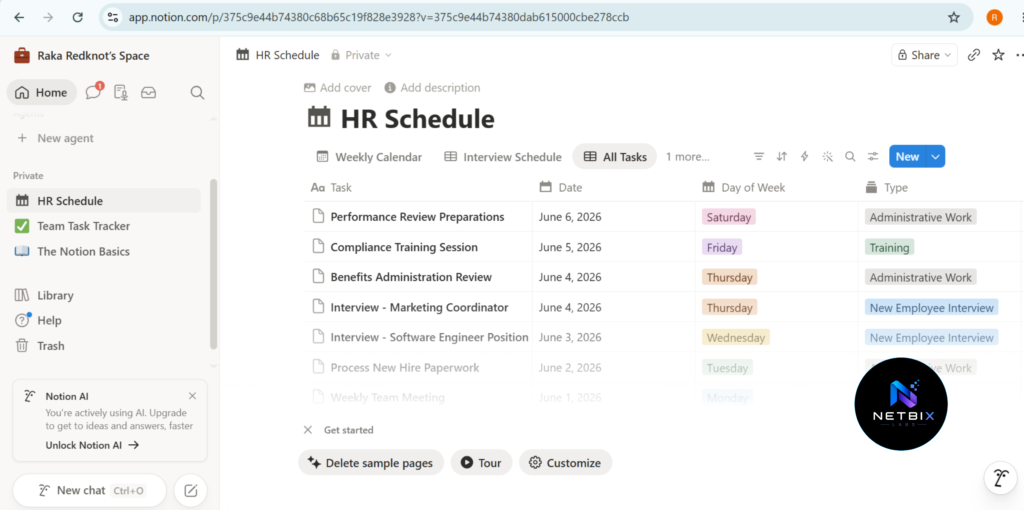
- In your Meetings database, create a template for all new meeting entries. Click “+ New template” and structure it as follows:
Meeting Title: [auto-filled from database]
Date: [date property]
Attendees: [multi-select property]
Project: [relation to Projects database]

## Raw Notes
[This is where you type or paste notes during the meeting]

## AI Summary
[Generated after the meeting]

## Action Items
[Generated after the meeting]
- During the meeting: type raw notes in the Raw Notes section without worrying about formatting or structure.
- After the meeting (takes 60 seconds):
- Click into the AI Summary section, type /ai, select “Summarize”, and select the Raw Notes block as the source.
- Click into the Action Items section, type /ai, select “Extract action items”, and select the Raw Notes block.
- Notion AI generates a clean summary and a bulleted action item list automatically.
- For action items that need to be tracked: select each item, use the /ai command to “Convert to task”, which creates a linked entry in your Tasks database.
Expected result: Every meeting produces a structured page with an AI-generated summary and action item list within 60 seconds of the meeting ending — and action items flow directly into your task database without manual re-entry.
Step 4: Build a Project Tracker with AI Autofill
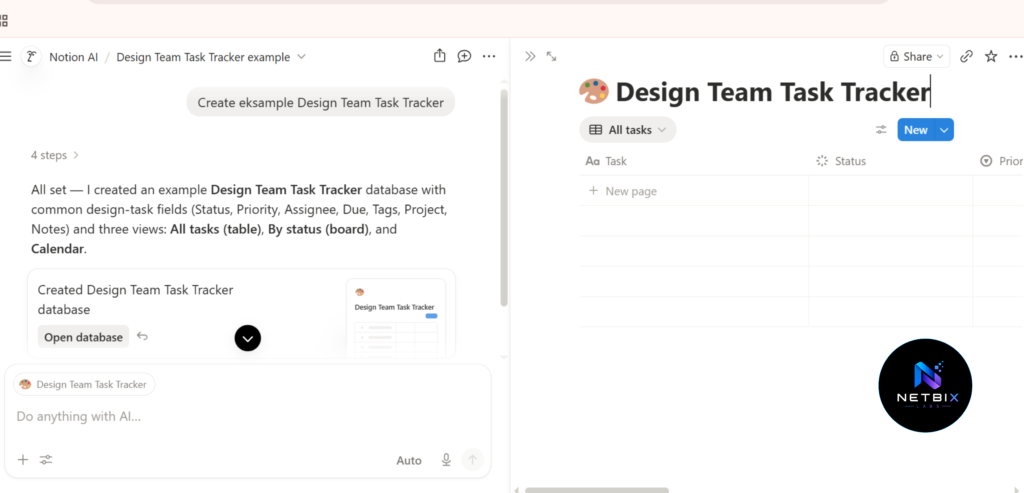
Why it matters: Project status updates are one of the most time-consuming pieces of administrative work in any professional role. Writing a project status update for a meeting requires reviewing your notes, consolidating progress, and summarizing it in a format that makes sense to stakeholders — a process that takes 10–20 minutes per project per week. Notion AI can generate this update from your existing project page content in under 30 seconds.
What to do:
- In your Projects database, add two new database properties:
- Status — Select property with options: Planning, In Progress, On Hold, Complete
- AI Status Summary — Text property (this will be AI-autofilled)
- Configure AI Autofill on the AI Status Summary property:
- Click the property settings gear → select “AI Autofill”
- Set the prompt: “Based on the content of this project page — including tasks, meeting notes, and goals — write a two-sentence project status update suitable for a leadership review. Include current progress and any blockers.”
- Set autofill to trigger “On demand” (you run it manually when needed) or “When page is updated”
- Each time you need a status update, open the Projects database, click “Autofill” on the AI Status Summary column, and Notion AI generates a current status for every project simultaneously — reading each project’s page content and producing a tailored two-sentence summary.
Expected result: A Projects database where every active project has a current, AI-generated status summary — produced on demand in under 60 seconds for your entire project portfolio, without any manual writing.
Step 5: Use Notion AI Q&A for Instant Workspace Search
Why it matters: The average professional spends 20% of their working week searching for information — in emails, documents, chat history, and meeting notes. Notion AI Q&A eliminates most of this search time by allowing you to ask questions about your workspace in plain language and receive direct answers with source references. It is the difference between searching through 200 pages and asking one question.
What to do:
- Access Notion AI Q&A by pressing Cmd+J (Mac) or Ctrl+J (Windows) from anywhere in Notion — this opens the AI assistant panel.
- Type a natural language question about your workspace content, for example:
- “What did we decide about the website redesign timeline?”
- “What are my open tasks this week?”
- “Summarize the last three meetings about the product launch.”
- “What blockers were mentioned in the Q3 planning meeting?”
- Notion AI searches your entire workspace, finds the relevant content, and returns a direct answer with a source link to the original page.
- For recurring questions, save your most useful prompts as a block on your Home page for one-click access each morning.
What to avoid: Notion AI Q&A works best when your workspace is well-structured and consistently updated. If your meeting notes are incomplete or your project pages have not been updated recently, Q&A answers will reflect those gaps. The system is as current as the information you put into it.
Expected result: The ability to find any piece of information in your workspace — decisions, action items, project context, meeting notes — by asking a plain-language question, with source references, in under 10 seconds.
| Task | Without Notion AI | With Notion AI | Time Saved |
|---|---|---|---|
| Meeting note processing | 45 min/week | 5 min/week | 40 min |
| Project status updates | 30 min/week | 3 min/week | 27 min |
| Information search | 90 min/week | 20 min/week | 70 min |
| Weekly review prep | 45 min/week | 8 min/week | 37 min |
| Total | 3.5 hours/week | 36 min/week | ~3 hours saved |
Video Tutorial: How to Set Up Your Notion AI Workspace
We have created a companion video tutorial that walks you through the complete Notion AI workspace setup covered in this guide — from building your sidebar structure and daily dashboard to configuring AI-powered meeting notes, setting up project tracker autofill, and using Notion AI Q&A for instant information retrieval. The video follows the same five-step sequence as this article, so you can watch and build simultaneously. You will find the full tutorial on our YouTube channel alongside other practical AI productivity guides for business professionals and teams.
How Businesses Use Notion AI
Startups
Early-stage teams use Notion AI as their entire operational backbone — replacing separate tools for project management, documentation, meeting notes, and team wikis with a single AI-powered workspace. Founders use AI Q&A to onboard new hires instantly (“Ask Notion AI anything about how we work”) rather than spending hours on manual knowledge transfer.
Agencies
Creative and digital agencies use Notion AI to manage client projects, generate status reports, and maintain client-facing wikis. Account managers use AI to summarize client meeting notes and generate briefing documents that are shared with creative teams — removing the manual translation layer between client conversations and internal briefs.
Marketing Teams
Marketing teams use Notion AI as a content operations hub — drafting campaign briefs, generating first drafts of copy, summarizing competitor research, and tracking campaign status across multiple projects. AI autofill on campaign databases generates status updates for weekly marketing reviews without manual writing.
HR Teams
HR departments use Notion AI to maintain employee handbooks, generate job description drafts, summarize interview feedback, and build onboarding wikis that new hires can query with plain-language questions. The AI Q&A capability is particularly valuable for HR knowledge bases — employees get instant answers to policy questions without HR being cc’d on every email.
Operations Teams
Operations leads use Notion AI to document SOPs, generate process change summaries, and track operational metrics in AI-enhanced databases. When a process changes, AI can update related documentation automatically based on the change description — reducing the documentation lag that creates confusion during transitions.
Creators and Solopreneurs
Independent professionals — coaches, consultants, writers, and freelancers — use Notion AI as their complete business operating system. Client project tracking, meeting notes, content planning, invoicing records, and personal knowledge management all coexist in a single AI-powered workspace that handles the administrative overhead so the professional can focus on client delivery.
Enterprise Workflows
Large organizations use Notion AI for departmental wikis, cross-team project coordination, and AI-assisted documentation management. Enterprise teams particularly value the AI Q&A capability for large knowledge bases — enabling employees to find policy information, project history, and decision context without navigating complex folder structures or waiting for someone to respond to a Slack message.
Best Practices for AI Productivity Tools
Build your workspace structure before activating AI features. Notion AI performs significantly better in an organized workspace. Establish your database structure, page hierarchy, and naming conventions first — then activate AI features on top of a system that already makes sense.
Use consistent naming and tagging across your databases. Notion AI Q&A relies on being able to find relevant content. Inconsistent naming (“Q3 Planning” vs “Q3 Strategy Meeting” vs “Planning — Q3”) creates retrieval gaps. Define a naming convention and stick to it across all databases.
Process meeting notes the same day. The value of AI-generated meeting summaries and action items depends on them being processed while the context is still fresh. Make it a habit to run the AI summary immediately after the meeting ends — it takes 60 seconds and prevents notes from becoming an unprocessed backlog.
Use AI for first drafts, not final outputs. Notion AI writing quality is strong, but all AI-generated content should be reviewed before being shared externally or used in important communications. Use AI to eliminate the blank page problem — then edit and refine the output.
Keep your Tasks database clean. Notion AI Q&A queries about open tasks work correctly only when your task database is up to date. Build a habit of marking tasks complete when done — this takes five seconds but keeps the AI’s responses accurate and trustworthy.
Do not try to automate everything at once. The most effective Notion AI setups are built incrementally — starting with the one or two use cases that would save the most time (usually meeting notes) and adding complexity over weeks as the core system becomes habit.
Common Mistakes When Setting Up Notion AI
Building a complex workspace before understanding the basics. Teams that try to build a comprehensive, perfectly structured Notion workspace in their first week create systems too complex to maintain. Start simple — four top-level sections, one database per major function — and expand as you understand your actual usage patterns.
Using Notion AI as a search engine instead of Q&A. Notion AI Q&A answers questions about your workspace content — it does not search the web. Asking it about industry trends, competitor information, or anything not in your workspace will produce low-quality or hallucinated responses. Keep Q&A questions focused on your own workspace content.
Neglecting to review AI-generated action items. AI extraction of action items is accurate for clear, explicit commitments (“John will send the proposal by Friday”) but less reliable for implicit or ambiguous ones. Always review extracted action items before adding them to your task database — especially for high-stakes commitments.
Creating too many databases that are not connected. Notion’s power comes from linked databases and relations. A workspace with ten separate, unlinked databases is harder to query with AI than a workspace with four well-connected ones. Build relations between your Tasks, Projects, and Meetings databases early.
Not updating Notion AI’s context regularly. AI Q&A answers are only as current as your workspace content. If your project pages, meeting notes, and task databases are not updated regularly, Q&A responses will be outdated. The system works best when updating it is part of your daily workflow — not a periodic catch-up.
FAQ
What is Notion AI and what can it do? Notion AI is an AI assistant built directly into Notion’s workspace platform. It can write, edit, summarize, and translate text on any page; extract action items from meeting notes; answer questions about your workspace content in plain language; autofill database properties based on page content; and generate structured documents from simple prompts. Unlike external AI tools, Notion AI operates on your existing workspace content — making it a genuinely integrated productivity tool rather than a separate writing assistant.
How much does Notion AI cost? Notion AI is available as an add-on to any Notion plan, including the free tier, at $10 per member per month (billed annually) or $12 per member per month (billed monthly). This covers unlimited AI usage within your workspace. Notion’s base plans start at free (personal use) and range to $15–$20 per member per month for business plans — so the total cost for a professional with Notion AI is approximately $25–$30 per member per month.
Is Notion AI good for team collaboration? Yes — Notion is fundamentally a collaborative platform, and Notion AI works across shared workspaces. Team members can access AI features on shared pages, query a shared knowledge base using AI Q&A, and use AI-generated summaries and action items from team meeting notes. The most impactful collaborative use case is a shared meetings database where AI-processed notes are accessible to all relevant team members immediately after the meeting.
Can Notion AI replace a dedicated project management tool like Asana or Monday.com? For most small to mid-size teams, yes — Notion’s database and project tracking capabilities, combined with AI autofill for status updates, cover the core project management requirements that simpler operations need. For enterprise-scale project management with complex dependency tracking, resource management, and portfolio-level reporting, dedicated PM tools still offer deeper functionality. The decision usually comes down to whether your team values having everything in one AI-powered workspace (Notion) over specialized PM features (Asana, Monday.com).
How does Notion AI Q&A work? Notion AI Q&A uses AI to search your workspace content and generate a direct answer to your plain-language question, with source references to the pages it drew from. It works best on structured, well-organized workspace content — databases, consistently formatted pages, and regularly updated documentation. It does not search the internet, only your Notion workspace. Access it via Cmd+J (Mac) or Ctrl+J (Windows) from anywhere in Notion.
What is the best way to start with Notion AI if I am new to Notion? The most practical starting point is the meeting notes use case. Create a simple Meetings database with a template that includes a Raw Notes section and an AI Summary section. In your next meeting, take notes in the Raw Notes section. Immediately after the meeting, use Notion AI to summarize the notes and extract action items. This single workflow demonstrates the core value of Notion AI in a context directly relevant to your daily work — and from there, expanding to tasks, projects, and daily dashboards becomes much more intuitive.
Alternative AI Workspace Tools
Obsidian with AI Plugins
What it does: Obsidian is a local-first note-taking and knowledge management tool that stores all notes as plain text Markdown files on your device. With AI plugins (like Smart Connections or Text Generator), it adds AI summarization, linking suggestions, and writing assistance — all running locally without cloud dependency.
When it’s better: When data privacy is a primary concern and you prefer your workspace to live entirely on your device rather than in the cloud. Obsidian’s local-first architecture means no content is sent to external servers. It is also the better choice for personal knowledge management with complex linking between ideas.
Who should use it: Researchers, writers, privacy-conscious professionals, and individuals who prioritize deep knowledge management over team collaboration.
Website: https://obsidian.md
Coda AI
What it does: Coda is a document-database hybrid platform — similar to Notion but with more powerful formula and automation capabilities. Coda AI adds writing assistance, document summarization, and AI-powered table actions directly inside Coda documents and databases.
When it’s better: When your team’s work is heavily data-driven and you need more sophisticated formula logic, conditional automations, and cross-document data connections than Notion provides. Coda’s formula system is significantly more powerful than Notion’s for complex calculations and automation triggers.
Who should use it: Operations teams with complex data workflows, product teams building internal tools, and organizations needing more powerful automation logic than Notion offers.
Website: https://coda.io
Microsoft Copilot in Microsoft 365
What it does: Microsoft Copilot is AI built into Microsoft 365 — Word, Excel, PowerPoint, Teams, Outlook, and OneNote. It drafts documents, summarizes email threads, generates presentations from prompts, and analyzes data in Excel — all within the Microsoft ecosystem.
When it’s better: When your organization is standardized on Microsoft 365 and your work primarily happens in Word, Excel, and Teams. Copilot’s integration with Outlook email and Teams meeting transcriptions makes it particularly powerful for professionals whose primary communication and collaboration tools are Microsoft products.
Who should use it: Enterprise professionals and corporate teams whose entire workflow is built on Microsoft 365, particularly those who need AI assistance directly within Word documents, Excel models, and Teams conversations.
Website: https://copilot.microsoft.com
ClickUp AI
What it does: ClickUp is a comprehensive project management platform with built-in AI that writes task descriptions, summarizes project updates, generates status reports, and drafts communications — directly inside ClickUp’s task and project management environment.
When it’s better: When your primary need is project and task management rather than knowledge management, and you want AI features integrated into a dedicated PM tool rather than a general-purpose workspace. ClickUp’s AI is strongest in the project execution context — generating subtasks, estimating time, and summarizing project threads.
Who should use it: Project managers, team leads, and organizations that need dedicated project management capability with AI assistance, and prefer a purpose-built PM tool over a flexible workspace like Notion.
Website: https://clickup.com
Key Takeaways
- Notion AI is most valuable as a friction reducer — it does not replace your workflow system, it removes the maintenance cost that causes most productivity systems to break down over time.
- The five highest-impact daily use cases are: AI-generated meeting summaries, action item extraction, daily briefing generation, project status autofill, and AI Q&A for instant information retrieval.
- A functional ai workspace in Notion can be built in 90 minutes and delivers time savings from the first day of use — particularly for meeting-heavy professionals.
- Notion AI Q&A is the feature most users underutilize. The ability to ask plain-language questions about your entire workspace replaces manual searching and produces answers with source references in under 10 seconds.
- Workspace structure quality directly affects AI output quality — organize first, automate second.
- The best Notion AI implementations are built incrementally — one use case at a time — rather than comprehensively redesigned all at once.
Conclusion
Notion AI represents a meaningful shift in what a personal or team workspace can do. The traditional value of a tool like Notion was storage and organization — a place to put your work so it did not get lost. With AI, that value extends to processing — the system actively helps you turn information into action, notes into summaries, and databases into status reports.
The workflow management AI system built in this guide — a structured workspace, an AI-powered daily dashboard, meeting notes that process themselves, a project tracker that updates itself, and a workspace you can query in plain language — is not a theoretical productivity framework. It is a practical daily system that reduces the administrative overhead of professional work by two to three hours per week for most users.
The setup takes 90 minutes. The return begins on day one.
Start with your meetings database. Build the template. Process your next meeting with AI. From there, the rest of the system follows naturally.